How to Render Web Page into Django
Django provides a structured way to connect a web page with Python-based application logic. To display an HTML page through Django, you generally need a project, an application, a URL configuration, a view, and a template. Once these components are connected, Django can process a browser request and return the required HTML page.
This guide explains the complete process of displaying a web page in Django, beginning with project creation and continuing through application setup, URL configuration, views, templates, and the development server.
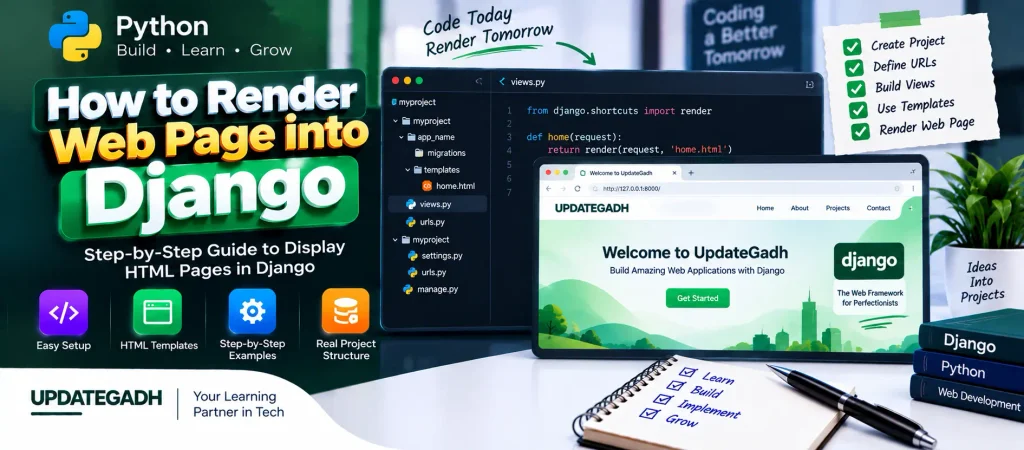
1. Set Up a Django Project
Install Django
First, Django needs to be installed in the Python environment. Open your terminal or command prompt and execute:
pip install djangoAfter Django has been installed, create a new project using the Django project command.
Create a Django Project
django-admin startproject project_name
cd project_name
The first command generates the basic Django project structure, while the second command moves the terminal into the newly created project directory.
2. Create a Django App
A Django project can contain one or more applications. An app is used to organize a particular part of the project’s functionality.
Create an App
From the project directory, run:
python manage.py startapp app_nameThis creates an application folder containing files such as views.py, models.py, and other Django-related components.
Register the App in settings.py
After creating the app, open project_name/settings.py. Add the application name to the INSTALLED_APPS list:
INSTALLED_APPS = [
    ...
    'app_name',
]
This tells Django that the newly created application is part of the project.
3. Define a URL
Django uses URL patterns to determine which view should handle a particular browser request. The app can have its own URL configuration, which can then be connected to the project’s main URL file.
Create app_name/urls.py
If the application does not already contain a urls.py file, create one inside the app directory and add:
from django.urls import path
from . import views

urlpatterns = [
    path('', views.home, name='home'),
]
The empty path represents the application’s root URL and connects that request with the home view.
Connect the App URLs with the Project
Next, open project_name/urls.py and include the application’s URL configuration:
from django.contrib import admin
from django.urls import path, include

urlpatterns = [
    path('admin/', admin.site.urls),
    path('', include('app_name.urls')),
]
The include() function allows Django to use the URL patterns defined inside the application.
4. Create a View
The view handles the request received from the browser. In this example, the view will render an HTML template named home.html.
Open app_name/views.py and add:
from django.shortcuts import render

def home(request):
    return render(request, 'home.html')
Here, the render() function connects the request with the home.html template and returns the generated page.
5. Create a Template
The HTML page needs to be stored in a template directory so Django can locate it. In this example, a templates folder is created in the project root.
Configure the Templates Directory
Open settings.py and configure the TEMPLATES setting so that Django knows about the templates directory:
TEMPLATES = [
    {
        'BACKEND': 'django.template.backends.django.DjangoTemplates',
        'DIRS': [BASE_DIR / 'templates'],
        'APP_DIRS': True,
        ...
    },
]
Create home.html
Inside the templates folder, create a file named home.html. The following page provides a simple HTML interface with a header, main content, button, footer, CSS styling, and JavaScript interaction.
<!DOCTYPE html>
<html lang="en">
<head>
<meta charset="UTF-8">
<meta name="viewport" content="width=device-width, initial-scale=1.0">
<title>Welcome to upgategadh.com</title>
<style>
body {
font-family: Arial, sans-serif;
margin: 0;
padding: 0;
background: linear-gradient(to right, #4facfe, #00f2fe);
color: #333;
}
header {
background-color: #007bff;
color: white;
padding: 20px;
text-align: center;
}
main {
display: flex;
justify-content: center;
align-items: center;
height: 80vh;
text-align: center;
flex-direction: column;
}
h1 {
font-size: 3rem;
margin: 10px 0;
}
p {
font-size: 1.2rem;
}
button {
background-color: #28a745;
color: white;
border: none;
padding: 10px 20px;
margin-top: 20px;
font-size: 1rem;
border-radius: 5px;
cursor: pointer;
transition: all 0.3s;
}
button:hover {
background-color: #218838;
}
footer {
text-align: center;
padding: 10px;
background: #333;
color: white;
position: absolute;
bottom: 0;
width: 100%;
}
</style>
</head>
<body>
<header>
<h1>Welcome to upgategadh.com</h1>
</header>
<main>
<h1>Hello, World!</h1>
<p>Were glad to have you here. Explore our platform for amazing experiences.</p>
<button id="alertButton">Click Me!</button>
</main>
<footer>
© 2025 upgategadh.com. All rights reserved.
</footer>
<script>
document.getElementById('alertButton')
.addEventListener('click', function() {
alert('Welcome to upgategadh.com! Enjoy your visit.');
});
</script>
</body>
</html>This template combines HTML, CSS, and JavaScript into a single page. The button uses JavaScript to display a browser alert when it is clicked.
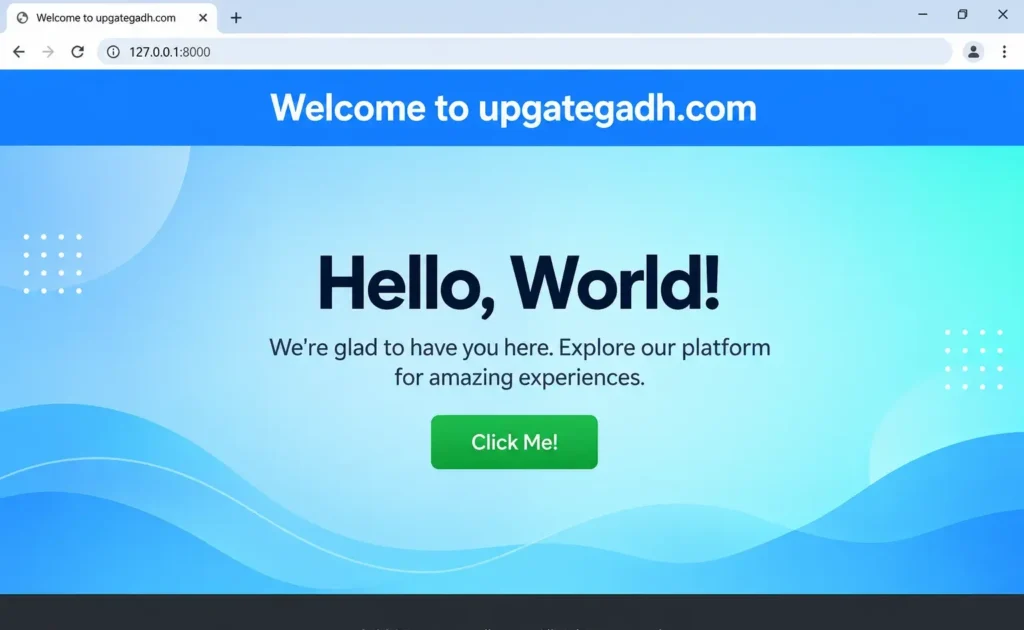
6. Run the Development Server
After completing the project, app, URL, view, and template configuration, start Django’s development server with:
python manage.py runserverDjango will start the development server, allowing the application to be opened in a browser and the configured web page to be rendered.
Create a Virtual Environment
Using a virtual environment is useful for keeping project dependencies separated from other Python projects. If a virtual environment has not already been created, run:
python -m venv venvHere, venv is simply the name of the environment directory. You can choose another name if required.
Activate the Virtual Environment
Windows Command Prompt
venvScriptsactivateWindows PowerShell
.venvScriptsActivateWindows Git Bash
source venv/Scripts/activatemacOS/Linux
source venv/bin/activateComplete Advance AI Topics: Click Here
SQL Tutorial: Click Here
YT:- DecodeIT
Verify Activation
After activation, the environment name should normally appear in the terminal prompt. For example:
(venv) $You can also check which Python executable is being used:
which python  # On macOS/Linux
where python  # On Windows
The displayed location should point toward the Python executable associated with the virtual environment.
Deactivate the Virtual Environment
When the project work is finished, the environment can be exited with:
deactivateConclusion
Rendering an HTML page in Django requires several connected components. The project provides the overall structure, the app contains application-specific code, URL patterns direct requests to views, the view calls the template, and the template contains the HTML that is returned to the browser.
Once this basic workflow is understood, you can use the same structure to create larger Django applications with multiple pages, templates, forms, and dynamic content.
Keywords: How to Render web page into Django, render HTML page in Django, Django render template, Django views and templates, Django URL configuration, Django templates,How to Render Web Page into Django, Python Django tutorial, Django web page rendering,How to Render Web Page into Django, Django render web page, Django render HTML template, Django render template, Django HTML page, Django templates, Django views, Django URL configuration, Django project setup, Django app creation, Django template directory, Django home page, Django HTML template example, Django web page example, Django Python tutorial, Django render function, Django URL routing, Django virtual environment, Django runserver, Python Django web development, Django beginner tutorial, Django website development, render HTML in Django, Django template settings, Django development server,How to Render Web Page into Django,Web Page into Django