Tkinter Toplevel
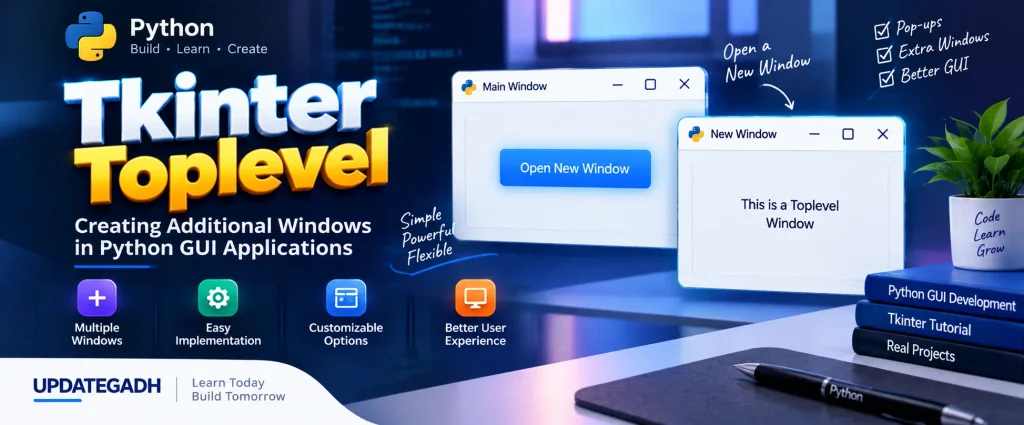
When developing graphical user interfaces with Python, applications sometimes need more than one window. A main application window may need to open another window for additional information, settings, forms, notifications, or other related content. In Tkinter, the Toplevel widget provides a convenient way to create these additional windows.
The Toplevel widget creates an independent window that is managed by the operating system’s window manager. It can be associated with a parent window, while still behaving as a separate window. This makes it useful when an application needs to display extra content without replacing the main interface.
Toplevel windows can contain other Tkinter widgets and normally include standard operating-system window elements such as a title bar, border, and window decorations. Developers can also configure their size, title, state, position, and resizing behavior.
Complete Advance AI Topics: Click Here
SQL Tutorial: Click Here
What is Toplevel in Tkinter?
Toplevel is a Tkinter widget used to create an additional window within a Python GUI application. Unlike widgets such as Label or Button, which are placed inside an existing window, Toplevel creates a separate window that can be managed independently.
For example, a main application can contain an Open button. When the user clicks it, the program can create a Toplevel window containing additional information or controls. This keeps the main interface available while the new window is displayed.
Toplevel can therefore be useful for creating pop-up windows, separate information screens, additional forms, and other groups of related widgets that need their own window.
Syntax
The basic syntax for creating a Toplevel window is:
w = Toplevel(options)The options parameter can contain configuration settings used to control the appearance and behavior of the new window.
Tkinter Toplevel Options
The Toplevel widget provides different options for configuring its appearance and basic window properties.
| SN | Option | Description |
|---|---|---|
| 1 | bg | Sets the background color of the window. |
| 2 | bd | Defines the border size of the window. |
| 3 | cursor | Specifies the mouse pointer that appears when it is positioned over the window. |
| 4 | class_ | Controls whether selected text is exported to the window manager. Setting it to 0 disables this behavior. |
| 5 | font | Defines the font used for text associated with the widget. |
| 6 | fg | Specifies the foreground color. |
| 7 | height | Sets the height of the window. |
| 8 | relief | Defines the border style of the window. |
| 9 | width | Specifies the width of the window. |
Methods in Tkinter Toplevel
Along with configuration options, Toplevel provides several methods for controlling the state, size, position, and other characteristics of an additional window.
| SN | Method | Description |
|---|---|---|
| 1 | deiconify() | Displays the window when it has previously been minimized or withdrawn. |
| 2 | frame() | Returns a system-dependent identifier for the window. |
| 3 | group(window) | Adds the current window to a specified window group. |
| 4 | iconify() | Minimizes the window. |
| 5 | protocol(name, function) | Associates a function with a particular window protocol event. |
| 6 | state() | Returns the current state of the window, such as normal, iconic, or withdrawn. |
| 7 | transient([master]) | Sets the window as a temporary or transient window associated with another window. |
| 8 | withdraw() | Hides the window without destroying it. |
| 9 | maxsize(width, height) | Sets the maximum dimensions allowed for the window. |
| 10 | minsize(width, height) | Sets the minimum dimensions allowed for the window. |
| 11 | positionfrom(who) | Specifies the controller used for determining the window’s positioning. |
| 12 | resizable(width, height) | Controls whether the window can be resized horizontally and vertically. |
| 13 | sizefrom(who) | Specifies the controller responsible for determining the window size. |
| 14 | title(string) | Sets the title displayed in the window’s title bar. |
Example: Creating a New Window Using Toplevel
The following example demonstrates how to create an additional window using the Toplevel widget. The main window contains an Open button. Clicking the button creates a new window and assigns it a title and specific dimensions.
from tkinter import *

root = Tk()
root.geometry("200x200")

def open_window():
    new_window = Toplevel(root)
    new_window.title("New Window")
    new_window.geometry("150x150")

btn = Button(root, text="Open", command=open_window)
btn.place(x=75, y=50)

root.mainloop()
How the Example Works
The program first creates the main Tkinter window using Tk() and gives it a size of 200x200. The open_window() function is then defined to create the additional window.
Inside this function, Toplevel(root) creates a new window associated with the main application window. The title() method sets its title to New Window, while geometry() defines its dimensions as 150x150.
The Button widget is connected to the open_window function through the command option. Therefore, every time the user clicks the button, the additional Toplevel window is opened.
Output
Initially, the application displays the main window with an Open button. After clicking the button, a separate pop-up window appears with the title New Window and the specified dimensions.
This simple structure demonstrates how Toplevel can be used to create additional windows without closing or replacing the main application window.
Download New Real Time Projects :- Click here
Frequently Asked Questions (FAQ)
1. What is Toplevel in Tkinter?
Toplevel is a Tkinter widget used to create a separate window within a Python GUI application. It can be used for pop-ups, additional information, forms, and other independent interface sections.
2. What is the syntax of Toplevel?
The basic syntax is Toplevel(options). Options can be supplied to configure the new window.
3. How do I create a new window in Tkinter?
You can create an additional window by using Toplevel(). For example, new_window = Toplevel(root) creates a new window associated with the main root window.
4. How can I set the title of a Toplevel window?
The title() method is used to specify the text displayed in the window title bar.
5. How can I set the size of a Toplevel window?
The geometry() method can be used to specify the dimensions of the window, such as geometry("150x150").
6. What does withdraw() do in Toplevel?
The withdraw() method hides the Toplevel window without destroying it. The window can later be displayed again.
7. How can a Toplevel window be minimized?
The iconify() method minimizes the window. The deiconify() method can be used to display it again.
8. Can a Toplevel window be resized?
Yes. The resizable(width, height) method controls whether the window can be resized in the horizontal and vertical directions.
9. What is the use of transient() in Tkinter?
The transient() method makes a Toplevel window a temporary window associated with another window.
Conclusion
The Tkinter Toplevel widget provides a straightforward way to manage multiple windows within a Python GUI application. It allows developers to create separate windows for pop-ups, additional information, settings, forms, and other related content.
With methods such as title(), geometry(), iconify(), deiconify(), withdraw(), resizable(), minsize(), and maxsize(), developers can control important aspects of these additional windows.
Understanding Toplevel is useful when building Tkinter applications that need more than one interface window. By combining Toplevel with other Tkinter widgets, developers can create organized and interactive multi-window applications.
Keywords: tkinter toplevel documentation, toplevel tkinter example, tkinter toplevel position, tkinter toplevel always on top, tkinter toplevel modal, tkinter in python, tkinter toplevel geometry, tkinter in python w3schools, tkinter toplevel in python example