Python Tkinter Scale
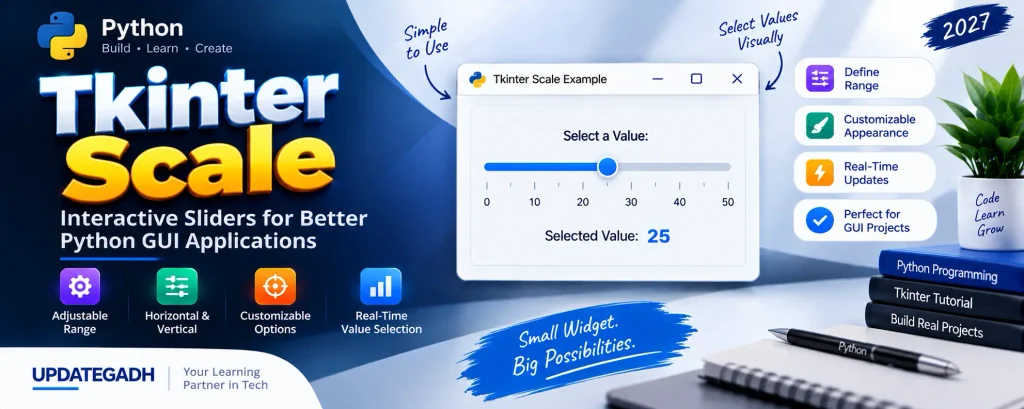
When a Python GUI application requires users to choose a numerical value from a specific range, entering the value manually is not always the most convenient approach. Tkinter provides the Scale widget for this purpose. It creates a graphical slider that allows users to select a value by moving a slider along a defined range.
The Python Tkinter Scale widget is useful when an application needs adjustable numerical input. Developers can define the minimum and maximum values, specify how much the value should change, choose the slider orientation, and control how the selected value is displayed.
Scale widgets can be used for interfaces such as volume controls, brightness settings, numerical selections, and other situations where users need an easy way to adjust a value.
Complete Advance AI Topics: Click Here
SQL Tutorial: Click Here
What is Tkinter Scale?
The Scale widget in Tkinter provides an interactive slider for selecting a number from a defined range. Instead of typing a value into an Entry widget, the user can move the slider to reach the required value.
A Scale can be displayed horizontally or vertically. It can also be configured with labels, tick marks, a specific resolution, and a callback function that responds when the slider position changes.
This makes the widget a practical choice for applications where numerical values need to be selected quickly and interactively.
Syntax
The basic syntax for creating a Tkinter Scale widget is:
w = Scale(parent, options)Here, parent represents the root window or another container in which the Scale will be placed. The options parameter contains the properties used to customize the widget.
Tkinter Scale Widget Options
Tkinter provides several options for configuring the Scale widget. These options control its appearance, range, orientation, displayed values, slider behavior, and interaction.
| SN | Option | Description |
|---|---|---|
| 1 | activebackground | Sets the background color when the widget is active or has focus. |
| 2 | bg | Defines the background color of the Scale widget. |
| 3 | bd | Specifies the border size. The default value is 2 pixels. |
| 4 | command | Specifies a function that is called whenever the slider position changes. |
| 5 | cursor | Changes the type of mouse cursor displayed over the widget, such as arrow or dot. |
| 6 | digits | Specifies the number of digits used when converting the value to a string. |
| 7 | font | Defines the font used for text associated with the widget. |
| 8 | fg | Sets the foreground or text color. |
| 9 | from_ | Defines the starting value of the Scale range. |
| 10 | highlightbackground | Specifies the highlight color when the widget does not have focus. |
| 11 | highlightcolor | Sets the highlight color when the widget has focus. |
| 12 | label | Displays a text label along with the Scale. |
| 13 | length | Defines the length of the Scale widget. |
| 14 | orient | Sets the direction of the Scale to HORIZONTAL or VERTICAL. |
| 15 | relief | Controls the border style. The default value is FLAT. |
| 16 | repeatdelay | Specifies the delay before repeated slider movement begins. The default is 300 milliseconds. |
| 17 | resolution | Determines the smallest change that can be made to the selected value. |
| 18 | showvalue | Controls whether the currently selected value is displayed. Setting it to 0 hides the value. |
| 19 | sliderlength | Defines the length of the slider. The default value is 30 pixels. |
| 20 | state | Controls the state of the widget, such as ACTIVE or DISABLED. |
| 21 | takefocus | Controls whether the widget participates in focus cycling. A value of 0 disables it. |
| 22 | tickinterval | Displays tick marks at the specified intervals. |
| 23 | to | Defines the ending value of the Scale range. |
| 24 | troughcolor | Sets the color of the Scale widget’s trough. |
| 25 | variable | Associates a Tkinter variable with the Scale widget. |
| 26 | width | Defines the width of the Scale trough. |
Tkinter Scale Widget Methods
The Scale widget provides methods that allow developers to retrieve its current value or change that value programmatically.
| SN | Method | Description |
|---|---|---|
| 1 | get() | Retrieves the current value selected on the Scale. |
| 2 | set(value) | Sets the Scale value programmatically. |
Example: Implementing a Scale Widget in Tkinter
The following example creates a horizontal Scale ranging from 1 to 50. A button is provided to retrieve the selected value, and the result is then displayed using a Label.
from tkinter import *

def select():
    sel = "Value = " + str(v.get())
    label.config(text=sel)

top = Tk()
top.geometry("200x100")

v = DoubleVar()

scale = Scale(
    top,
    variable=v,
    from_=1,
    to=50,
    orient=HORIZONTAL
)
scale.pack(anchor=CENTER)

btn = Button(top, text="Get Value", command=select)
btn.pack(anchor=CENTER)

label = Label(top)
label.pack()

top.mainloop()
How the Example Works
The program first creates the main Tkinter window and assigns it a size of 200x100. A DoubleVar named v is then created to store the value selected through the Scale widget.
The Scale is configured with from_=1 and to=50, which establishes the selectable range. The orient=HORIZONTAL option makes the slider horizontal.
The Get Value button calls the select() function. Inside this function, v.get() retrieves the current Scale value. The value is converted into text and displayed through the Label using label.config().
Output
The program displays a Tkinter window containing a horizontal slider with a range from 1 to 50. After moving the slider, clicking the Get Value button displays the selected value below the button.
Download New Real Time Projects :- Click here
Frequently Asked Questions (FAQ)
1. What is the Scale widget in Tkinter?
The Scale widget is a graphical slider that allows users to select a numerical value from a predefined range.
2. What is the syntax of Tkinter Scale?
The basic syntax is Scale(parent, options), where the parent identifies the containing widget and the options configure the Scale.
3. How do I define the range of a Scale?
The from_ option specifies the starting value and the to option defines the ending value. For example, from_=1, to=50 creates a range from 1 to 50.
4. Can a Tkinter Scale be horizontal or vertical?
Yes. The orient option controls the direction. It can be set to HORIZONTAL or VERTICAL.
5. How can I get the current Scale value?
The get() method retrieves the current value selected by the user.
6. How can I set a Scale value using Python?
The set(value) method can be used to assign a value to the Scale programmatically.
7. What is the use of the resolution option?
The resolution option specifies the smallest amount by which the Scale value can change.
8. What does the command option do?
The command option associates a callback function with the Scale. The function is called when the slider is moved.
9. How can I hide the selected value?
The showvalue option controls whether the current value is displayed. Setting showvalue=0 hides it.
10. What is the use of tickinterval?
The tickinterval option displays tick marks at specified intervals along the Scale.
Conclusion
The Python Tkinter Scale widget provides an intuitive way to let users select numerical values from a defined range. Instead of depending entirely on manual text input, applications can use a slider that makes numerical selection more interactive.
With options such as from_, to, resolution, orient, label, tickinterval, and showvalue, developers can customize the widget according to the requirements of their GUI application.
The get() and set() methods also make it possible to read or change the selected value through Python code. By combining the Scale widget with callback functions and other Tkinter components, developers can create smooth and interactive interfaces for adjustable numerical input.
For applications involving values such as volume, brightness, ranges, or other numerical selections, Tkinter Scale is a useful and flexible GUI component.
Keywords: tkinter scale command example, tkinter scale documentation, tkinter scale style, tkinter scale get value, tkinter scale resolution, tkinter scale float, tkinter slider command, tkinter scale bind, python tkinter scale widget example, python tkinter scale widget github, python tkinter scale, python tkinter scale image, python tkinter scale get value, python tkinter scale up dpi, python tkinter scale command, python tkinter scale window, python tkinter scale default value, python tkinter scale label