Getting Started with Python and Setting Up Your Development Environment
Learning a programming language becomes much easier when your computer is properly prepared from the beginning. Python is widely used for web development, automation, data analysis, artificial intelligence, machine learning, scripting, and many other areas. However, before creating programs, you need a working Python installation and a suitable code editor.
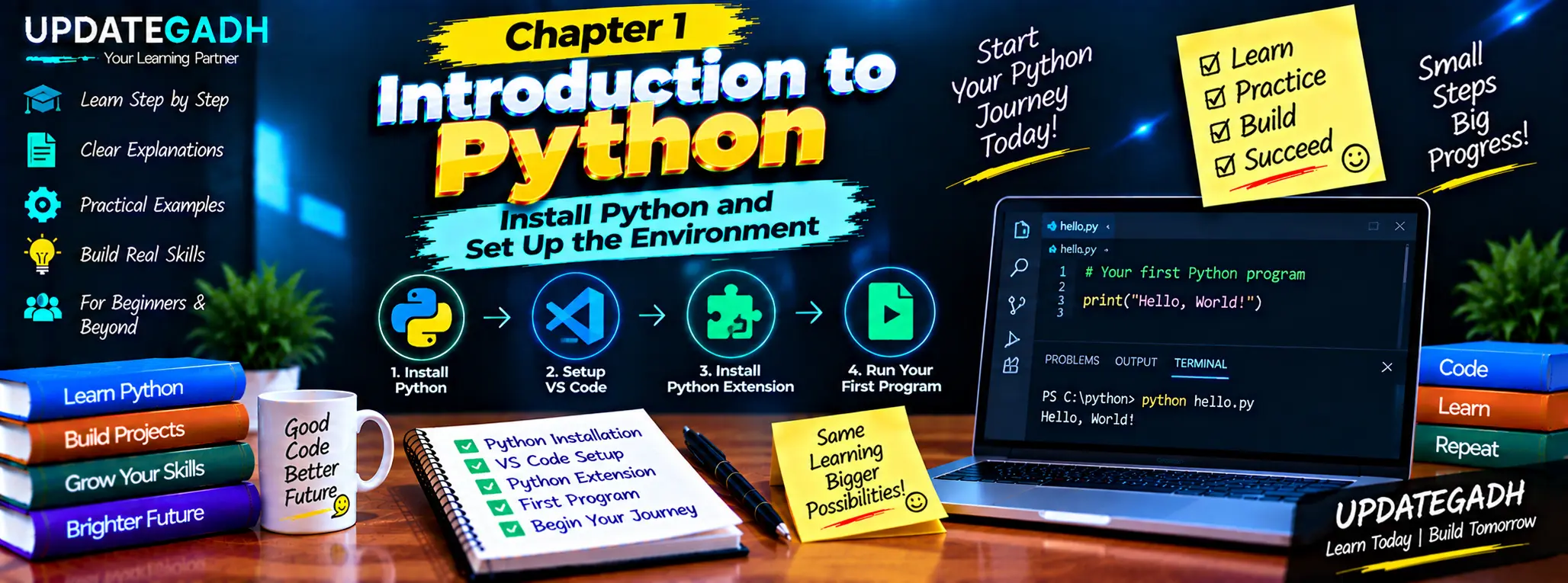
This chapter introduces the first steps of learning Python. You will learn how to install Python, check whether it is working correctly, configure Visual Studio Code, enable Python support, and execute your first program. The goal is to create a simple and reliable environment that you can continue using throughout your Python learning journey.
Why Start with Python?
Python is designed with readable syntax, which makes it approachable for beginners. Instead of dealing with complicated syntax for every small operation, Python allows you to express many programming tasks using relatively simple statements.
Python is also useful beyond beginner exercises. The same language can be used to create websites, process files, work with databases, build automation scripts, analyze datasets, and develop AI applications. Because of this flexibility, learning the fundamentals provides a strong base for later programming projects.
Step 1: Download and Install Python
The first requirement is a working Python interpreter. Python can be installed on Windows, macOS, and Linux. The installation process may look slightly different depending on the operating system, but the main objective is the same: make Python available from your computer’s command line.
On Windows, download the appropriate Python installer and start the installation process. During setup, pay close attention to the option that adds Python to the system PATH. Enabling this option makes it easier to execute Python commands directly from Command Prompt or PowerShell.
After selecting the required installation option, continue with the standard installation process. Once installation finishes, Python should be available on your system.
Step 2: Check the Python Installation
Installing Python is not enough; it is useful to verify that the command-line tools can actually find it.
Open Command Prompt or PowerShell and enter:
python --versionIf your system recognizes the command, it should display the installed Python version.
On some systems, the Python launcher can also be used:
py --versionIf a version number appears, the installation is responding correctly. If the command is not recognized, Python may not have been added to PATH correctly, or the installation may need to be checked again.
Step 3: Install Visual Studio Code
Python programs can technically be written in a simple text editor, but a dedicated development environment makes programming much more convenient. Visual Studio Code, commonly called VS Code, provides useful features such as syntax highlighting, code completion, debugging, integrated terminal support, and extensions.
Install VS Code on your computer and launch it after the installation is complete. You can then create a dedicated folder for your Python practice programs.
Step 4: Add Python Support to VS Code
VS Code becomes more useful for Python development after installing the Python extension. Open the Extensions section in VS Code and search for the Python extension.
Install the appropriate Python extension and allow VS Code to finish configuring it. After installation, VS Code can provide Python-specific functionality such as code suggestions, error detection, debugging support, and interpreter selection.
Step 5: Select the Python Interpreter
A computer can contain multiple Python versions or virtual environments. VS Code therefore needs to know which Python interpreter should execute your program.
Open the Command Palette in VS Code and search for the Python interpreter selection option. Choose the Python installation you want to use for your current project.
Selecting the correct interpreter is important because a program may work in one Python environment but fail in another when required packages are missing.
Step 6: Create Your First Python Program
Now create a new file inside your project folder and save it with the .py extension. For example:
first_program.pyAdd the following statement:
print("Hello, Python!")Save the file and run it through VS Code or the integrated terminal.
You can also execute the program from the terminal by navigating to the folder containing the file and entering:
python first_program.pyThe terminal should display:
Hello, Python!This small program confirms that your Python interpreter, source file, editor, and execution process are working together.
Understanding the Python Development Workflow
A simple Python workflow usually follows a few basic stages. First, you create or open a project folder. Next, you write your Python code inside a .py file. The interpreter then reads the instructions and executes them. If the program produces an error, you inspect the message, modify the code, and run it again.
This process will become familiar as you work through more advanced topics. Variables, conditions, loops, functions, classes, modules, and external libraries all follow the same general cycle of writing, running, testing, and improving code.
Using pip for Python Packages
Python includes a package-management tool called pip. It allows developers to install additional libraries that are not included in the standard Python installation.
For example, a package can generally be installed using:
pip install package_nameAs your learning progresses, you may use pip to install libraries for web development, data analysis, machine learning, image processing, automation, and other tasks.
Common Setup Problems
Beginners may encounter a few common issues while preparing their Python environment. One frequent problem occurs when the terminal cannot recognize the python command. This usually means the Python installation is not correctly available through PATH, or another configuration issue is preventing the command from being found.
Another common issue is selecting the wrong interpreter inside VS Code. If installed packages are not detected or the program behaves differently from the terminal, check which Python interpreter VS Code is currently using.
It is also important to save Python files with the correct .py extension. A file saved with an incorrect extension may not receive the expected Python features in the editor.
Practice Tasks
Once the environment is ready, try a few simple exercises before moving to advanced concepts.
- Create a program that prints your name.
- Display your college or course name using
print(). - Print three different messages on separate lines.
- Create a program that displays a simple welcome message for your Python course.
- Modify your first program so that it prints multiple lines of output.
These exercises may look basic, but they help you become comfortable with creating files, saving programs, running commands, and reading terminal output.
Why Proper Setup Matters
A correctly configured environment saves time later. When Python, VS Code, the interpreter, and required packages are properly connected, you can focus on programming instead of repeatedly troubleshooting basic configuration problems.
A good development setup also makes it easier to organize projects. Keeping related files inside dedicated folders helps maintain clean project structures and makes future development more manageable.
Conclusion
Setting up Python is the starting point for the entire learning journey. In this chapter, you prepared the basic development environment, verified the Python installation, configured VS Code, selected an interpreter, created a Python file, and executed your first program.
From here, the learning process becomes more practical. The next chapters can build on this environment by introducing variables, data types, operators, conditions, loops, functions, data structures, and object-oriented programming. With the setup completed correctly, you now have a foundation for experimenting with Python and developing increasingly useful programs.
Complete Advance AI Topics: Click Here
SQL Tutorial: Click Here
YT:- DecodeIT
FAQs
1. What is Python?
Python is a general-purpose programming language used for applications such as web development, automation, data analysis, and artificial intelligence.
2. How can I check whether Python is installed?
Open a terminal and run python --version or, on supported Windows systems, py --version.
3. Why is VS Code useful for Python?
VS Code provides features such as syntax highlighting, debugging, code completion, extensions, and an integrated terminal.
4. What extension is required for Python in VS Code?
You should install the Python extension available through the VS Code Extensions marketplace.
5. What is a Python file extension?
Python source files normally use the .py extension.
6. What does the print() function do?
The print() function displays text or other values in the program’s output.
7. What is pip used for?
pip is used to install and manage additional Python packages and libraries.
8. Why should I select the correct interpreter in VS Code?
The selected interpreter determines which Python installation or environment executes your program and which installed packages are available.
Keywords: Chapter 1 Introduction to Python, install Python, Python setup, Python development environment, Python VS Code setup, Python interpreter, Python for beginners, Python installation guide