Weather Information App
Weather information is something we use regularly for travel, outdoor activities, daily planning, and many other situations. Instead of checking a weather website manually, we can create a Python application that communicates with a weather API and retrieves the latest available information for a selected city.
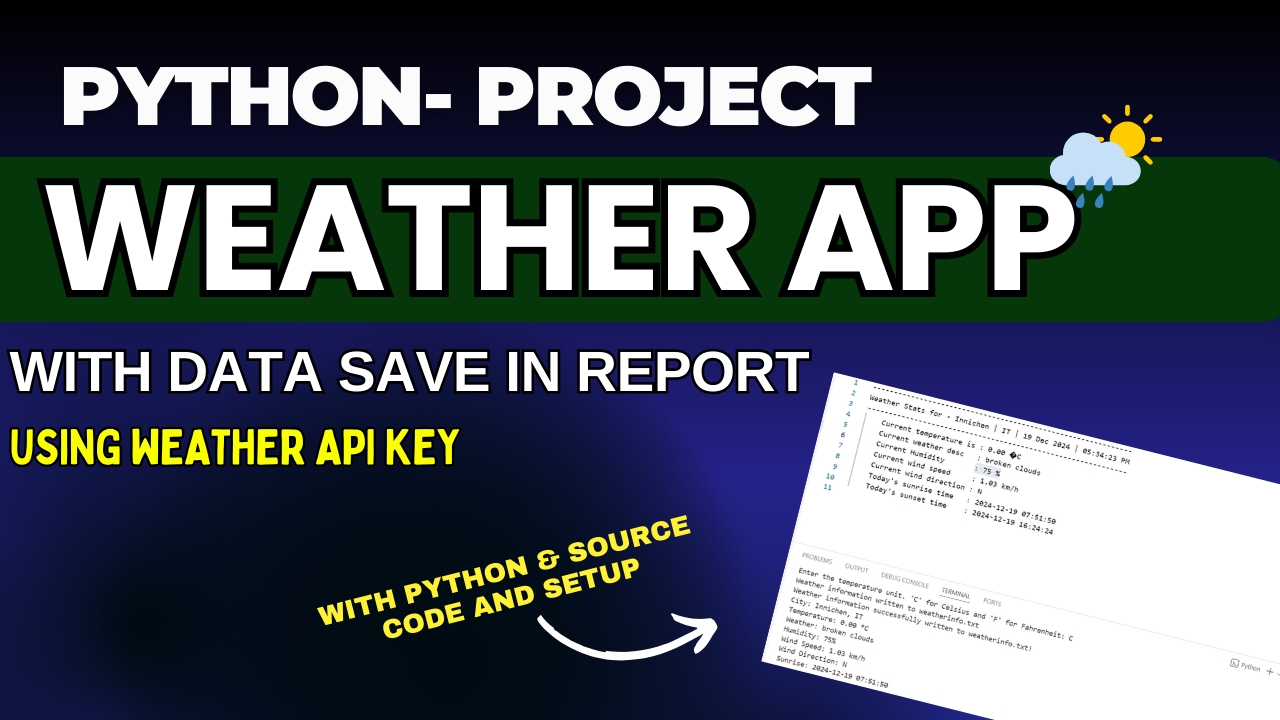
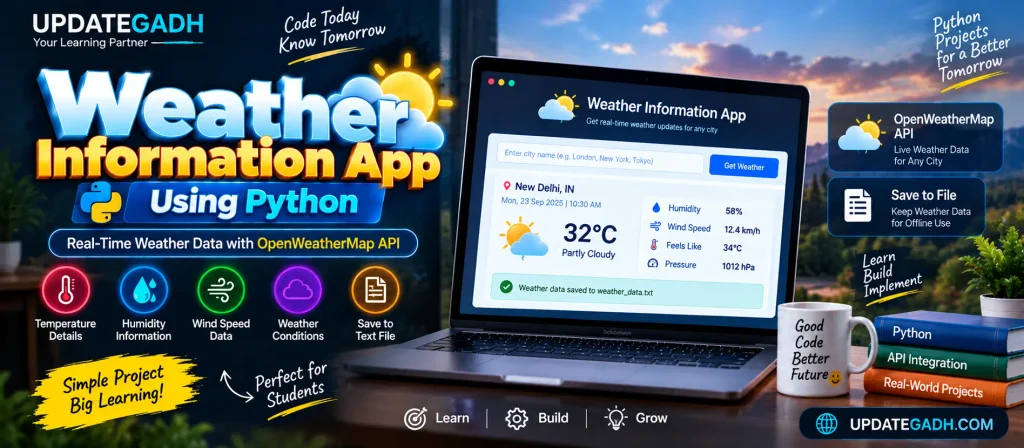
In this project, we will build a Weather Information App using Python and the OpenWeatherMap API. The application accepts a city name from the user, requests current weather information, displays important details such as temperature, humidity, weather conditions, and wind speed, and saves the received information into a text file for later reference.
This is a useful beginner-level Python project because it introduces concepts that are frequently used in real applications. You will work with API requests, JSON responses, user input, environment variables, file handling, and basic error management.
Project Overview
| Project Name | Weather Information App |
|---|---|
| Programming Language | Python |
| API | OpenWeatherMap API |
| Libraries | Requests, python-dotenv |
| Output Storage | Text File |
| Application Type | Console Application |
| Developer | UPDATEGADH |
What Is a Weather Information App?
A weather information application retrieves weather-related data from an online service and presents it in a simple format for the user. Instead of maintaining weather information manually, the application sends a request to an external API and processes the response.
In this project, the user only needs to enter a city name. Python then communicates with OpenWeatherMap and retrieves the current weather information available for that location.
The application focuses on important details including temperature, weather description, humidity, and wind speed. After displaying the result, the application also stores the information in a text file so that the user can refer to previous results later.
Main Features
- Retrieves current weather information from OpenWeatherMap.
- Accepts city names from the user.
- Displays temperature information.
- Shows the current weather description.
- Displays humidity percentage.
- Provides wind-speed information.
- Saves retrieved weather information to a text file.
- Supports city and country-code input.
- Handles common API and network errors.
Prerequisites
Before running the project, Python 3.x should be installed on your computer. You also need an OpenWeatherMap account and a valid API key.
An internet connection is required while the application communicates with the weather service. The application cannot retrieve fresh weather information when the API request cannot reach the online service.
Getting an OpenWeatherMap API Key
The application needs an API key to make requests to OpenWeatherMap. Create an account with the service and obtain your own API credential.
For security, the API key should not be written directly inside the Python source code. This project uses a .env file so that the credential remains separate from the main program.
Create a file named .env in the project directory and add:
OPENWEATHER_API_KEY=YOUR_OPENWEATHERMAP_API_KEYReplace the placeholder with your own API key. Do not publish the actual key in screenshots, GitHub repositories, blog posts, or public source-code files.
Project Folder Structure
Weather_Information_App/
│
├── weather_app.py
├── requirements.txt
├── .env
├── .env.example
├── README.md
└── weather_data.txt
The weather_data.txt file does not need to exist when you first download the project. It is created when the application successfully saves weather information.
Required Python Libraries
The project uses Requests for communicating with the weather API and python-dotenv for loading the API key from the environment file.
Install both dependencies with:
pip install requests python-dotenvAlternatively, if you are using the supplied project ZIP, open the project folder in the terminal and run:
pip install -r requirements.txtDownload
How the Weather API Works
The application sends a request to the OpenWeatherMap weather endpoint. The city entered by the user is included as a query parameter, while the API key is sent for authorization.
The project requests metric units so that temperature values can be displayed in Celsius.
params = {
    "q": city,
    "appid": API_KEY,
    "units": "metric"
}
The API returns information in JSON format. Python can then read the required values from that response and display them in a user-friendly form.
Running the Project
After configuring the API key and installing the required packages, open the project folder in Visual Studio Code or another terminal.
Run the following command:
python weather_app.pyThe program will ask for a city name:
Enter city name:You can enter a city such as:
ParisYou can also provide a city together with a country code when additional location specificity is useful:
London, UKAfter receiving a successful response, the application displays the weather information in the terminal.
Weather Information Displayed
The application extracts selected values from the API response instead of displaying the entire JSON object. This keeps the output easy to understand.
The main information includes:
- Location: City and country information.
- Temperature: Current temperature in Celsius.
- Weather: A description of the current condition.
- Humidity: Humidity percentage.
- Wind Speed: Current wind-speed value.
Saving Weather Data to a File
One useful feature of this project is local storage of fetched weather information. After a successful request, the application appends the result to weather_data.txt.
A saved record can look similar to:
Fetched: 2026-09-23 12:00:00
Location: Paris, FR
Temperature: 22 °C
Weather: clear sky
Humidity: 55%
Wind Speed: 3.5 m/s
---------------------------------------------
Because the program appends new results instead of replacing the previous content, the file can contain multiple weather checks performed at different times.
City Input Tips
Entering the city correctly helps the weather service identify the intended location. Use the normal spelling of the city whenever possible.
For cities that may have similar names, adding a country code can make the request clearer. Examples include:
New YorkParisLondon, UKMumbai, INLos Angeles
Local or alternative names may also work when they are recognized by the weather service.
Error Handling
Because the project depends on an external API and an internet connection, errors can occur. The application therefore handles several common situations.
If the API key is invalid, the program informs the user that the credential needs to be checked. If the requested city cannot be found, the application reports that the city should be checked. Network-related problems are also handled instead of allowing the application to terminate without a useful message.
This is an important programming practice because applications that communicate with external services should be prepared for unsuccessful requests.
Why This Project Is Useful for Beginners
This small application introduces several practical Python concepts in one project. You learn how to accept user input, call an external web service, work with structured JSON data, read environment variables, save information to a file, and handle errors.
It also demonstrates an important difference between normal Python programs and API-based applications. Instead of generating all information locally, the program communicates with another service to obtain real-world data.
Possible Improvements
After completing the basic version, students can extend the application with additional functionality. For example, a graphical interface could make the application easier to use. Temperature conversion could allow users to switch between Celsius and Fahrenheit.
Other possible improvements include displaying weather icons, comparing multiple cities, adding forecast information, storing records in a database, or creating a web-based version of the application.
These are extension ideas for future development; the basic project remains focused on retrieving current weather information and saving the result locally.
How to Download and Run the Mini Project
- Download the project ZIP.
- Extract the ZIP into a suitable folder.
- Open the extracted folder in VS Code.
- Open the terminal.
- Run
pip install -r requirements.txt. - Create a
.envfile from.env.example. - Add your own OpenWeatherMap API key.
- Run
python weather_app.py. - Enter a city name.
- Check the generated
weather_data.txtfile.
Complete Advance AI Topics: Click Here
Real Time Project:- DecodeIT
Conclusion
The Weather Information App is a simple but practical Python project that demonstrates how an application can communicate with an external API and convert online data into useful information. Users can enter a city and receive current weather details such as temperature, weather conditions, humidity, and wind speed.
The project also adds local file storage, allowing previously fetched information to be retained for offline reference. For students learning Python, this project provides hands-on practice with API integration, JSON data, file handling, user input, environment variables, and error management.
FAQs
1. Which API is used in this Weather Information App?
The project uses the OpenWeatherMap API to retrieve current weather information.
2. Which programming language is required?
The application is developed using Python 3.x.
3. What weather information does the project display?
The application displays temperature, weather description, humidity, wind speed, and location information.
4. Does the application save the weather result?
Yes. The fetched information is appended to a local weather_data.txt file.
5. Is an internet connection necessary?
Yes. Internet access is required when the program sends a request to OpenWeatherMap for current weather information.
6. Where should I put my API key?
Store your personal API key in the local .env file using the OPENWEATHER_API_KEY variable.
7. Can I enter a country code with a city?
Yes. You can enter a city together with a country code, such as London, UK, when you want a more specific location.
8. Can the project be expanded?
Yes. You can later add a GUI, forecast features, temperature conversion, database storage, weather icons, or other functionality.
Keywords: Weather Information App using Python, Python weather app, OpenWeatherMap API Python, weather API project, Python API project, real time weather application, Python weather project, weather information system