Tkinter LabelFrame
When building graphical user interfaces with Python and Tkinter, arranging related widgets in a clear and organized way makes the application easier to understand and use. Tkinter provides several container widgets for this purpose, and LabelFrame is one of the useful options.
The LabelFrame widget creates a bordered container that can display a title. It is especially helpful when different groups of controls need to be visually separated within the same interface.
Unlike a standard Frame, a LabelFrame can display a descriptive label along with its border. It can be used to organize widgets such as Radiobuttons, Checkbuttons, and Entry widgets into clearly defined sections.

YT:- DecodeIT
What is Tkinter LabelFrame?
Tkinter LabelFrame is a container widget used to group related elements inside a graphical interface. It combines the functionality of a frame with a visible label, allowing developers to identify the purpose of a particular group of widgets.
For example, an application can create separate LabelFrame sections for different types of information. Each section can contain its own controls while the title helps users understand what the controls represent.
Syntax
The basic syntax for creating a LabelFrame widget is:
w = LabelFrame(parent, options)Here, parent refers to the main window or another parent widget where the LabelFrame will be placed. The options parameter contains the properties used to control the appearance and behavior of the widget.
Tkinter LabelFrame Options
LabelFrame supports several configuration options. These options allow developers to control its colors, dimensions, border, label position, spacing, and other visual properties.
| SN | Option | Description |
|---|---|---|
| 1 | bg | Specifies the background color of the LabelFrame. |
| 2 | bd | Controls the border size. The default value is 2 pixels. |
| 3 | Class | Defines the widget class, with LabelFrame as the default class value. |
| 4 | colormap | Allows the LabelFrame to reuse the colormap of another window. |
| 5 | container | Determines whether the LabelFrame operates as a container. The default value is False. |
| 6 | cursor | Changes the mouse pointer to a specified cursor, such as arrow or dot. |
| 7 | fg | Sets the foreground or text color. |
| 8 | font | Specifies the font used for the LabelFrame text. |
| 9 | height | Sets the height of the LabelFrame. |
| 10 | labelAnchor | Controls the position of the label text. The default position is NW (north-west). |
| 11 | labelwidget | Allows another widget to be used as the LabelFrame label instead of normal text. |
| 12 | highlightbackground | Defines the border color when the widget does not have focus. |
| 13 | highlightcolor | Sets the border color when the widget has focus. |
| 14 | highlightthickness | Specifies the width of the focus highlight border. |
| 15 | padx | Adds horizontal internal padding within the LabelFrame. |
| 16 | pady | Adds vertical internal padding within the LabelFrame. |
| 17 | relief | Controls the border appearance, such as GROOVE, RAISED, or SUNKEN. The default is GROOVE. |
| 18 | text | Specifies the title displayed on the LabelFrame. |
| 19 | width | Sets the width of the LabelFrame. |
Example: Using LabelFrame in Tkinter
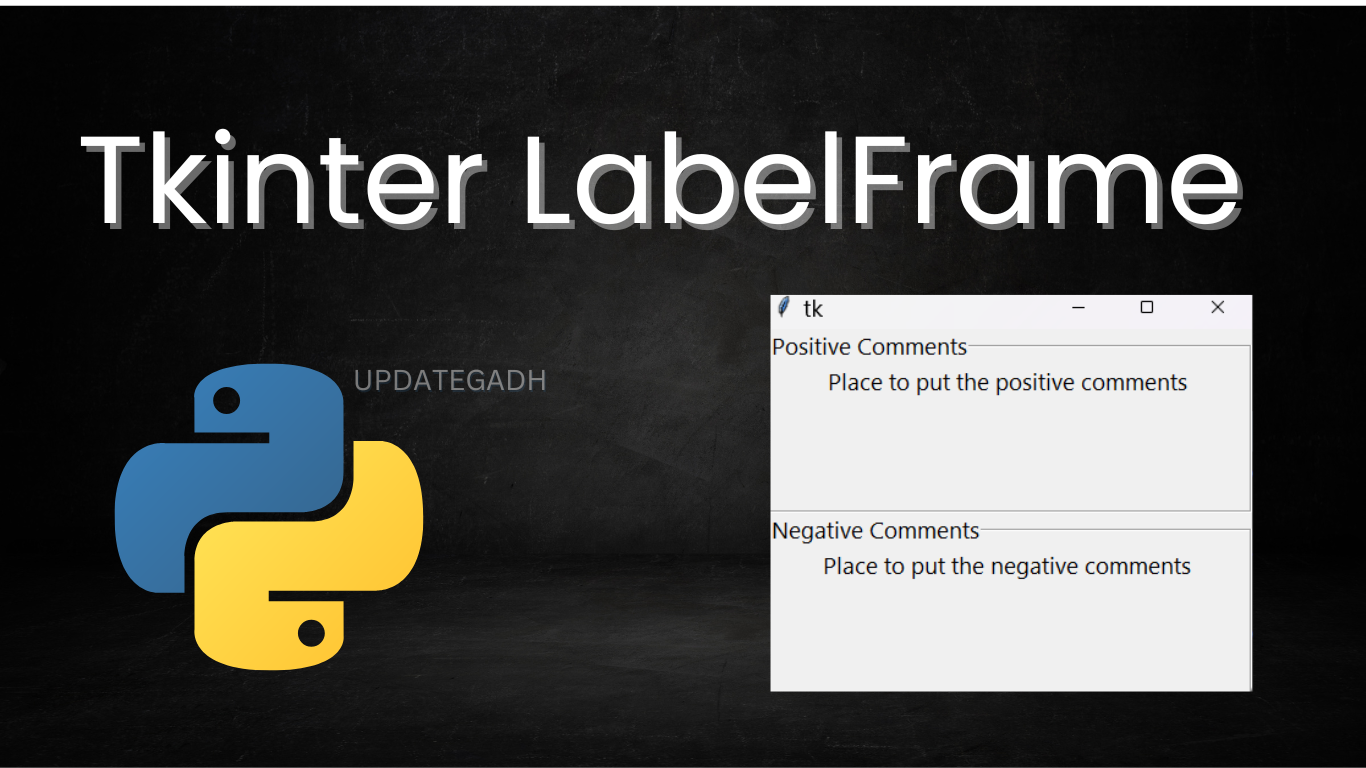
The following example shows how a Tkinter application can use two LabelFrame widgets to divide content into Positive Comments and Negative Comments sections.
#!/usr/bin/python3

from tkinter import *

top = Tk()
top.geometry("300x200")

labelframe1 = LabelFrame(top, text="Positive Comments")
labelframe1.pack(fill="both", expand="yes")

toplabel = Label(
    labelframe1,
    text="Place to put the positive comments"
)
toplabel.pack()

labelframe2 = LabelFrame(top, text="Negative Comments")
labelframe2.pack(fill="both", expand="yes")

bottomlabel = Label(
    labelframe2,
    text="Place to put the negative comments"
)
bottomlabel.pack()

top.mainloop()
Output
When this program runs, the GUI creates two separate labeled sections inside the main window:
- Positive Comments: This section contains a Label displaying a placeholder for positive comments.
- Negative Comments: This section contains another Label for the negative comments area.
Both sections use LabelFrame containers, making it visually clear that the two groups represent different types of comments.
Complete Advance AI Topics: Click Here
SQL Tutorial: Click Here
Frequently Asked Questions (FAQ)
1. What is LabelFrame in Tkinter?
LabelFrame is a Tkinter container widget that groups related widgets inside a bordered area and provides a label or title for that section.
2. What is the syntax of LabelFrame?
The basic syntax is LabelFrame(parent, options). The parent identifies where the widget will be placed, while the options configure its properties.
3. What is the difference between Frame and LabelFrame?
A regular Frame works as a container for widgets, while LabelFrame additionally provides a border and a visible label for identifying the grouped content.
4. Which option sets the LabelFrame title?
The text option is used to specify the title displayed on the LabelFrame.
5. How can the LabelFrame border style be changed?
The relief option controls the border style. Examples include GROOVE, RAISED, and SUNKEN.
6. How can I change the position of the LabelFrame title?
The labelAnchor option controls the position of the label text. Its default position is NW, which represents north-west.
7. Can other widgets be placed inside a LabelFrame?
Yes. A LabelFrame can be used as a container for related widgets, including Radiobuttons, Checkbuttons, Entry widgets, and Labels.
Conclusion
The Tkinter LabelFrame widget provides a convenient way to arrange related GUI elements into clearly identified sections. It combines a container, border, and label, making grouped controls easier to understand.
With options such as text, relief, bg, fg, font, width, height, padx, and pady, developers can adjust the appearance and layout of the widget according to the application’s requirements.
Using LabelFrame effectively can improve the organization and readability of Tkinter interfaces, especially when an application contains multiple groups of related controls.
Keywords: tkinter labelframe github, tkinter labelframe grid, tkinter labelframe not showing, tkinter labelframe example, tkinter labelframe tutorial, tkinter frame, tkinter labelframe center text, tkinter labelframe width