
Python Tkinter Label
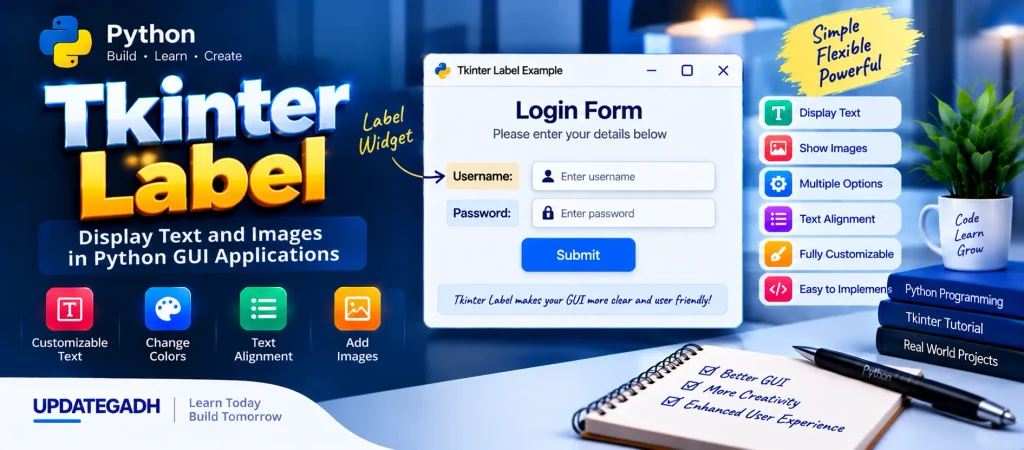
The Label widget in Python Tkinter is one of the most commonly used components for displaying text or images in a graphical user interface. It can be used to show headings, descriptions, instructions, messages, field names, and other information within a Python application.
A Label can also be customized in several ways. Developers can control its text, font, colors, alignment, dimensions, padding, and images according to the requirements of the interface. Because of this flexibility, the Label widget plays an important role in creating clear and user-friendly Tkinter applications.
YT:- DecodeIT
Features of Tkinter Label
The Tkinter Label widget supports different configuration options that allow developers to change how information is presented. Text can be aligned, resized, colored, wrapped across multiple lines, or connected to a variable for dynamic updates.
Labels can also work alongside other Tkinter widgets such as Entry, Button, Frame, and Listbox to create complete application interfaces.
Syntax
The basic syntax for creating a Label widget is:
w = Label(master, options)Here, master represents the parent window or container where the Label will be placed. The options are configuration parameters used to customize its appearance and behavior.
Tkinter Label Options
The following options can be used to configure a Tkinter Label:
| SN | Option | Description |
|---|---|---|
| 1 | anchor | Controls the position of the text inside the Label. The default value is CENTER. |
| 2 | bg | Sets the background color of the Label. |
| 3 | bitmap | Displays a bitmap image instead of normal text. |
| 4 | bd | Defines the border width of the Label. The default value is 2 pixels. |
| 5 | cursor | Changes the mouse pointer when it is positioned over the Label. |
| 6 | font | Specifies the font type and size used for the Label text. |
| 7 | fg | Sets the foreground or text color. |
| 8 | height | Defines the height of the Label. |
| 9 | image | Displays an image inside the Label. |
| 10 | justify | Controls the alignment of multiple lines of text using LEFT, RIGHT, or CENTER. |
| 11 | padx | Sets horizontal padding inside the Label. The default value is 1. |
| 12 | pady | Sets vertical padding inside the Label. The default value is 1. |
| 13 | relief | Controls the border style of the Label. The default value is FLAT. |
| 14 | text | Specifies the text that should be displayed by the Label. |
| 15 | textvariable | Connects the Label text to a StringVar so the displayed value can be updated dynamically. |
| 16 | underline | Specifies the character position that should be underlined. |
| 17 | width | Sets the width of the Label in characters. |
| 18 | wraplength | Wraps long text onto multiple lines according to the specified length. |
Example: Creating Labels in Tkinter
The following example demonstrates how a Label can be used to create field descriptions for a simple login form. Two Labels are used for Username and Password, while Entry widgets provide the corresponding input fields.
Code Implementation
from tkinter import *

top = Tk()
top.geometry("400x250")

# Creating labels
uname = Label(top, text="Username").place(x=30, y=50)
password = Label(top, text="Password").place(x=30, y=90)

# Creating entry fields
e1 = Entry(top, width=20).place(x=100, y=50)
e2 = Entry(top, width=20).place(x=100, y=90)

# Creating a button
sbmitbtn = Button(
    top,
    text="Submit",
    activebackground="pink",
    activeforeground="blue"
).place(x=30, y=120)

# Running the application
top.mainloop()
Output
After executing the program, a simple login-style interface is displayed. The window contains Username and Password Labels, two text input fields, and a Submit button.
The Label widgets identify the purpose of each input field, making the interface easier for users to understand. The activebackground and activeforeground options are used to customize the button’s appearance when it becomes active.
Complete Advance AI Topics: Click Here
SQL Tutorial: Click Here
Frequently Asked Questions
1. What is a Label in Tkinter?
A Label is a Tkinter widget used to display text, images, messages, or descriptions inside a Python GUI application.
2. What is the syntax of a Tkinter Label?
The basic syntax is Label(master, options), where master specifies the parent container and options customize the Label.
3. How can I change the text of a Tkinter Label?
The text option can be used to specify Label text. For dynamic updates, the textvariable option can be connected to a StringVar.
4. Can a Tkinter Label display an image?
Yes. The image option can be used to display an image inside a Label, while the bitmap option can be used for bitmap graphics.
5. How can I change the font size of a Tkinter Label?
The font option can be used to specify the font type and size of the Label text.
6. How can text be aligned in a Tkinter Label?
The anchor option controls the position of content inside the Label, while justify controls the alignment of multiple lines of text.
Conclusion
The Python Tkinter Label is a fundamental widget for designing graphical user interfaces. It provides a simple way to display text and images while offering several options for controlling appearance, alignment, dimensions, colors, padding, and text behavior.
Labels are especially useful when building forms because they can identify input fields and provide instructions or messages to users. By combining the Label widget with components such as Entry and Button, developers can create clear and interactive Python GUI applications.
Keywords: tkinter label text, Python Tkinter Label, python tkinter label example, python tkinter label tutorial, tkinter update label text dynamically, tkinter label position, tkinter label attributes, tkinter label size, tkinter label change text, python tkinter label, python tkinter labelframe, python tkinter label font size, python tkinter label wrap text, python tkinter label text alignment