Tkinter PanedWindow
When building graphical user interfaces with Python and Tkinter, the arrangement of different interface elements plays an important role in creating an easy-to-use application. For layouts where users need to adjust the size of different sections, Tkinter provides the PanedWindow widget.
The Tkinter PanedWindow is a flexible container that allows developers to place multiple child widgets into separate panes. These panes can be arranged either horizontally or vertically. Users can then adjust the available space by dragging the separators between the panes.
The separator lines that allow the panes to be resized are known as sashes. This makes PanedWindow particularly useful for interfaces that need adjustable sections or split-screen layouts.
Each pane can contain one widget, making this widget suitable for creating split views and other adjustable user-interface components in Python applications.
YT:- DecodeIT
What is Tkinter PanedWindow?
PanedWindow is a Tkinter container widget designed for creating layouts that can be resized by the user. Instead of keeping every section at a fixed size, developers can allow users to change the amount of space allocated to individual panes.
For example, a GUI can have one section on the left and another on the right. With a horizontal PanedWindow, the user can drag the separator between them to change their widths. Similarly, a vertical PanedWindow can divide the interface into sections positioned from top to bottom.
This flexibility makes PanedWindow useful when an application contains multiple areas that need to remain visible while also allowing the user to control their size.
Syntax for Using PanedWindow
The basic syntax for creating a PanedWindow is:
w = PanedWindow(master, options)Here, master represents the parent widget or window in which the PanedWindow will be created. The options parameter contains the different configuration properties that control its appearance and behavior.
Options in PanedWindow
Tkinter provides several options for customizing a PanedWindow. These properties can control its size, orientation, borders, handles, sash appearance, and other layout-related settings.
| SN | Option | Description |
|---|---|---|
| 1 | bg | Sets the background color when the widget does not have focus. |
| 2 | bd | Specifies the 3D border size. The default value is 2 pixels. |
| 3 | borderwidth | Defines the width of the widget border. The default value is 2 pixels. |
| 4 | cursor | Changes the mouse pointer type when the pointer is positioned over the widget. |
| 5 | handlepad | Specifies the distance between the handle and the end of the sash. The default is 8 pixels. |
| 6 | handlesize | Defines the size of the handle. The default size is 8 pixels and the handle remains square. |
| 7 | height | Sets the height of the PanedWindow. If it is not specified, the size is determined from its child widgets. |
| 8 | orient | Controls the direction of the panes. HORIZONTAL places panes side by side, while VERTICAL arranges them from top to bottom. |
| 9 | relief | Defines the border style of the widget. The default value is FLAT. |
| 10 | sashpad | Specifies the padding around each sash. The default value is 0. |
| 11 | sashrelief | Controls the border style around the sash. The default is FLAT. |
| 12 | sashwidth | Sets the width of the sash. The default value is 2 pixels. |
| 13 | showhandle | Set this option to True to display handles. The default value is False. |
| 14 | width | Specifies the width of the PanedWindow. When omitted, it is determined by the child widgets. |
Methods Associated with PanedWindow
Along with configuration options, PanedWindow provides methods for adding child widgets and modifying its configuration.
| SN | Method | Description |
|---|---|---|
| 1 | add(child, options) | Adds a child widget to the PanedWindow. |
| 2 | get(startindex, endindex) | Retrieves text from the specified range. |
| 3 | config(options) | Applies new configuration options to the widget. |
Example: Implementing a Simple PanedWindow in Tkinter
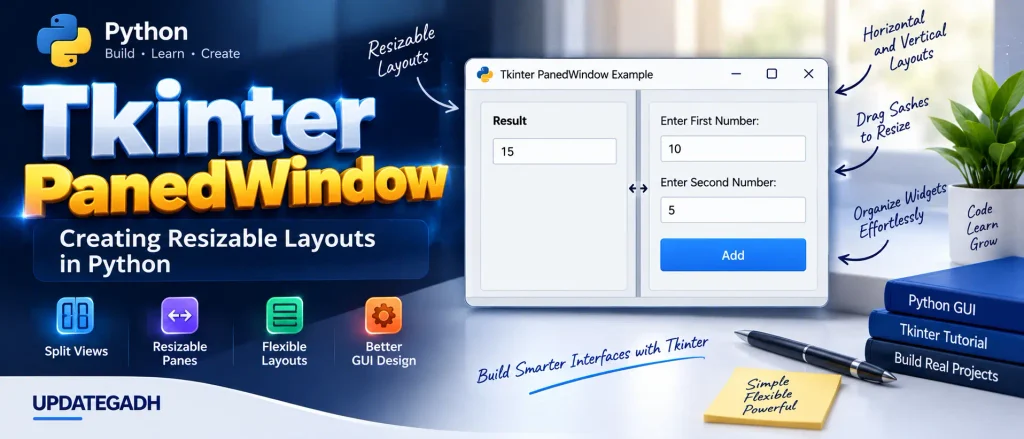
The following Python program demonstrates how a PanedWindow can be used to create an adjustable interface. The example contains an input area, two additional entry fields, and an Add button. When the button is pressed, the values entered into the fields are added together and the result is inserted into the left entry widget.
#!/usr/bin/python3

from tkinter import *

def add():
    a = int(e1.get())
    b = int(e2.get())
    result = str(a + b)
    left.insert(1, result)

w1 = PanedWindow()
w1.pack(fill=BOTH, expand=1)

left = Entry(w1, bd=5)
w1.add(left)

w2 = PanedWindow(w1, orient=VERTICAL)
w1.add(w2)

e1 = Entry(w2)
e2 = Entry(w2)

w2.add(e1)
w2.add(e2)

bottom = Button(w2, text="Add", command=add)
w2.add(bottom)

mainloop()
How the Example Works
The program first creates a main PanedWindow named w1. It is configured to fill the available space and expand with the window. An Entry widget named left is then added to this PanedWindow.
A second PanedWindow named w2 is created inside w1. This one uses orient=VERTICAL, so its child widgets are arranged vertically.
Two Entry widgets, e1 and e2, are added to the vertical PanedWindow. A Button is also placed below them. When the user clicks the Add button, the add() function reads both values, converts them to integers, calculates their sum, and inserts the result into the left Entry widget.
Output
After running the program, the Tkinter window displays the PanedWindow-based interface. The panes can be adjusted, while the input fields and Add button provide the functionality demonstrated in the example.
Complete Advance AI Topics: Click Here
SQL Tutorial: Click Here
Frequently Asked Questions (FAQ)
1. What is PanedWindow in Tkinter?
PanedWindow is a Tkinter container widget used to create resizable sections in a graphical user interface. Users can adjust the size of the panes by dragging the separators.
2. What is the syntax of PanedWindow?
The basic syntax is PanedWindow(master, options), where the master identifies the parent widget and options define the widget’s properties.
3. Can PanedWindow be arranged horizontally and vertically?
Yes. The orient option determines the arrangement. HORIZONTAL creates side-by-side panes, while VERTICAL arranges panes from top to bottom.
4. What are sashes in PanedWindow?
Sashes are the separator areas between panes. They allow users to resize the available space occupied by the different sections.
5. Which method is used to add a widget to PanedWindow?
The add(child, options) method is used to place a child widget inside a PanedWindow.
6. What does the showhandle option do?
The showhandle option controls whether handles are displayed on the PanedWindow. Its default value is False.
7. Where can PanedWindow be used?
PanedWindow is suitable for interfaces that require adjustable sections, such as split views, file explorers, and other resizable UI components.
Conclusion
The Tkinter PanedWindow widget provides a convenient way to build flexible and adjustable layouts in Python GUI applications. By dividing an interface into resizable panes, it allows users to control how much space different sections occupy.
Its horizontal and vertical orientations, along with options for borders, handles, sashes, dimensions, and padding, provide developers with several ways to customize the layout. Methods such as add() and config() also make it easier to manage the widget programmatically.
Whether you are creating file explorers, split views, or resizable interface components, PanedWindow can help organize the application while giving users greater control over the layout. Understanding its options and methods is therefore useful when working with Tkinter GUI development.
Start experimenting with PanedWindow to understand how resizable layouts work and how they can be incorporated into Python applications.
Keywords: ttk panedwindow example, tkinter scrollbar, tkinter frame, which of the following statements is true about tkinter labelframe, tkinter notebook, tkinter fonts, tkinter widgets list, tkinter button, tkinter spinbox, ttk panedwindow, tkinter panedwindow example, tkinter panedwindow github, tkinter panedwindow tutorial,Tkinter PanedWindow example Tkinter PanedWindow tutorial Tkinter PanedWindow syntax Tkinter PanedWindow options Tkinter PanedWindow methods Python Tkinter PanedWindow PanedWindow in Python Tkinter resizable layout Tkinter split window Tkinter horizontal PanedWindow Tkinter vertical PanedWindow Tkinter PanedWindow widget Tkinter PanedWindow add method Tkinter PanedWindow sash Tkinter GUI layout Python GUI PanedWindow Tkinter widgets Tkinter ttk PanedWindow Tkinter PanedWindow GitHub Tkinter PanedWindow tutorial for beginners