Gesture Mouse Using Python
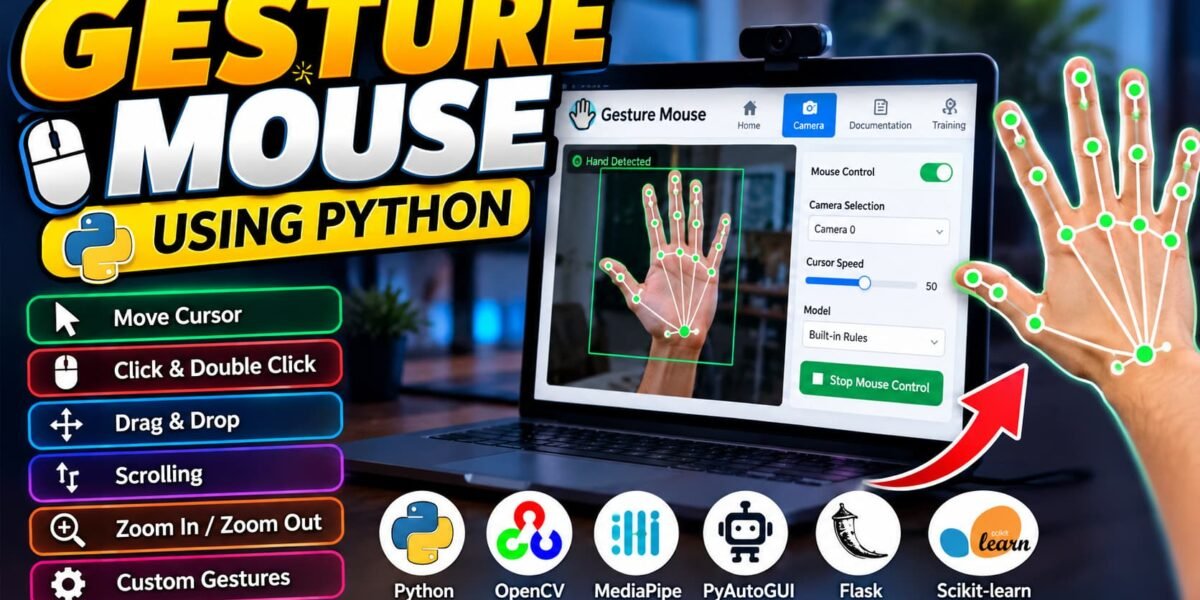
Gesture Mouse Using Python is a computer vision project that enables users to control their computer mouse through hand gestures detected by a webcam. The application uses Python, OpenCV, MediaPipe, PyAutoGUI, Flask, and Scikit-learn to recognize hand movements and convert them into mouse actions.
The project provides a web interface as well as a standalone desktop application. Users can move the cursor, perform mouse clicks, drag and drop items, scroll pages, zoom in and out, and train a custom gesture recognition model. It is a practical project for students interested in Python programming, machine learning, computer vision, and human-computer interaction.
Table of Contents
Complete Advance AI Topics: Click Here
Real Time Projects on YouTube:- DecodeIT
Project Details
| Project Name | Gesture Mouse Using Python |
|---|---|
| Language/s Used | Python, HTML, CSS, JavaScript |
| Database | CSV, JSON, and Joblib files |
| Framework | Flask |
| Libraries | OpenCV, MediaPipe, PyAutoGUI, Scikit-learn |
Available Features
- Hand Gesture Recognition: Detects hand landmarks through the webcam.
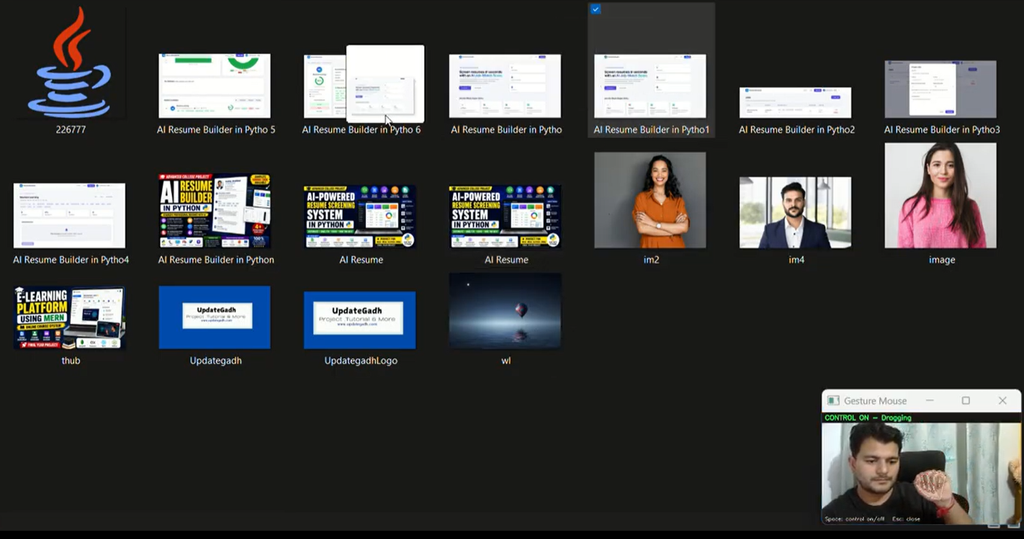
- Mouse Movement: Controls cursor movement using hand movements.
- Cursor Freezing: Keeps the cursor stationary using a specific gesture.
- Left, Right, and Double Click: Performs mouse clicks through finger movements.
- Drag and Drop: Holds the mouse button while the user makes a fist.
- Scrolling: Scrolls pages upward and downward using predefined gestures.
- Zoom Control: Uses hand gestures to trigger zoom-in and zoom-out actions.
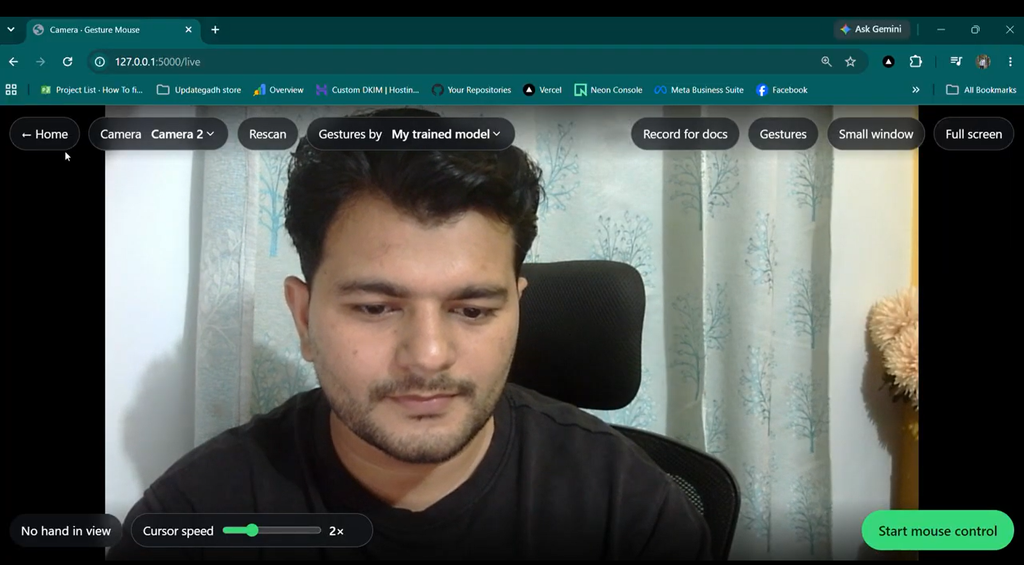
- Live Camera Interface: Displays the camera feed and detected hand landmarks.
- Camera Selection: Detects available cameras and allows users to select one.
- Cursor Speed Control: Adjusts cursor movement speed.
- Built-in and Custom Models: Supports rule-based gestures and a trained gesture classifier.
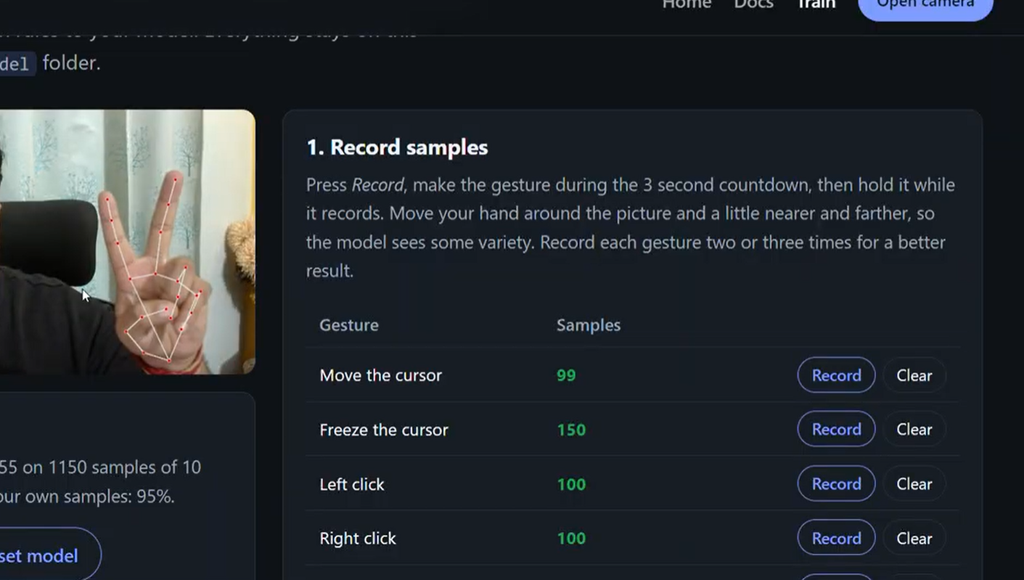
- Gesture Training: Collects samples and trains a machine learning model.
- Custom Gesture Actions: Associates supported custom gestures with keyboard shortcuts.
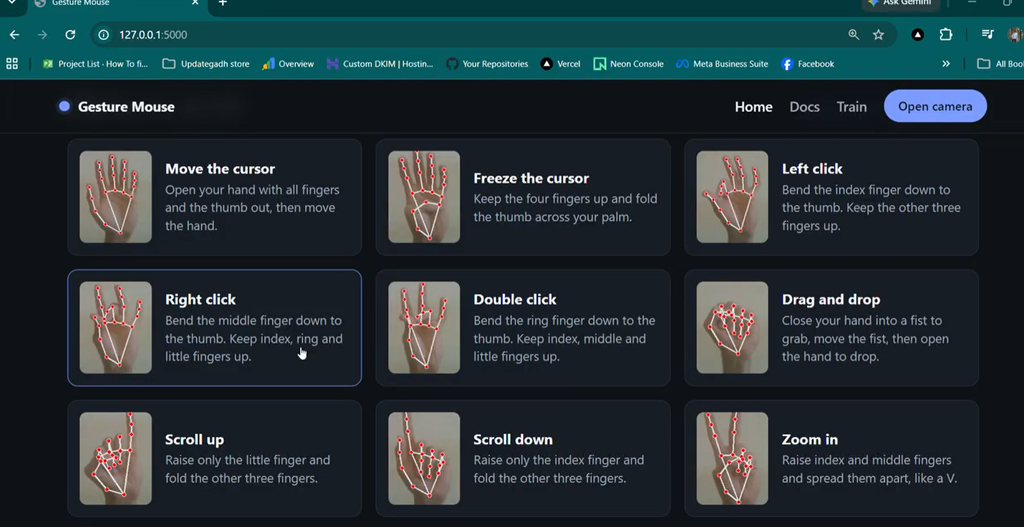
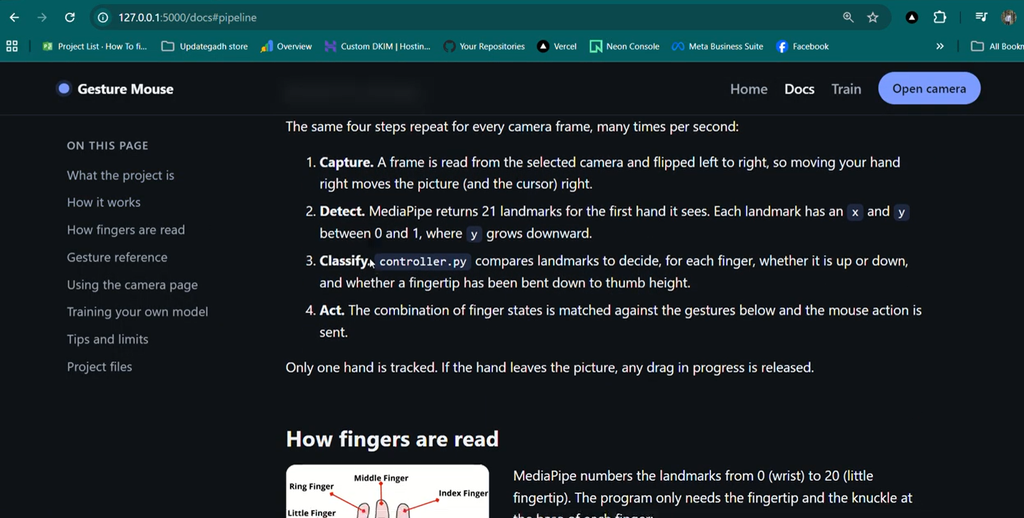
- Documentation Page: Provides illustrated instructions for supported gestures.
Technology Stack
Python
Python implements the application’s main logic, gesture processing, model training, and mouse automation.
OpenCV
OpenCV captures webcam frames, processes images, and displays the hand-tracking output.
MediaPipe
MediaPipe detects hand landmarks and provides the positional information needed to identify finger movements.
PyAutoGUI
PyAutoGUI translates recognized gestures into desktop mouse and keyboard actions, including clicking, dragging, scrolling, and zoom shortcuts.
Flask
Flask powers the web interface, connecting the Home, Camera, Documentation, and Training pages to the Python application.
Scikit-learn
Scikit-learn trains a gesture classifier using collected hand landmark samples. Joblib saves the trained model for later use.
Software and Tools Required
- Python 3.11 recommended for the supplied dependency versions
- Visual Studio Code
- A working webcam
- A web browser
- Python virtual environment
- Required packages from requirements.txt
How to Download
The complete package is available so you can run, study, and submit it with confidence. It includes:
- Full Source Code
- Project Report
- Synopsis
- PPT Presentation
Screenshot
Installation Guide for VS Code
Step 1: Extract the Project
Extract the project ZIP file and open the Gesture folder in Visual Studio Code. Confirm that app.py, web.py, and requirements.txt are present.
Step 2: Create a Virtual Environment
Open the VS Code terminal and run:
py -3.11 -m venv venv
Step 3: Activate the Environment
venv\Scripts\activate
Step 4: Install Dependencies
python -m pip install --upgrade pip
pip install -r requirements.txt
The supplied requirements file specifies MediaPipe 0.10.21. Use a compatible Python version because older package versions may not install correctly on Python 3.14.
Step 5: Run the Web Application
python.exe web.py
Open the local URL displayed in the terminal. From the web interface, access the camera, documentation, and gesture training pages.
Step 6: Run the Desktop Application
To launch the standalone desktop version, execute:
python app.py
Make sure the webcam is connected and not being used exclusively by another application. Press Esc in the camera window to exit the desktop application.
How to Use the Project
- Start the web application and open its local URL in your browser.
- Navigate to the Camera page and select an available webcam.
- Choose the built-in gesture rules or the trained model mode.
- Enable mouse control and keep your hand visible in the camera frame.
- Move your hand to control the cursor and use the documented finger gestures for clicking, dragging, scrolling, and zooming.
- Open the Training page to record samples and train a custom gesture model.
- Disable mouse control when finished to prevent unintended desktop actions.
For better results, use sufficient lighting and practise the gestures shown on the Documentation page.
Project Modules
- Home Module: Introduces the application and its capabilities.
- Camera Module: Handles live tracking, camera selection, cursor speed, and mouse control.
- Gesture Recognition Module: Identifies hand positions and maps them to mouse actions.
- Training Module: Collects gesture samples and trains the classifier.
- Documentation Module: Explains the supported gestures and how to perform them.
Project Benefits
- Provides practical experience with Python and computer vision.
- Demonstrates real-time hand tracking and mouse automation.
- Introduces machine learning model training and classification.
- Combines a Flask web interface with a desktop application.
- Helps students understand how computer vision can improve human-computer interaction.
Frequently Asked Questions (FAQs)
1. What is Gesture Mouse Using Python?
It is a computer vision application that controls mouse operations through hand gestures detected by a webcam.
2. Which libraries are used in this project?
The project uses OpenCV, MediaPipe, PyAutoGUI, Flask, and Scikit-learn, along with other dependencies listed in requirements.txt.
3. Does the project require MySQL?
No. It uses local CSV, JSON, and Joblib files for gesture samples, settings, and the trained model.
4. Can users train custom gestures?
Yes. The Training page supports sample collection, model training, and custom gesture actions linked to keyboard shortcuts.
5. Can this project run without a webcam?
The main gesture recognition functionality requires a working webcam because it depends on live hand tracking.
Final Thoughts
Gesture Mouse Using Python is a useful computer vision project for students who want to build something interactive with Python. It combines webcam-based hand tracking, gesture recognition, mouse automation, and machine learning in a single application. The web interface, desktop version, and custom training functionality provide opportunities to explore several practical programming concepts.
Gesture Mouse Using Python, Hand Gesture Recognition Project, Gesture Mouse,Gesture Controlled Mouse, Python Computer Vision Project, OpenCV Project, MediaPipe Project, Mouse Control Using Python, Flask Python Project, BCA Project,Gesture Mouse Using Python,Gesture Mouse Using Python,Gesture Mouse