Create Your Own AI Assistant Using Python
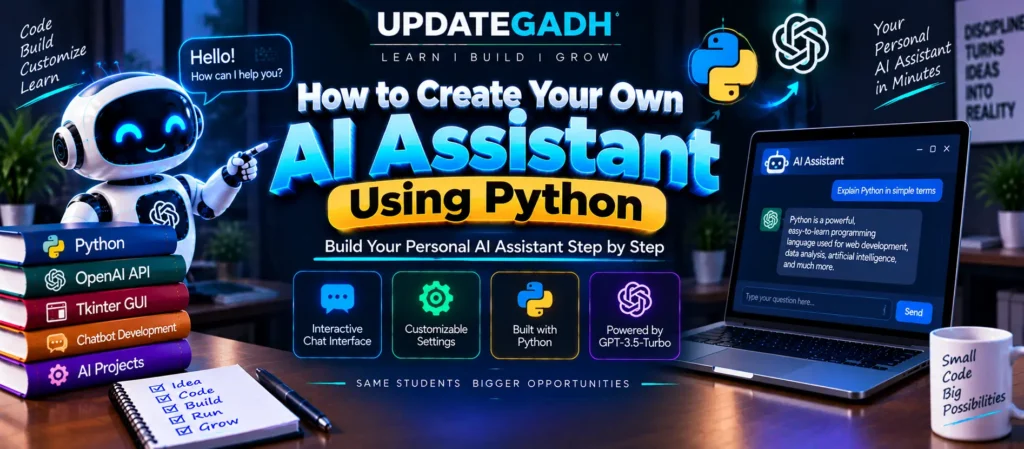
Creating your own AI assistant may sound complicated, but Python and the OpenAI API make it possible to build a simple conversational application with relatively little code. In this tutorial, we will learn how to create an AI-powered Q&A assistant using Python, Tkinter, and the OpenAI API.
The application provides a graphical user interface (GUI) where users can enter questions and receive AI-generated responses. It is a useful project for students who want to understand how Python applications can interact with AI services.
Features
- Interactive Chat Interface: Communicate with the AI assistant through a simple conversational interface.
- Customizable Settings: Adjust the creativity of AI responses using the
temperatureparameter. - User-Friendly GUI: The application uses Tkinter to provide a simple and easy-to-use graphical interface.
Code Explanation
Let us understand the major components of the AI assistant step by step.
1. Setting Up the OpenAI API
import openai
openai.api_key = ""
Replace the empty string with your OpenAI API key. The API key is used by the application to communicate with the OpenAI service.
You can create an OpenAI account and access the platform from the official OpenAI website.
2. Function to Send Prompts to OpenAI
def ask_chatgpt(prompt, temperature=0.1, max_tokens=100):
    ...
    response = openai.ChatCompletion.create(...)
    return response['choices'][0]['message']['content'].strip()
This function sends the user’s prompt to the AI service and returns the generated response.
- prompt: Contains the question or input provided by the user.
- temperature: Controls the creativity of the generated response. Lower values generally produce more focused responses.
- max_tokens: Controls the maximum length of the generated response.
The function also uses exception handling so that an error can be returned if the API request fails.
3. Creating the GUI with Tkinter
Tkinter is used to create the graphical user interface of the application.
Creating the Main Window
root = tk.Tk()
root.title("AI-Powered Q&A Assistant")
This code creates the main application window and assigns a title to it.
Chat Display Area
chat_window = scrolledtext.ScrolledText(
    frame,
    wrap=tk.WORD,
    width=60,
    height=20,
    state='disabled'
)
The ScrolledText widget creates a scrollable area where the conversation between the user and AI assistant can be displayed.
User Input and Ask Button
entry = tk.Entry(root, width=50)
ask_button = tk.Button(root, text="Ask", command=on_ask)
The Entry widget allows the user to type a question. When the Ask button is clicked, it calls the on_ask() function.
Handling User Input
def on_ask():
    user_input = entry.get()
    ...
    response = ask_chatgpt(
        user_input,
        temperature=0.5,
        max_tokens=200
    )
    ...
    entry.delete(0, tk.END)
The on_ask() function retrieves the user’s input, displays it in the chat window, sends it to the AI assistant, displays the returned response, and finally clears the input field.
4. Running the Application
root.mainloop()The mainloop() method starts the Tkinter event loop. It keeps the application window active and allows the user to interact with the interface.
Complete Python Code
import openai
import tkinter as tk
from tkinter import scrolledtext

# Set your OpenAI API key
openai.api_key = ""

def ask_chatgpt(prompt, temperature=0.1, max_tokens=100):
    """
    Sends a prompt to the OpenAI API and returns the response.

    Parameters:
    - prompt (str): The user input combined with context.
    - temperature (float): Controls creativity of the response.
    - max_tokens (int): Controls the length of the response.
    """
    try:
        response = openai.ChatCompletion.create(
            model="gpt-3.5-turbo",
            messages=[
                {
                    "role": "system",
                    "content": "You are a helpful AI specialized in programming."
                },
                {
                    "role": "user",
                    "content": prompt
                },
            ],
            temperature=temperature,
            max_tokens=max_tokens,
        )

        return response['choices'][0]['message']['content'].strip()

    except Exception as e:
        return f"Error: {e}"


# Function to handle the "Ask" button click
def on_ask():
    user_input = entry.get()

    if user_input.strip() == "":
        return

    # Display user input in the chat window
    chat_window.config(state='normal')
    chat_window.insert(tk.END, f"You: {user_input}\n")
    chat_window.yview(tk.END)

    # Call the API and get the response
    response = ask_chatgpt(
        user_input,
        temperature=0.5,
        max_tokens=200
    )

    # Display AI response in the chat window
    chat_window.insert(tk.END, f"AI: {response}\n\n")
    chat_window.yview(tk.END)

    # Clear the entry widget
    entry.delete(0, tk.END)


# Create the main window
root = tk.Tk()
root.title("AI-Powered Q&A Assistant")

# Create a frame for the chat window
frame = tk.Frame(root)
frame.pack(padx=10, pady=10)

# Create a scrollable text widget for the chat window
chat_window = scrolledtext.ScrolledText(
    frame,
    wrap=tk.WORD,
    width=60,
    height=20,
    state='disabled'
)
chat_window.pack()

# Create an entry widget for user input
entry = tk.Entry(root, width=50)
entry.pack(pady=5)

# Create a button to trigger the "ask" function
ask_button = tk.Button(
    root,
    text="Ask",
    command=on_ask
)
ask_button.pack(pady=5)

# Run the main loop
root.mainloop()
How to Run This Project
1. Set Up the Environment
First, install the required OpenAI Python package using the following command:
pip install openai2. Add Your OpenAI API Key
Open the Python file and replace the empty API-key value with your OpenAI API key:
openai.api_key = ""Keep your API key private and avoid publishing it directly in publicly accessible source code.
3. Run the Python Program
Save the program in a Python file, for example ai_assistant.py, and run it from the terminal:
python ai_assistant.py4. Interact with the Assistant
Once the application starts, a Tkinter window will appear. Enter your question in the input box and click the Ask button. The application sends the question to the AI service and displays the response in the chat window.
Complete Advance AI Topics: Click Here
SQL Tutorial: Click Here
Conclusion
Building an AI Assistant Using Python is a practical way to learn how a Python application can communicate with an AI service. By combining Python, Tkinter, and an API-based AI model, you can create a simple graphical Q&A application with an interactive chat interface.
This project also provides a useful foundation for students who want to explore more advanced AI applications and Python-based GUI projects.
Download New Real Time Projects :- Click here
Keywords
How to Create Your Own AI Assistant Using Python, AI assistant using Python, Python AI assistant, create AI assistant with Python, OpenAI API Python, Python chatbot, AI chatbot using Python, Tkinter AI assistant, Python OpenAI project, AI assistant project, Python AI project