Build a Quiz Application with HTML, CSS, and JavaScript
A quiz application is a practical beginner-friendly web development project because it brings HTML, CSS, and JavaScript together in one application. Instead of creating a page that only displays information, you can use JavaScript to control questions, answer selections, scoring, timers, and the final result.
Project Overview
| Project Name | Quiz Application |
|---|---|
| Frontend Technologies | HTML, CSS, JavaScript |
| Application Type | Interactive Web Application |
| Editor | Visual Studio Code or any text editor |
| Database | Not required |
| Developer | UPDATEGADH |
What Is a Quiz Application?
A quiz application is an interactive website where users answer a series of questions and receive a result based on their responses. Questions can be presented with multiple choices, allowing the user to select one answer before continuing to the next question.
In this project, the application also includes a countdown timer. Each question has a limited amount of time, which makes the quiz more interactive. After the quiz is completed, the application displays the user’s score.
Complete Advance AI Topics: Click Here
Download Real Time Projects:- DecodeIT
How This Quiz Application Works
The application follows a simple sequence from beginning to end:
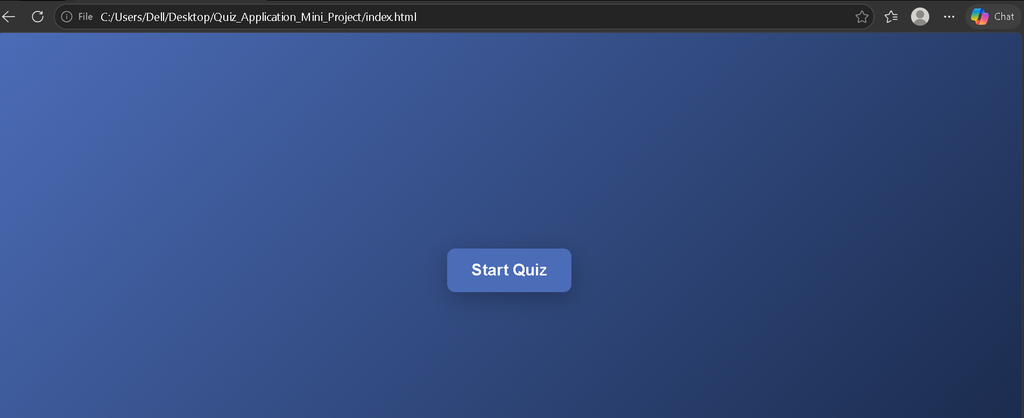
- The user sees a Start Quiz button.
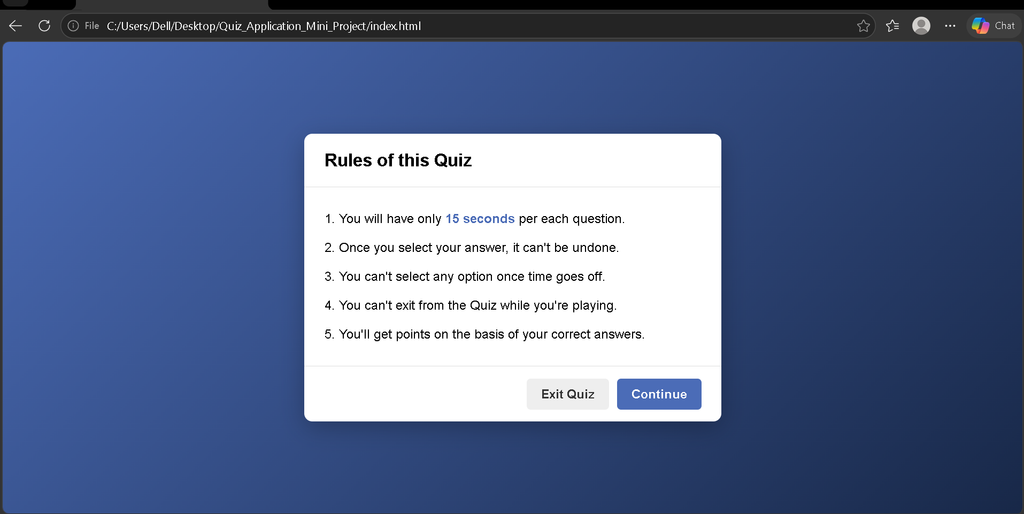
- The application displays the quiz rules.
- The user chooses whether to leave or continue.
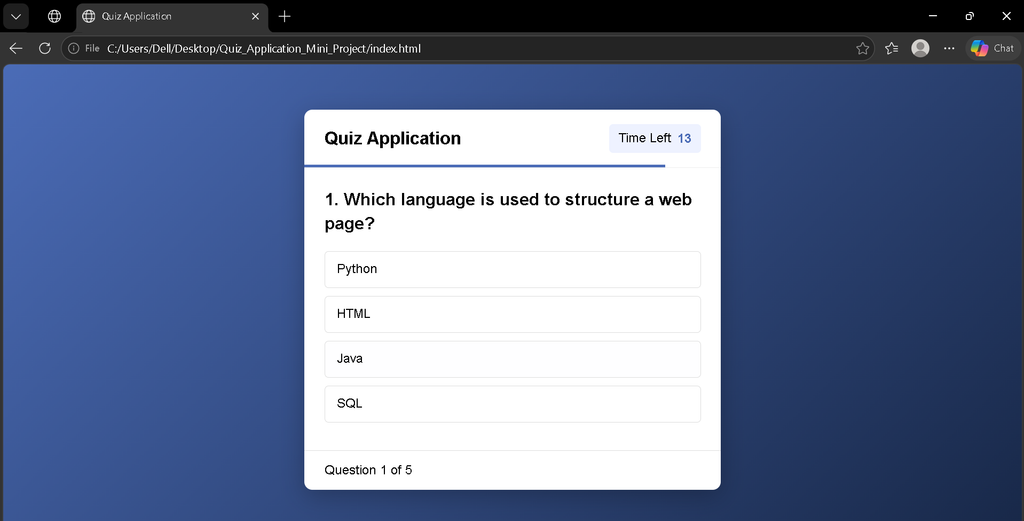
- The first question is displayed.
- Multiple answer choices are presented.
- The user selects an answer.
- The application moves to the next question.
- A timer controls the available time for each question.
- The score is calculated from the selected answers.
- A result screen appears after the final question.
This workflow makes the project a useful example of combining page structure with client-side programming.
Important Features
The source project is designed with several features that make the quiz more interactive than a basic question-and-answer page.
- Start Quiz interface
- Quiz instructions and rules
- Multiple-choice questions
- One question displayed at a time
- 15-second question timer
- Answer selection
- Next Question navigation
- Automatic score tracking
- Final score screen
- Replay Quiz option
- Quit Quiz option
Project Files
The project uses separate files for the webpage structure, styling, and JavaScript functionality. A typical arrangement based on the supplied source is:
SimpleQuizApp/
│
├── index.html
├── style.css
└── js/
    ├── questions.js
    └── script.js
The HTML file provides the interface and loads the JavaScript files. The question data is intended to be maintained in questions.js, while the quiz behavior is handled through script.js.
Software and Tools Required
You do not need a complicated development environment for this project. A modern web browser and a code editor are enough to create and test the application.
- Visual Studio Code
- Google Chrome, Microsoft Edge, Firefox, or another modern browser
- HTML
- CSS
- JavaScript
Visual Studio Code is particularly convenient because it provides syntax highlighting, code completion, file management, and extensions that can make front-end development easier.
Step 1: Create the Project Folder
Start by creating a new folder on your computer. You can name it something such as SimpleQuizApp. Open this folder in Visual Studio Code.
Inside the folder, create the HTML and CSS files. Then create a js folder for the JavaScript files.
Step 2: Create the HTML Structure
The HTML file provides the visible structure of the quiz. It contains separate sections for starting the quiz, displaying the instructions, showing questions, and presenting the final result.
The following is the HTML structure supplied with the project:
<!DOCTYPE html>
<html lang="en">
<head>
    <meta charset="UTF-8">
    <meta name="viewport" content="width=device-width, initial-scale=1.0">
    <title>Quiz Application</title>
    <link rel="icon" href="favicon.png">
    <link rel="stylesheet" href="style.css">

    <link rel="stylesheet"
          href="https://cdnjs.cloudflare.com/ajax/libs/font-awesome/5.15.3/css/all.min.css"/>
</head>

<body>

    <div class="start_btn">
        <button>Start Quiz</button>
    </div>

    <div class="info_box">
        <div class="info-title">
            <span>Rules of this Quiz</span>
        </div>

        <div class="info-list">
            <div class="info">
                1. You will have only <span>15 seconds</span> per each question.
            </div>

            <div class="info">
                2. Once you select your answer, it can't be undone.
            </div>

            <div class="info">
                3. You can't select any option once time goes off.
            </div>

            <div class="info">
                4. You can't exit from the Quiz while you're playing.
            </div>

            <div class="info">
                5. You'll get points on the basis of your correct answers.
            </div>
        </div>

        <div class="buttons">
            <button class="quit">Exit Quiz</button>
            <button class="restart">Continue</button>
        </div>
    </div>

    <div class="quiz_box">

        <header>
            <div class="title">Quiz Application</div>

            <div class="timer">
                <div class="time_left_txt">Time Left</div>
                <div class="timer_sec">15</div>
            </div>

            <div class="time_line"></div>
        </header>

        <section>
            <div class="que_text">
                <!-- Question inserted by JavaScript -->
            </div>

            <div class="option_list">
                <!-- Options inserted by JavaScript -->
            </div>
        </section>

        <footer>
            <div class="total_que">
                <!-- Question count inserted by JavaScript -->
            </div>

            <button class="next_btn">
                Next Question
            </button>
        </footer>

    </div>

    <div class="result_box">

        <div class="icon">
            <i class="fas fa-crown"></i>
        </div>

        <div class="complete_text">
            You've completed the Quiz!
        </div>

        <div class="score_text">
            <!-- Score inserted by JavaScript -->
        </div>

        <div class="buttons">
            <button class="restart">Replay Quiz</button>
            <button class="quit">Quit Quiz</button>
        </div>

    </div>

    <script src="js/questions.js"></script>
    <script src="js/script.js"></script>

</body>
</html>
Download Source code
Screenshots
Understanding the HTML Sections
The start_btn contains the button used to begin the quiz. Once the user starts, the information box provides the rules before the actual questions appear.
The quiz_box acts as the main question interface. Its question area and option area are intentionally left ready for JavaScript to populate dynamically.
The footer contains the question counter and the button used to continue to the next question.
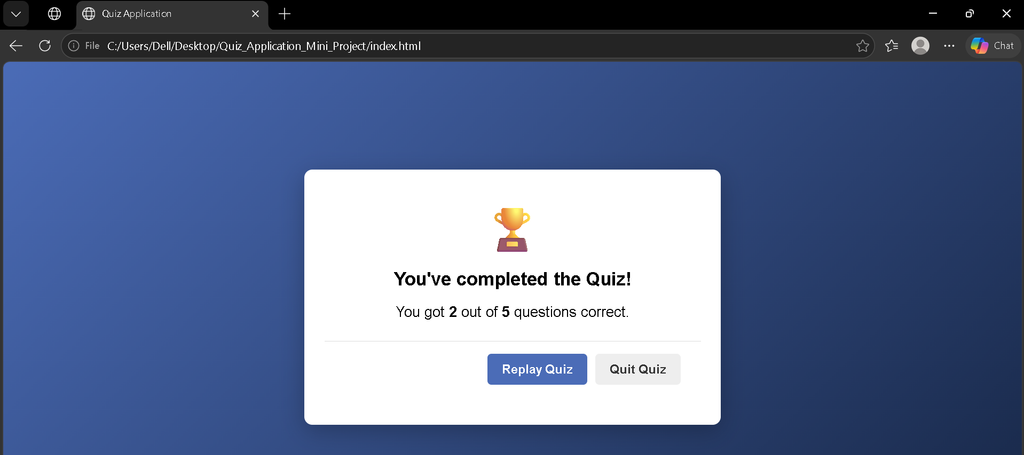
Finally, the result_box displays the completion message and score after the quiz finishes. The replay and quit controls provide the next actions for the user.
Step 3: Add CSS Styling
The style.css file is responsible for the visual presentation of the application. It can control the layout, colors, spacing, buttons, timer, question cards, answer options, and result screen.
Keeping the styling in a separate file is useful because it allows you to change the appearance of the application without modifying the HTML structure.
Step 4: Add the JavaScript Files
The project loads two JavaScript files. The first is questions.js, which is intended to contain the questions and answer options. The second is script.js, which handles the application’s behavior.
JavaScript is responsible for changing the question displayed on the screen, handling answer selection, controlling the timer, moving between questions, calculating the score, and displaying the final result.
The supplied HTML connects both files at the bottom of the document:
<script src="js/questions.js"></script>
<script src="js/script.js"></script>
Step 5: Run the Quiz Application
After creating the project files, save all of them and open index.html in a web browser.
- Create the project directory.
- Open the folder in Visual Studio Code.
- Create
index.html. - Create
style.css. - Create the
jsfolder. - Add
questions.jsandscript.js. - Place the corresponding project code inside the files.
- Save the complete project.
- Open
index.htmlin your browser. - Click Start Quiz and test the application.
Keywords: Build a Quiz Application with HTML CSS and JavaScript, quiz application using JavaScript, HTML CSS JavaScript quiz app, quiz application project, JavaScript quiz project, create quiz application, front end quiz project, web development project