Captcha Generator In Python Using Tkinter
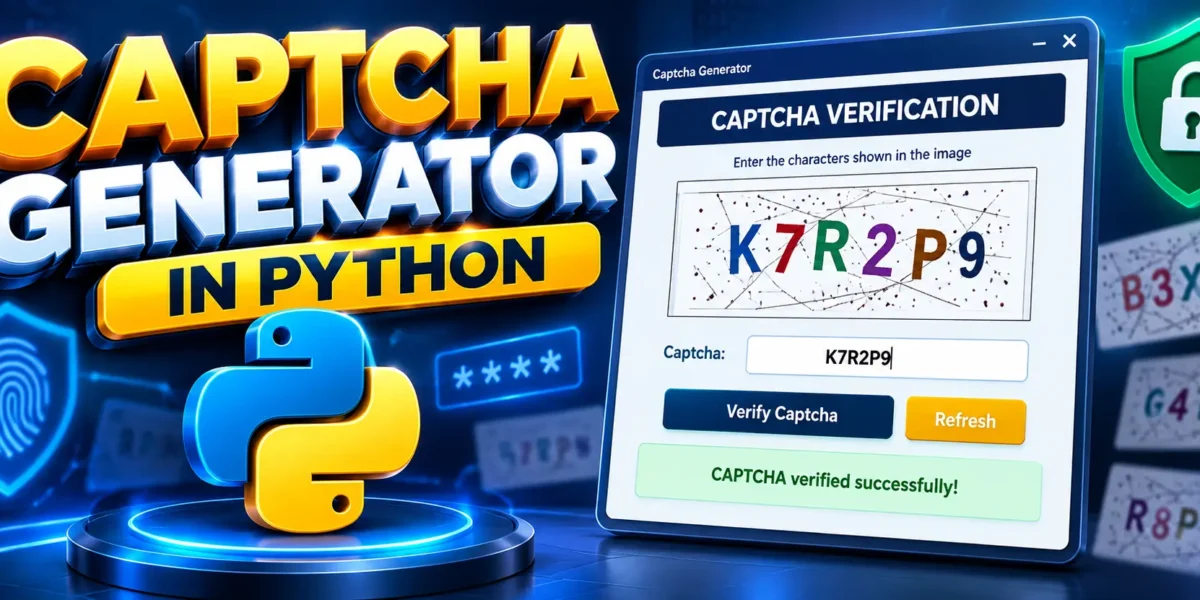
The Captcha Generator In Python is a GUI-based Python project that creates random CAPTCHA challenges and asks the user to enter the characters displayed in the generated image. The application is designed using Tkinter for the graphical user interface and Pillow for creating and displaying the CAPTCHA image.
A CAPTCHA, which stands for Completely Automated Public Turing test to tell Computers and Humans Apart, is commonly used to distinguish human users from automated programs. In this college-level project, the user receives a randomly generated combination of uppercase letters and numbers. The characters are displayed inside an image along with lines and noise, making the challenge visually different each time. The user enters the displayed value and clicks the verification button to check the answer.
The project also provides a Refresh option. If the current CAPTCHA is difficult to read, the user can generate another challenge without restarting the application. This makes the project simple to understand while still demonstrating random text generation, image processing, GUI controls, validation, and event handling in Python.
Complete Advance AI Topics: Click Here
Real Time Projects on YouTube:- DecodeIT
Project Overview
| Field | Details |
|---|---|
| Project Name | Captcha Generator In Python |
| Interface | GUI Application |
| Programming Language | Python |
| GUI Framework | Tkinter |
| Image Library | Pillow |
Objective of the Project
The main objective of this project is to demonstrate how a CAPTCHA verification mechanism can be developed using Python. The application generates a random sequence of letters and numbers, converts the sequence into a graphical CAPTCHA, and validates the value entered by the user.
The project demonstrates several important programming concepts. Random values are generated using Python’s random functionality, strings are used to construct the challenge, Pillow creates the CAPTCHA image, and Tkinter connects the visual controls with Python functions. The verification process also demonstrates input validation and event-driven programming.
How the GUI Application Works
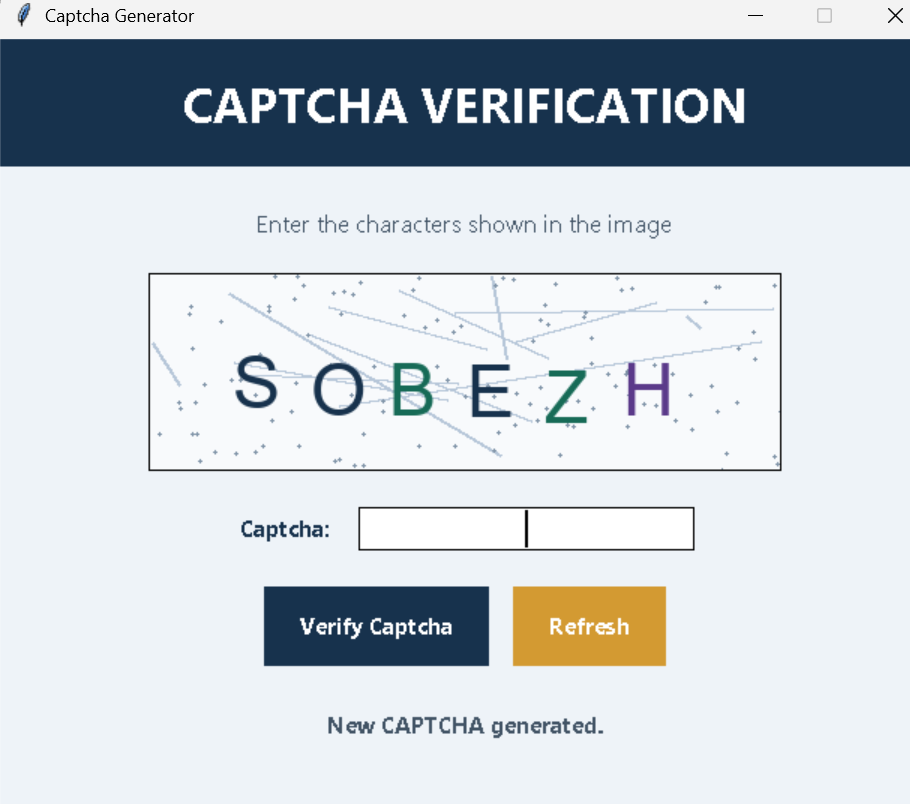
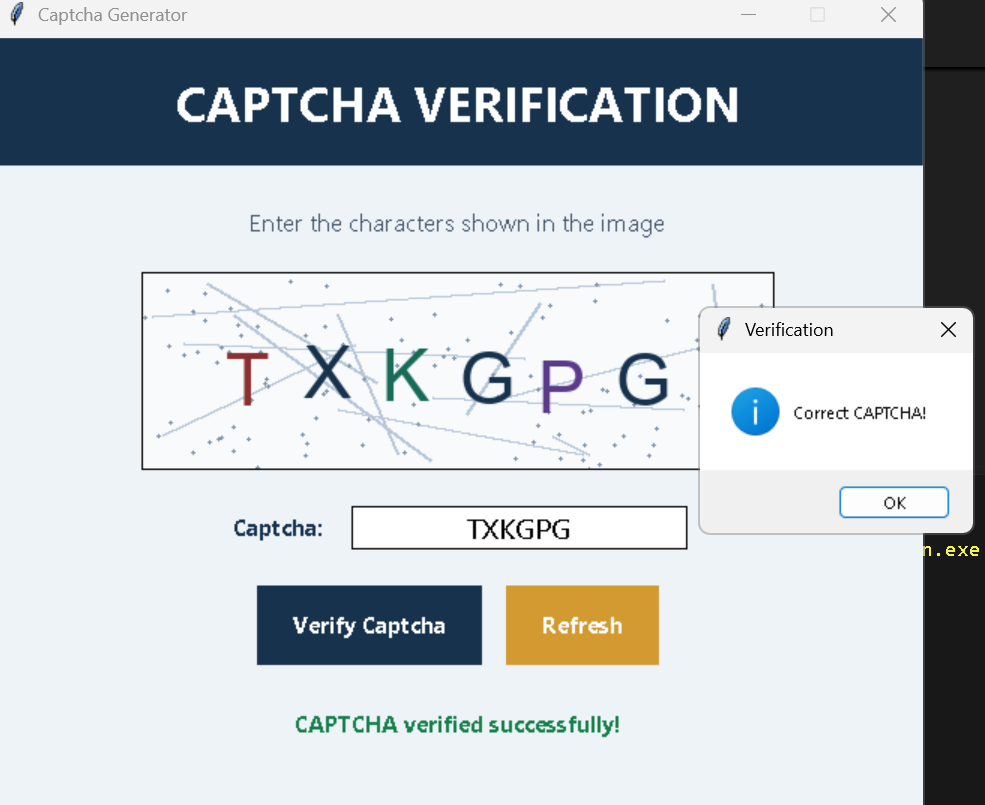
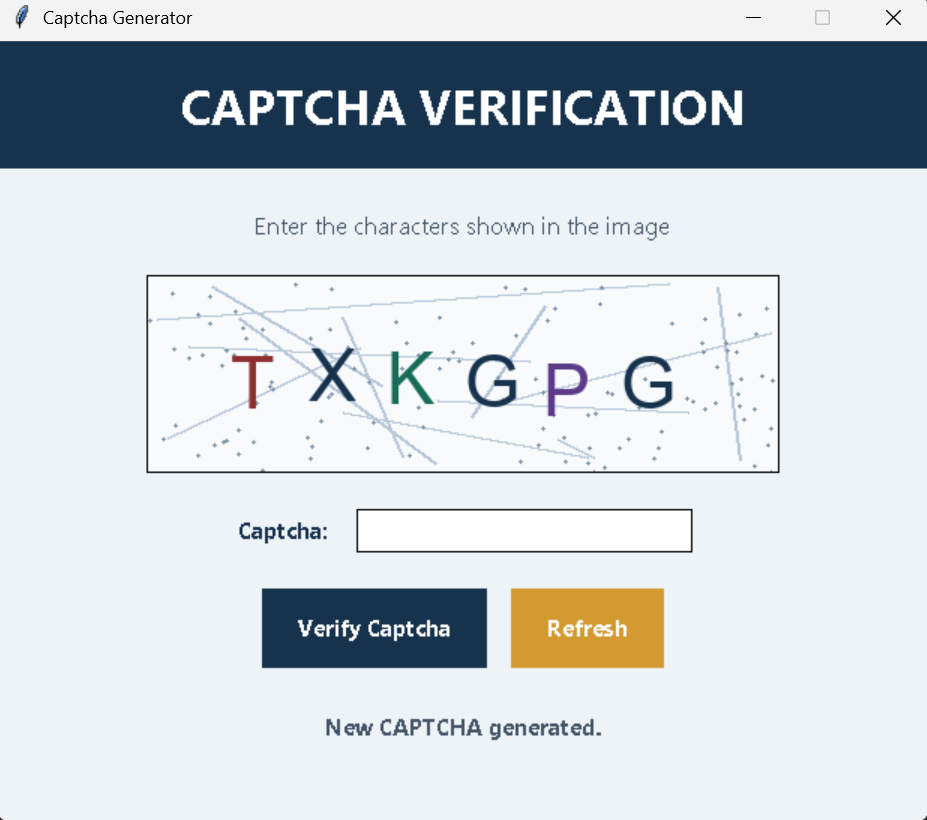
When the application starts, a modern Tkinter window is displayed with a CAPTCHA image, an input field, a verification button, and a refresh button. A random six-character CAPTCHA is generated automatically when the application launches.
The CAPTCHA image contains the generated characters along with randomly positioned lines and small noise points. These visual elements make every generated image different. The actual CAPTCHA value is stored internally by the application and is not directly displayed as plain text outside the image.
The user reads the characters from the image and enters them into the text field. After clicking Verify Captcha, the application compares the entered value with the internally stored CAPTCHA. If both values match, a successful verification message is displayed. If the values do not match, an error message is shown and another CAPTCHA is generated.
Key Features
- GUI-based CAPTCHA generator using Tkinter.
- Random uppercase letters and numbers.
- New CAPTCHA generation on every refresh.
- Graphical CAPTCHA image created using Pillow.
- Background lines and noise for visual variation.
- Input field for entering the CAPTCHA value.
- Verification button for checking the submitted value.
- Refresh button for generating another CAPTCHA.
- Success and error messages.
- Input validation when the text field is empty.
- Clean and professional college-project interface.
Technologies Used
Python is used for the complete application logic. Tkinter provides the desktop GUI, including labels, buttons, input fields, frames, and message boxes. Pillow is used to create the CAPTCHA image and draw characters, lines, and noise. Python’s built-in random and string modules are used to generate random alphanumeric CAPTCHA values.
Screenshot
Complete Python GUI Source Code
The following is the complete source code for the GUI-based CAPTCHA Generator. Save it as generatecaptcha.py.
import tkinter as tk
from tkinter import messagebox
from PIL import Image, ImageDraw, ImageFont, ImageTk
import random
import string


class CaptchaGenerator:
    def __init__(self, root):
        self.root = root
        self.root.title("Captcha Generator")
        self.root.geometry("620x520")
        self.root.configure(bg="#eef3f8")
        self.root.resizable(False, False)

        self.captcha_text = ""

        title = tk.Label(
            root,
            text="CAPTCHA VERIFICATION",
            font=("Segoe UI", 24, "bold"),
            bg="#17324d",
            fg="white",
            pady=18
        )
        title.pack(fill="x")

        tk.Label(
            root,
            text="Enter the characters shown in the image",
            font=("Segoe UI", 12),
            bg="#eef3f8",
            fg="#425466"
        ).pack(pady=(24, 12))

        self.image_label = tk.Label(
            root,
            bg="white",
            bd=1,
            relief="solid"
        )
        self.image_label.pack(pady=8)

        form = tk.Frame(root, bg="#eef3f8")
        form.pack(pady=16)

        tk.Label(
            form,
            text="Captcha:",
            font=("Segoe UI", 11, "bold"),
            bg="#eef3f8",
            fg="#17324d"
        ).grid(row=0, column=0, padx=8)

        self.entry = tk.Entry(
            form,
            font=("Segoe UI", 14),
            width=22,
            justify="center",
            relief="solid",
            bd=1
        )
        self.entry.grid(row=0, column=1, padx=8)

        buttons = tk.Frame(root, bg="#eef3f8")
        buttons.pack(pady=8)

        tk.Button(
            buttons,
            text="Verify Captcha",
            command=self.verify,
            font=("Segoe UI", 11, "bold"),
            bg="#17324d",
            fg="white",
            activebackground="#244e75",
            activeforeground="white",
            padx=18,
            pady=10,
            relief="flat",
            cursor="hand2"
        ).grid(row=0, column=0, padx=8)

        tk.Button(
            buttons,
            text="Refresh",
            command=self.generate_captcha,
            font=("Segoe UI", 11, "bold"),
            bg="#d39a32",
            fg="white",
            activebackground="#b98225",
            activeforeground="white",
            padx=18,
            pady=10,
            relief="flat",
            cursor="hand2"
        ).grid(row=0, column=1, padx=8)

        self.status = tk.Label(
            root,
            text="",
            font=("Segoe UI", 11, "bold"),
            bg="#eef3f8"
        )
        self.status.pack(pady=18)

        self.generate_captcha()

    def generate_text(self, length=6):
        characters = string.ascii_uppercase + string.digits
        return "".join(
            random.choice(characters)
            for _ in range(length)
        )

    def generate_captcha(self):
        self.captcha_text = self.generate_text()

        width, height = 420, 130

        image = Image.new(
            "RGB",
            (width, height),
            "#f8fafc"
        )

        draw = ImageDraw.Draw(image)

        try:
            font = ImageFont.truetype(
                "arial.ttf",
                48
            )
        except OSError:
            font = ImageFont.load_default()

        for _ in range(12):
            x1 = random.randint(0, width)
            y1 = random.randint(0, height)
            x2 = random.randint(0, width)
            y2 = random.randint(0, height)

            draw.line(
                (x1, y1, x2, y2),
                fill="#b7c7d9",
                width=2
            )

        for _ in range(120):
            x = random.randint(0, width - 1)
            y = random.randint(0, height - 1)

            draw.ellipse(
                (x, y, x + 2, y + 2),
                fill="#8094a8"
            )

        x = 55

        for character in self.captcha_text:
            y = random.randint(35, 55)

            color = random.choice([
                "#17324d",
                "#8b2f2f",
                "#176b57",
                "#5b3a8a"
            ])

            draw.text(
                (x, y),
                character,
                font=font,
                fill=color
            )

            x += 52

        self.tk_image = ImageTk.PhotoImage(image)

        self.image_label.configure(
            image=self.tk_image
        )

        self.entry.delete(0, tk.END)

        self.status.configure(
            text="New CAPTCHA generated.",
            fg="#425466"
        )

    def verify(self):
        value = self.entry.get().strip().upper()

        if not value:
            messagebox.showwarning(
                "Input Required",
                "Please enter the CAPTCHA."
            )
            return

        if value == self.captcha_text:
            self.status.configure(
                text="CAPTCHA verified successfully!",
                fg="#14804a"
            )

            messagebox.showinfo(
                "Verification",
                "Correct CAPTCHA!"
            )

        else:
            self.status.configure(
                text="Incorrect CAPTCHA. Please try again.",
                fg="#c0392b"
            )

            messagebox.showerror(
                "Verification Failed",
                "The CAPTCHA is incorrect. "
                "A new CAPTCHA will be generated."
            )

            self.generate_captcha()


if __name__ == "__main__":
    root = tk.Tk()
    app = CaptchaGenerator(root)
    root.mainloop()
Installation and Setup
Python 3.8 or newer is recommended for running this project. Tkinter is normally included with standard Python installations on Windows. Pillow is required for generating and displaying the CAPTCHA image.
Open the project folder in Visual Studio Code and open the terminal. Install Pillow using:
pip install PillowThe application does not require the separate captcha package because the CAPTCHA image is generated directly using Pillow. This keeps the project easy to understand and allows students to study how the CAPTCHA is constructed internally.
After saving the source code as generatecaptcha.py, run:
python generatecaptcha.pyProject Workflow
- Start the Python application.
- The Tkinter GUI window opens.
- A random CAPTCHA value is generated.
- Pillow creates the CAPTCHA image.
- The user reads the characters from the image.
- The user enters the characters into the input field.
- The Verify button compares the entered value with the generated value.
- A success message appears when the values match.
- An incorrect value produces an error message and a new CAPTCHA.
- The Refresh button can be used whenever a new CAPTCHA is required.
Educational Benefits
This project is useful for students because it combines multiple Python concepts in one practical application. Students can learn GUI programming with Tkinter, random string generation, image creation with Pillow, event handling, conditional statements, functions, classes, and user input validation. The project can also be extended later for experimentation with different CAPTCHA styles.
Frequently Asked Questions
Which GUI library is used?
The project uses Python’s Tkinter library to create the desktop interface.
Which library creates the CAPTCHA image?
Pillow is used to create the image, draw characters, and add visual noise.
Can the CAPTCHA be refreshed?
Yes. The Refresh button generates a new random CAPTCHA without restarting the application.
What happens when the CAPTCHA is incorrect?
The application displays an error message and generates a new CAPTCHA.
Does the project require a database?
No. This GUI project does not require a database because it only generates and verifies CAPTCHA values during the current application session.
Future Scope
- Add multiple CAPTCHA difficulty levels.
- Provide additional accessibility-oriented challenge options.
- Allow different image themes, fonts, colors, and noise patterns.
- Add configurable CAPTCHA length.
- Integrate the CAPTCHA component into a larger Python login or registration application.
- Add timeout-based CAPTCHA expiration for a more complete demonstration.
Conclusion
The Captcha Generator In Python is a practical GUI-based college project that demonstrates how random CAPTCHA challenges can be generated and verified using Python. Tkinter provides the user interface, while Pillow handles image creation and visual CAPTCHA elements. The project remains simple enough for students to understand but includes enough functionality to demonstrate real GUI programming concepts. With random characters, image noise, refresh functionality, input validation, and verification messages, it provides a useful foundation for learning how CAPTCHA-style human verification can be implemented in Python applications.
Keywords:
Captcha Generator In Python captcha generator in python, python captcha generator, captcha generator python, captcha generator in python with source code, python captcha project, captcha project in python, captcha verification in python, captcha GUI python, tkinter captcha generator, captcha generator using tkinter, python tkinter project, python GUI project, captcha image generator, random captcha generator, image captcha python, pillow python project, python security project, human verification python,Captcha Generator In Python captcha generator python captcha generator python github captcha generation code in python captcha words list captcha in a sentence captcha generator in python with source code captcha generator using python