Automate Instagram Messages Using Python
Many online tasks involve repeating the same actions again and again. When working with social media, for example, a user may need to open a messaging area, search for a profile, enter a message, and repeat the process. Python can be used to automate browser-based tasks with tools such as Selenium.
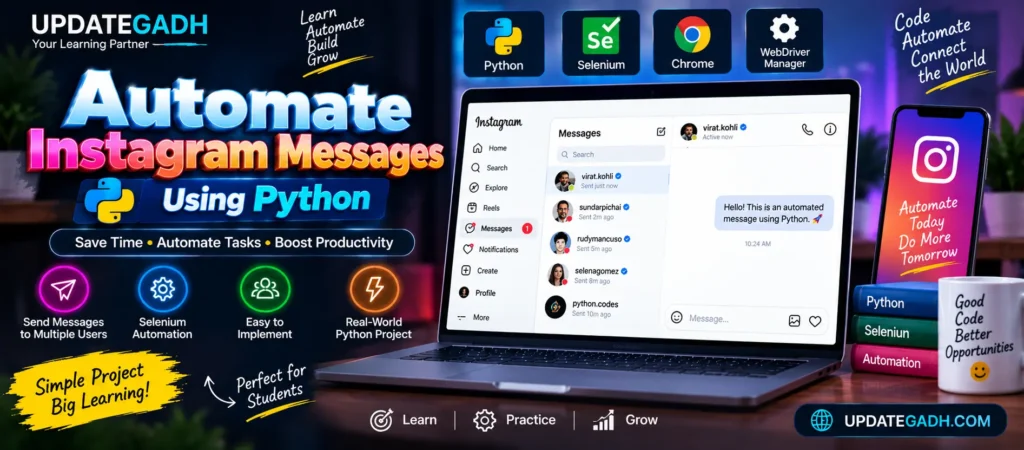
In this tutorial, we will learn how to create a Python-based browser automation project for an Instagram messaging workflow. The project uses Selenium to control Google Chrome and WebDriver Manager to simplify browser-driver management. We will also learn how to locate page elements, wait for dynamic elements, enter text, and organize the automation logic inside a Python class.
This tutorial is intended for learning browser automation concepts. Automated messaging should always be used responsibly and in accordance with Instagram’s applicable rules. Avoid unsolicited bulk messaging or any activity that could be considered spam.
What Is Instagram Automation?
Instagram automation means using a program to perform selected browser actions instead of performing every action manually. Python can communicate with a browser through Selenium and interact with supported page elements.
In a messaging workflow, automation can involve opening the website, navigating to the messaging interface, searching for a recipient, entering a message, and submitting the interaction.
Instagram’s interface can change frequently, so browser automation scripts may require maintenance when page elements, buttons, text, or selectors change.
Technologies Required
The following tools are used for this Python automation example:
- Python: Programming language used to create the automation script.
- Selenium: Library used to control and interact with the web browser.
- WebDriver Manager: Helps manage browser-driver requirements.
- Google Chrome: Browser controlled by Selenium.
1. Install Selenium
First, install Selenium using pip. Open the VS Code terminal or Command Prompt and execute:
pip install seleniumSelenium provides the Python classes required to start a browser, locate elements, enter information, and perform browser interactions.
2. Install WebDriver Manager
The WebDriver Manager package can simplify the process of managing browser drivers.
pip install webdriver-managerUsing a driver-management package can make the initial Selenium setup easier, although current Selenium releases also provide their own driver-management capabilities.
3. Import the Required Libraries
After installing the packages, import the modules required by the project.
from selenium import webdriver
import time

from selenium.webdriver.common.by import By
from selenium.webdriver.support.ui import WebDriverWait
from selenium.webdriver.support import expected_conditions as EC
from selenium.webdriver.common.keys import Keys

from webdriver_manager.chrome import ChromeDriverManager
The webdriver module provides browser control. The By class provides different methods for locating elements. WebDriverWait and expected_conditions help the program wait for elements to become available.
The Keys class can be used to perform keyboard actions such as pressing Enter.
4. Set Up the Chrome WebDriver
The browser needs to be initialized before Selenium can interact with the website.
driver = webdriver.Chrome()Modern Selenium versions can automatically manage the required driver in many environments. If you specifically want to use WebDriver Manager, the setup depends on the installed package and Selenium version.
Once the browser has started, Selenium can open a web page using:
driver.get("https://www.instagram.com/")5. Define the Audience and Message
For a controlled demonstration, you can define a list of intended recipients and a message template.
audience = [
    "example_user_1",
    "example_user_2"
]

message = "Hello! This is an automated message using Python."
Use test accounts or recipients who have appropriate permission to receive automated communication. Do not use automation to send unwanted bulk messages.
6. Create the InstagramBot Class
Using a class helps organize the browser automation code. Instead of placing every operation inside one large function, different tasks can be separated into methods.
class InstagramBot:

    def __init__(self, username, password, audience, message):
        self.username = username
        self.password = password
        self.audience = audience
        self.message = message
        self.base_url = "https://www.instagram.com/"
        self.driver = driver

        self.login()

    def login(self):
        self.driver.get(self.base_url)

        username_box = WebDriverWait(
            self.driver, 20
        ).until(
            EC.presence_of_element_located(
                (By.NAME, "username")
            )
        )

        password_box = WebDriverWait(
            self.driver, 20
        ).until(
            EC.presence_of_element_located(
                (By.NAME, "password")
            )
        )

        username_box.send_keys(self.username)
        password_box.send_keys(
            self.password + Keys.RETURN
        )

        time.sleep(5)

        self.handle_popups()
The constructor stores the supplied values and starts the login process. Explicit waits are used because web pages may take different amounts of time to load.
7. Handling Pop-Ups
Web applications can display additional dialogs after login. The original workflow uses a method for handling optional pop-ups.
def handle_popups(self):

    try:
        WebDriverWait(self.driver, 10).until(
            EC.element_to_be_clickable(
                (By.XPATH, '//button[text()="Not Now"]')
            )
        ).click()

        time.sleep(2)

    except Exception:
        pass

    try:
        WebDriverWait(self.driver, 10).until(
            EC.element_to_be_clickable(
                (By.XPATH, '//button[text()="Not Now"]')
            )
        ).click()

        time.sleep(2)

    except Exception:
        pass
The use of try and except prevents an optional dialog from stopping the entire program when that dialog does not appear.
8. Sending Messages Through the Workflow
The next part of the project demonstrates the general messaging workflow. Selenium navigates to the Direct Messages area and works with the page elements.
def send_messages(self):

    WebDriverWait(self.driver, 10).until(
        EC.presence_of_element_located(
            (By.XPATH, '//a[contains(@href, "direct/inbox")]')
        )
    ).click()

    time.sleep(3)

    for user in self.audience:

        print(f"Processing: {user}")

        # Continue with the permitted messaging workflow
        # for your controlled test environment.
The loop allows the program to process multiple entries from the audience list. In a real application, this type of automation should only be used where the communication is permitted and consistent with the platform’s requirements.
9. Locating Elements with XPath
Selenium needs a way to identify buttons, text fields, links, and other elements. XPath is one of the locator techniques available in Selenium.
For example:
element = driver.find_element(
    By.XPATH,
    '//button[text()="Next"]'
)
However, relying heavily on visible button text or deeply nested XPath expressions can make an automation script fragile. If Instagram changes the interface, the selector may stop working.
10. Why WebDriverWait Is Important
A common mistake in browser automation is assuming that every element will appear immediately. Modern websites frequently load content dynamically.
For example:
element = WebDriverWait(driver, 10).until(
    EC.presence_of_element_located(
        (By.XPATH, '//textarea')
    )
)
This tells Selenium to wait until the required element becomes available instead of trying to access it immediately.
Explicit waits generally make automation code more reliable than using a large number of fixed delays.
11. Running the Program
A main function can be used to initialize the automation class.
def main():

    username = "your_instagram_username"
    password = "your_instagram_password"

    bot = InstagramBot(
        username,
        password,
        audience,
        message
    )

    bot.send_messages()


if __name__ == "__main__":
    main()
For real applications, do not keep actual passwords directly inside the source code. Credentials should be stored securely using environment variables or another appropriate secret-management method.
Important Considerations
1. Responsible Automation
Automated messaging should not be used for spam, harassment, or unwanted communication. Use automation only for legitimate and permitted purposes.
2. Instagram Interface Changes
Instagram can change its page structure, button labels, login flow, and element attributes. As a result, selectors used by Selenium may need to be updated.
3. Authentication and Security
Modern platforms may use additional authentication and security checks. Automation scripts should not attempt to bypass security mechanisms.
4. Browser Compatibility
Keep Chrome, Selenium, and the browser-driver environment reasonably up to date. Compatibility problems can prevent Selenium from starting the browser correctly.
Better Approach for Production Applications
If the goal is to create a legitimate Instagram integration rather than simply learn Selenium, an official API-based approach should be considered where the required functionality is supported.
API integrations communicate through documented interfaces rather than depending on the visual structure of a website. This can make an application easier to maintain and more appropriate for supported business workflows.
Complete Advance AI Topics: Click Here
Real Time Projects:- DecodeIT
Conclusion
Python and Selenium provide a practical way to learn browser automation. In this project, we explored how to initialize Chrome, use Selenium locators, wait for dynamic elements, organize automation code using a class, and create a structured messaging workflow.
The most important lesson is that automation should be used responsibly. Instagram’s interface and policies can change, and automated unsolicited messaging can create spam or account-related problems. For legitimate applications, developers should prefer supported APIs and follow the applicable platform requirements.
For students, this project is still a useful example of Python automation because the same Selenium concepts can be applied to web testing, controlled browser workflows, form testing, and other legitimate automation tasks.
FAQs – Automate Instagram Messages Using Python
1. What is Instagram automation using Python?
Instagram automation using Python means using Python tools such as Selenium to automate permitted browser interactions with Instagram.
2. Which library is used for browser automation?
Selenium is the main Python library used in this tutorial for controlling the Chrome browser.
3. How do I install Selenium?
Run pip install selenium in the terminal to install the Selenium Python package.
4. What is WebDriver Manager used for?
WebDriver Manager helps simplify the management of browser drivers required by Selenium.
5. Why should WebDriverWait be used?
WebDriverWait allows Selenium to wait for dynamically loaded elements before interacting with them.
6. Can Instagram selectors change?
Yes. Instagram can change its HTML structure, element attributes, buttons, and interface, which can cause existing Selenium selectors to stop working.
7. Should passwords be written directly in Python code?
No. Sensitive credentials should not be hard-coded or published. Environment variables or secure secret-management methods are safer options.
8. Can automated Instagram messages be used for spam?
Automation should not be used for unsolicited bulk messaging. Messaging workflows should be limited to legitimate and permitted communication.
Keywords: Automate Instagram Messages Using Python, Instagram automation Python, send Instagram message using Python, Instagram DM bot Python, Selenium Instagram automation, Instagram API Python, Python Selenium tutorial, Instagram messaging automation, Python browser automation, automate Instagram with Python