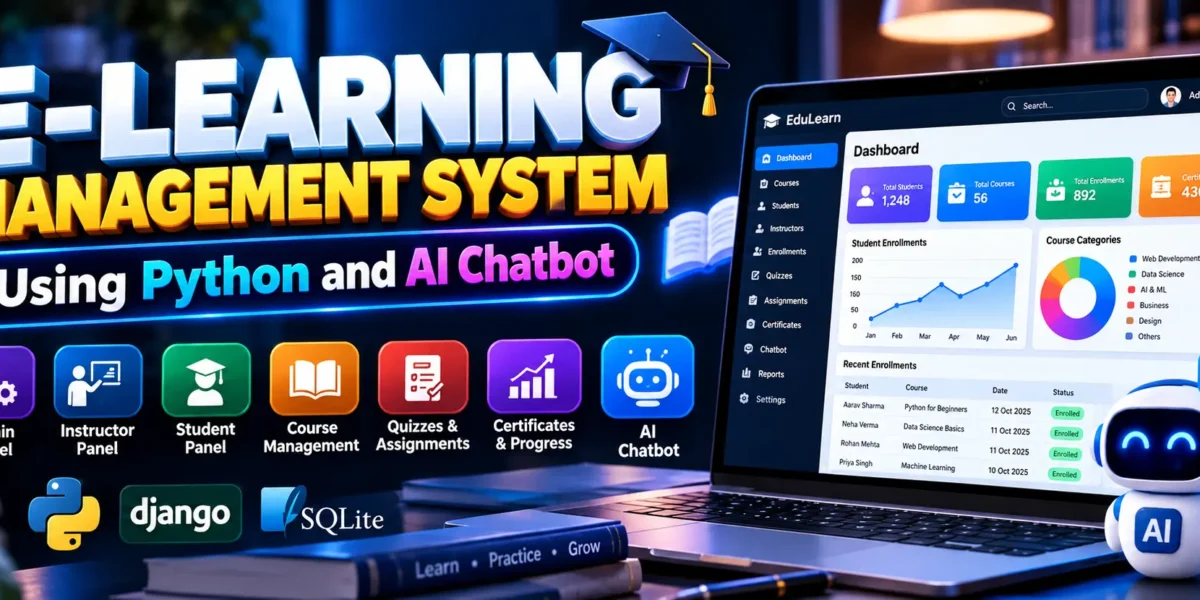
The E-Learning Management System Using Python and AI Chatbot is a web-based educational platform developed using Python, Django, and SQLite. It provides separate Admin, Instructor, and Student panels to manage courses, lessons, quizzes, assignments, enrollments, and learning progress.
This project also includes an AI chatbot powered by machine learning techniques, interactive Chart.js dashboards, and dark and light mode. It demonstrates how web development and machine learning can be combined to build an educational management application.
Complete Advance AI Topics: Click Here
Real Time Projects on YouTube:- DecodeIT
What Is the E-Learning Management System Project?
The E-Learning Management System is a Django-based application that helps administrators manage educational resources, instructors organize course content, and students access learning materials and assessments. The system uses SQLite to store application data and provides dedicated interfaces for different user roles.
What Are the Project Details?
The project uses Python and Django for backend development, SQLite for data storage, and HTML, CSS, and JavaScript for the frontend.
| Project Information | Details |
|---|---|
| Project Name | E-Learning Management System Using Python and AI Chatbot |
| Programming Language | Python |
| Framework | Django |
| Database | SQLite |
| Frontend | HTML, CSS, JavaScript |
| Machine Learning | Scikit-learn, TF-IDF, Logistic Regression |
| NLP Library | NLTK |
| Dashboard Charts | Chart.js |
| Project Type | Web-Based Learning Management System |
What Are the Main Features of the Project?
The project combines course management, student assessments, instructor tools, learning progress tracking, certificates, and a machine-learning chatbot.
- Custom Admin Panel: Manage users, course categories, courses, lessons, enrollments, quizzes, questions, assignments, submissions, reviews, certificates, notifications, and chatbot records.
- Instructor Panel: Manage assigned courses, lessons, quizzes, assignments, student submissions, grades, and feedback.
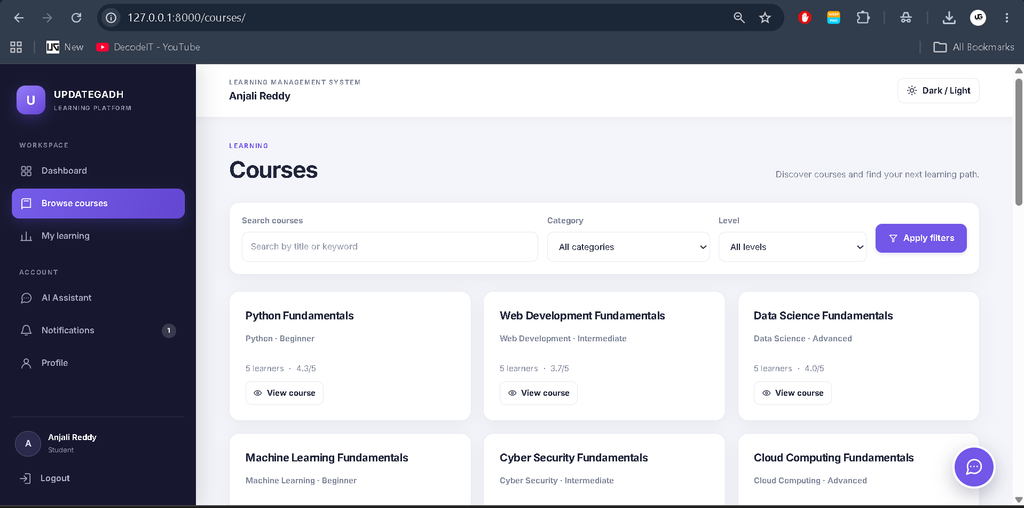
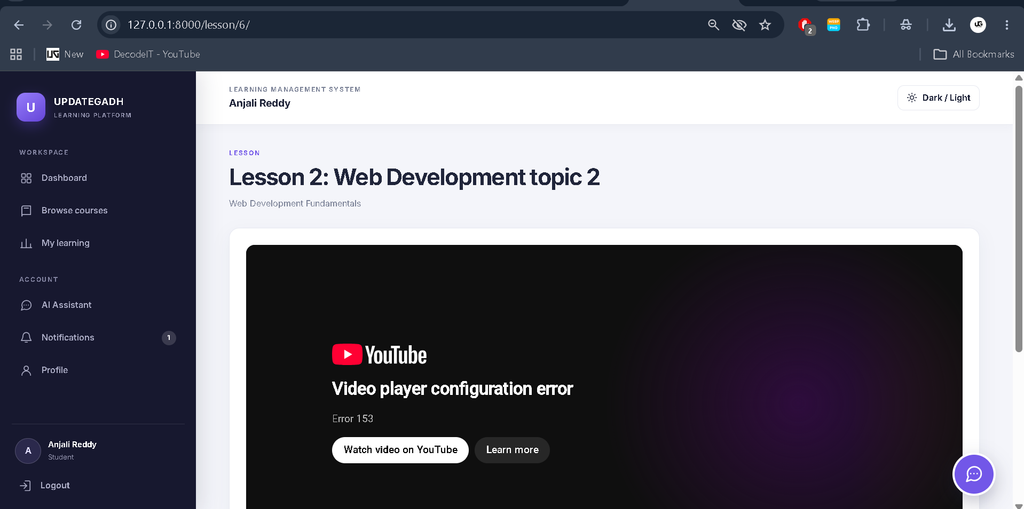
- Student Panel: Browse courses, enroll, access lessons, complete quizzes, submit assignments, and monitor progress.
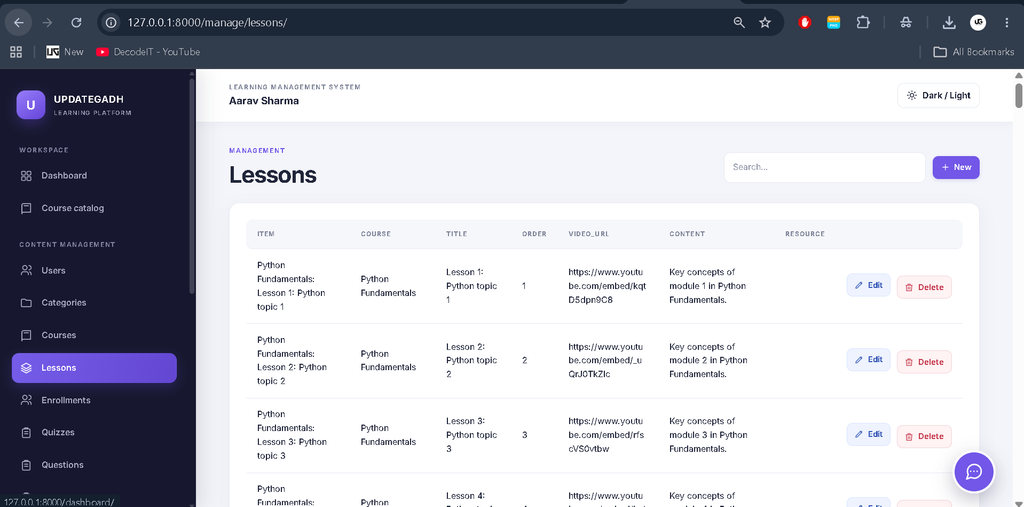
- Course Management: Organize educational content into courses and lessons.
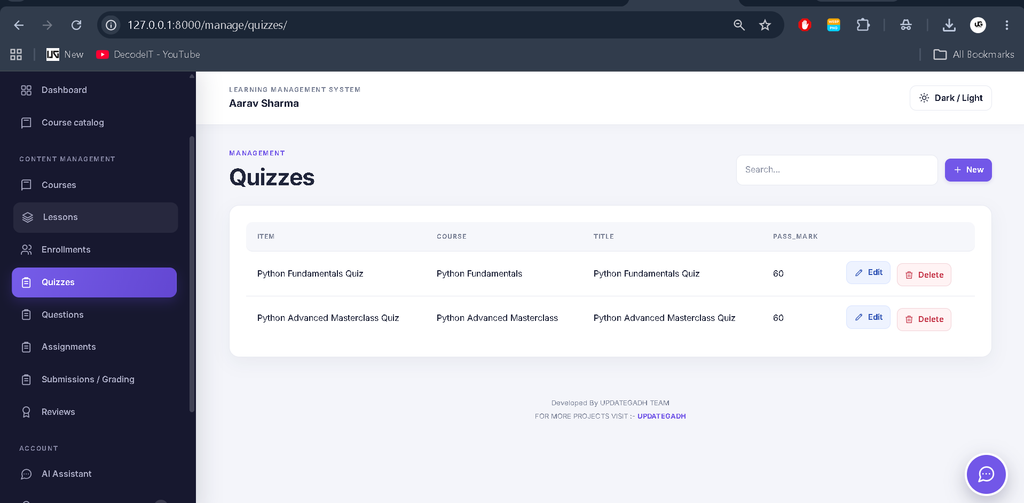
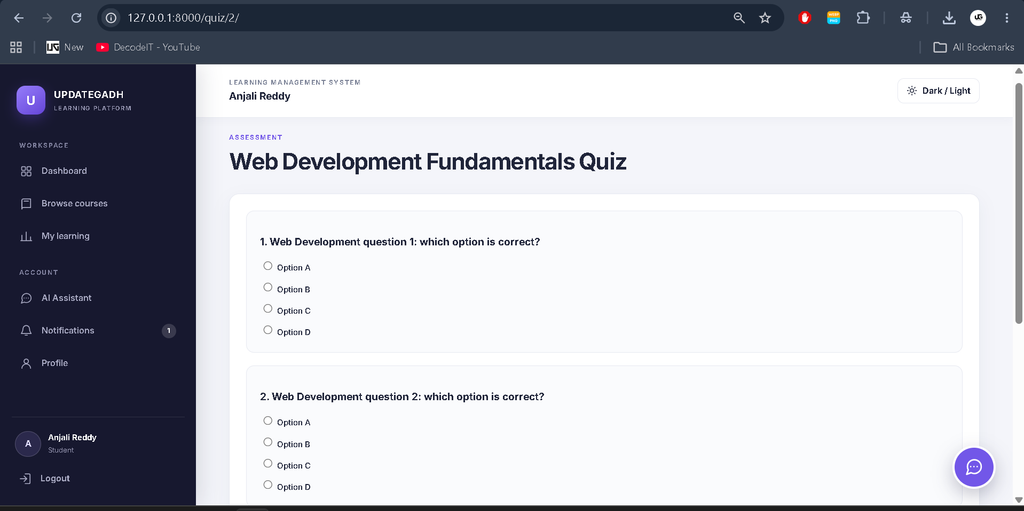
- Quiz Management: Create multiple-choice assessments and calculate quiz scores.
- Assignment Management: Submit assignments and manage grading and instructor feedback.
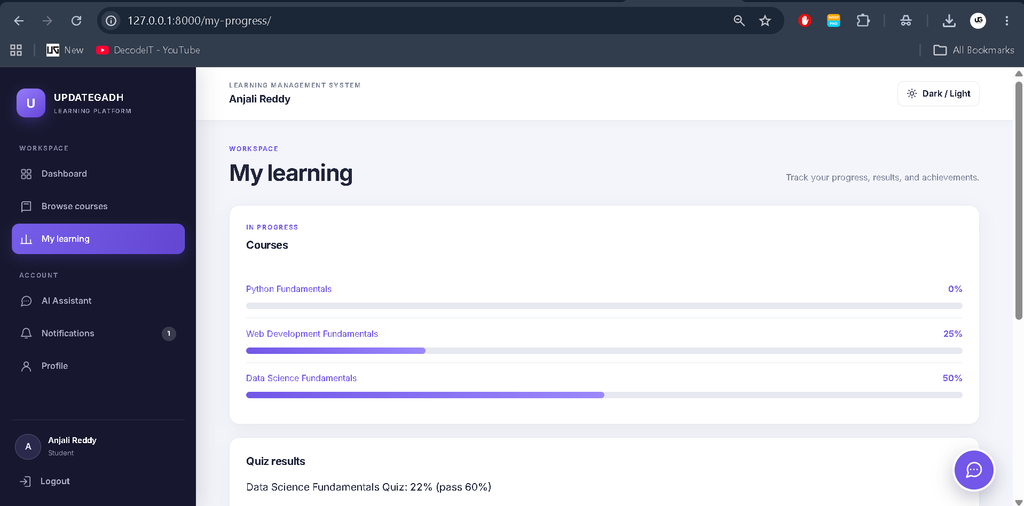
- Learning Progress Tracking: Record lesson completion and display course progress.
- Certificate Generation: Generate certificates when students complete all lessons in a course.
- Course Reviews: Allow students to submit ratings and comments.
- Notifications: Display notifications and course announcements.
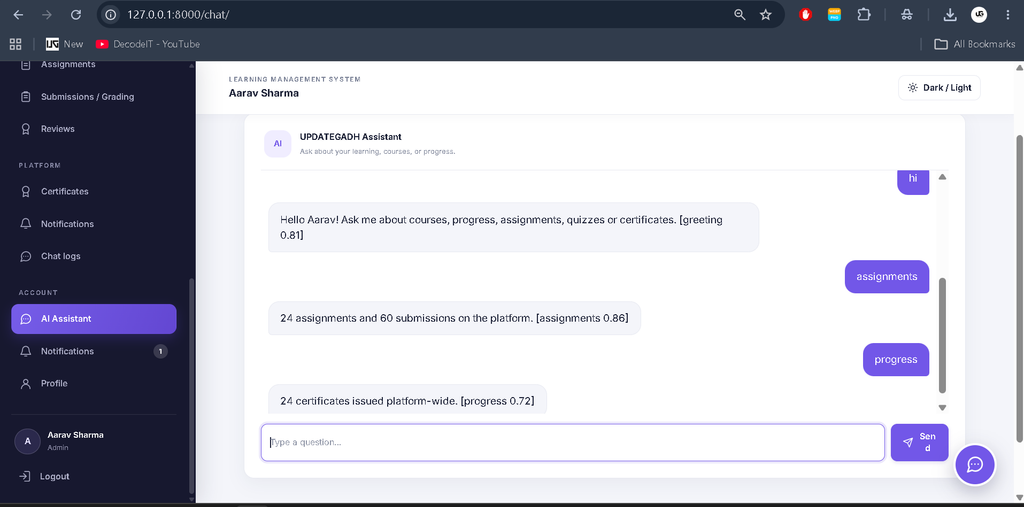
- AI Chatbot: Classify supported queries and provide relevant responses.
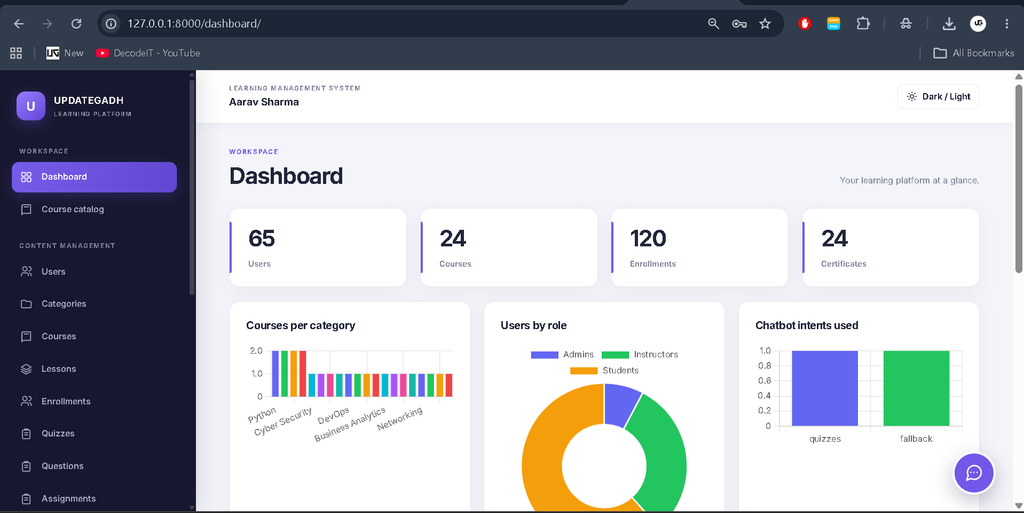
- Interactive Dashboards: Display statistics and charts using Chart.js.
- Dark and Light Mode: Switch between available interface themes.
- Profile Management: Manage user profile information.
How Does the Admin Panel Work?
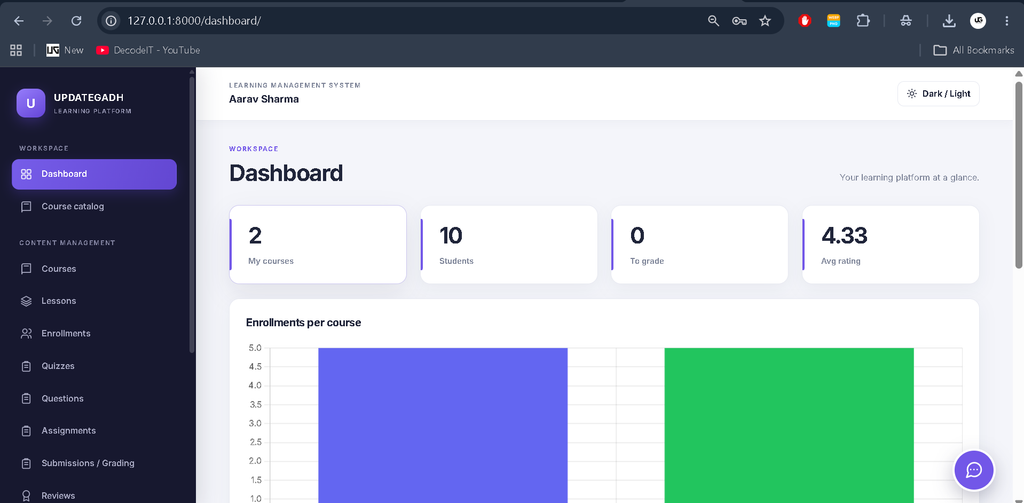
The custom Admin panel allows administrators to manage the platform through a dedicated interface without relying on Django’s built-in admin interface. It provides management tools for educational records, users, certificates, notifications, and chatbot activity.
Administrators can also view dashboard statistics and Chart.js visualizations to monitor relevant application information.
What Can Instructors Manage?
Instructors use their dedicated panel to organize educational content and evaluate student performance. They can manage assigned courses, create lessons and assessments, review submissions, and provide grades and feedback.
- Manage courses and lessons.
- Create quizzes and multiple-choice questions.
- Create assignments and review submissions.
- Provide grades and feedback.
- Review course enrollment information and student ratings.
- Send announcements through notifications.
How Can Students Use the Learning Portal?
Students can access published courses, enroll in learning programs, study lessons, complete assessments, and track their progress from the Student panel.
- Browse and search published courses.
- Access authorized lessons and learning resources.
- Track completed lessons and course progress.
- Attempt quizzes and view results.
- Submit assignments and review instructor feedback.
- Rate courses and submit comments.
- Receive certificates after completing all lessons in a course.
How Does the AI Chatbot Work?
The AI chatbot uses machine learning to classify supported user queries and generate appropriate responses. It combines TF-IDF text features, Logistic Regression, NLTK-based text processing, and application handlers for supported database-backed answers.
- TF-IDF: Represents messages using word and character n-gram features.
- Intent Classification: Uses Logistic Regression to classify supported queries.
- Natural Language Processing: Uses NLTK tokenization and Porter stemming.
- Database-Backed Responses: Retrieves application information for supported questions.
- Fallback Responses: Provides fallback messages when confidence is insufficient.
- Chatbot Analytics: Supports chatbot activity monitoring and model retraining.
The chatbot can be retrained using the provided Django management command. Its responses depend on the available intents, classification results, and implemented handlers.
Which Technologies Are Used in the Project?
The application combines backend development, database management, frontend technologies, and machine-learning libraries.
- Python: Main programming language.
- Django: Backend framework and application logic.
- SQLite: Database for application records.
- HTML, CSS, and JavaScript: Frontend structure, styling, and interactions.
- Scikit-learn: Machine-learning intent classification.
- NLTK: Natural language processing and stemming.
- Chart.js: Dashboard visualizations.
How to Download
The complete package is available so you can run, study, and submit it with confidence. It includes:
- Full Source Code
- Project Report
- Synopsis
- PPT Presentation
Screenshot
How to Install and Run the Project in VS Code?
Follow these steps on Windows to configure the project, install dependencies, initialize the database, create demonstration accounts, and start the Django server.
Step 1: Open the Project Folder
Extract the project ZIP file and open the elearning folder in Visual Studio Code. Open the integrated terminal inside that folder.
Step 2: Create and Activate a Virtual Environment
python -m venv venv
.\venv\Scripts\Activate.ps1
If PowerShell blocks activation, run the following command and activate the environment again.
Set-ExecutionPolicy -Scope Process BypassStep 3: Install Dependencies
python -m pip install --upgrade pip
pip install -r requirements.txt
Step 4: Create and Apply Database Migrations
If the lms/migrations directory does not contain an initial migration file, generate it before applying migrations.
python manage.py makemigrations lms
python manage.py migrate
Step 5: Create Demo Data and Train the Chatbot
python manage.py seed_demo
python manage.py train_chatbot
Step 6: Run the Tests
python manage.py testStep 7: Start the Development Server
python manage.py runserverOpen the application in your browser at http://127.0.0.1:8000/.
What Are the Demo Login Credentials?
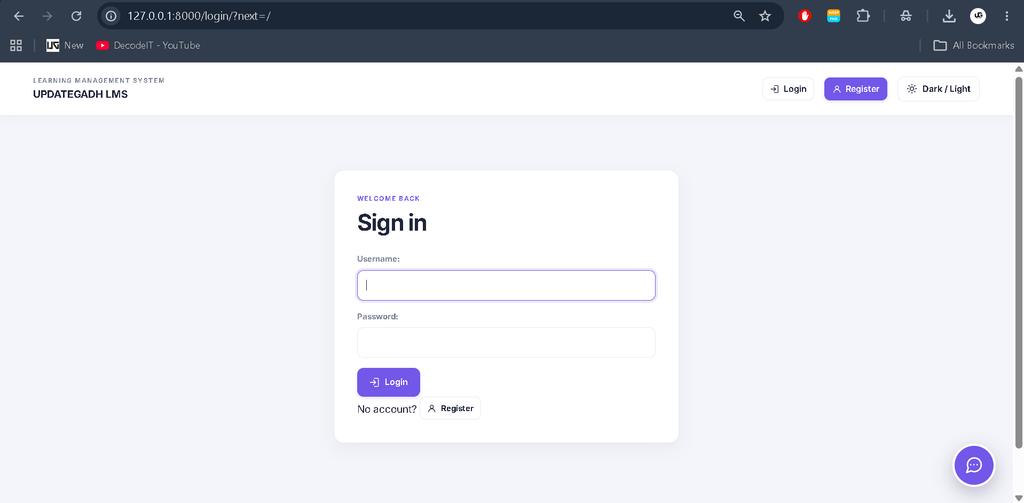
Run the seed_demo command to create the sample accounts provided with the project.
| Role | Username | Password |
|---|---|---|
| Admin | admin1 to admin5 | Admin@123 |
| Instructor | instructor1 to instructor20 | Teach@123 |
| Student | student1 to student40 | Learn@123 |
What Should You Know Before Running the Project?
The project depends on its Python packages and database migrations being configured correctly. Test the application locally before deployment.
- Chart.js and the Inter font load from external CDNs, so an internet connection is required for those resources.
- Uploaded media is served using Django’s development server configuration.
- The provided media setup does not perform per-file permission checks and is intended for development, not production.
- Configure secure production settings before deploying the application publicly.
Frequently Asked Questions
1. What is an E-Learning Management System?
An E-Learning Management System is a web application used to organize courses, lessons, assessments, and student learning progress.
2. Which database does this project use?
The project uses SQLite as its default database.
3. Does the project include an AI chatbot?
Yes. The chatbot uses TF-IDF, Logistic Regression, and NLTK-based text processing to classify supported queries.
4. How are certificates generated?
The application generates a certificate when a student completes all lessons in a course.
5. How do I start the project?
Install dependencies, apply database migrations, run the demo-data and chatbot-training commands, and start the server using python manage.py runserver.
Final Thoughts
From a student’s perspective, the E-Learning Management System Using Python and AI Chatbot is a practical example of integrating Django web development with machine-learning functionality. It demonstrates course administration, role-based access, student assessments, learning progress, certificate generation, and chatbot integration in one educational application.
E-Learning Management System, E-Learning Management System, e learning management system project, e learning management system project report pdf, e learning management system eastern university, e learning management system project github, e learning management system elms, e learning management system er diagram, e learning management system project in php github, e learning management system project source code, e learning management system lms