
The Face Recognition Attendance System in Django-based project that uses OpenCV face detection and LBPH face recognition to register students, train a face recognition model, take attendance through a webcam, and display the attendance records for the current day. The project stores student details in a CSV file and saves attendance records as daily CSV files.
Table of Contents
Complete Advance AI Topics: Click Here
Real Time Projects:- DecodeIT
Project Overview
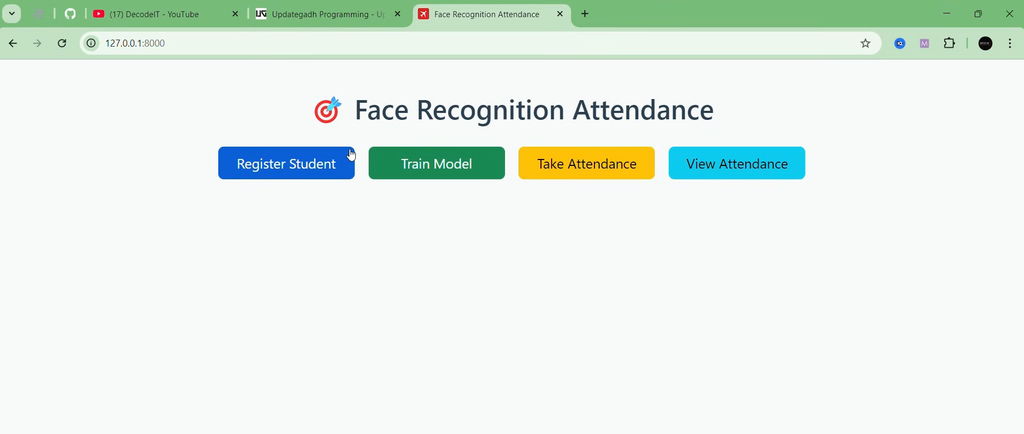
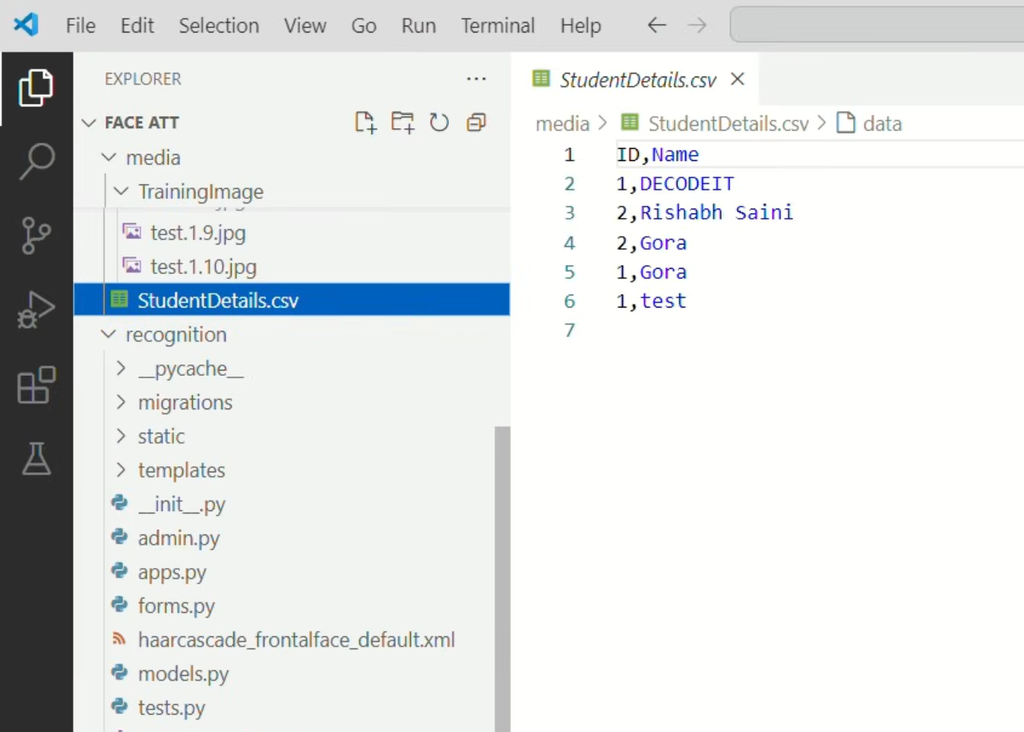
The system provides a home page with options to Register Student, Train Model, Take Attendance, and View Attendance. During student registration, the project captures face images through the camera. These images are stored in the TrainingImage directory using the student name and ID in the filename. The registered student information is stored in StudentDetails.csv.
The training function reads the captured images, detects faces using the Haar Cascade classifier, and trains an LBPH face recognizer. The trained model is saved as trained_model.yml. During attendance, the saved model is loaded and the webcam is used to recognize faces. When a recognized student is found, the system records the student ID, name, date, and time. Duplicate attendance entries are avoided during the same attendance session. The attendance is saved in a CSV file using the current date.
The project uses SQLite as the Django database, while student and attendance information handled by the recognition functions is stored in CSV files.
Project Details
| Project Information | Details |
|---|---|
| Project Name | Face Recognition Attendance System in Django |
| Language/s Used | Python |
| Framework | Django 5.1.7 |
| Face Recognition | OpenCV LBPHFaceRecognizer |
| Face Detection | Haar Cascade |
| Database | SQLite |
| Data Storage | CSV Files |
| Frontend | HTML, CSS, Bootstrap 5.3.3 |
Available Features
1. Student Registration
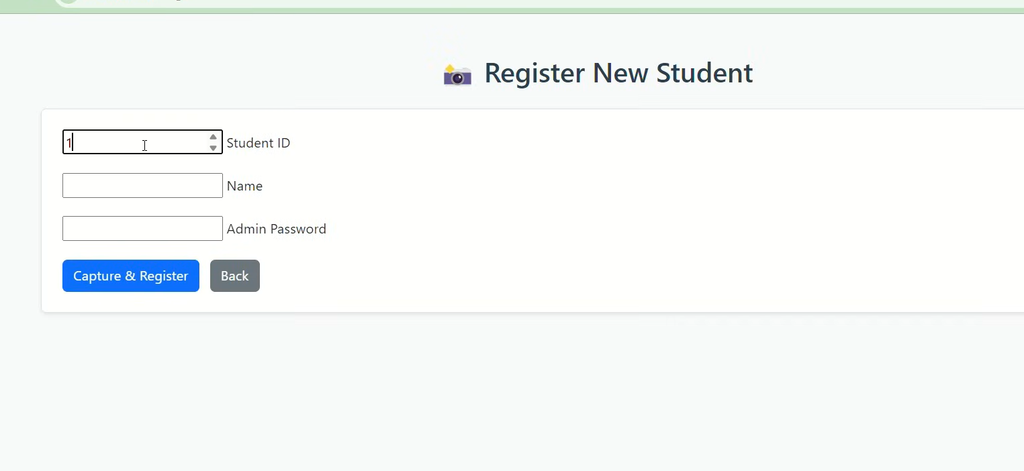
The project includes a student registration form with fields for Student ID, Name, and Admin Password. The password is checked against the value used in the project before the camera capture process starts.
The registration process uses the webcam to detect a face and allows the user to press c to capture an image. Up to 20 face images can be captured, and the process can also be stopped using q. The captured grayscale face images are saved in the TrainingImage folder. The student ID and name are then appended to StudentDetails.csv.
2. Face Detection
The project uses haarcascade_frontalface_default.xml for detecting faces from camera frames and training images. During registration, detected faces are shown with a rectangle before an image is captured.
3. Train Recognition Model
The Train Model option reads the images stored in TrainingImage, converts them to grayscale, detects faces, extracts the face regions, and trains an LBPH face recognizer.
The resulting model is saved in recognition/trained_model.yml. If no faces are found in the training images, an error message is displayed.
4. Take Attendance
The Take Attendance option opens the webcam and loads the trained model. Detected faces are compared with the trained LBPH model. When the confidence value meets the project condition, the corresponding student ID and name are obtained from StudentDetails.csv.
The system records the ID, name, date, and time. A dictionary is used to avoid duplicate attendance entries for the same ID during the session. Recognized names are displayed on the camera window, while unknown faces are shown as Unknown.
5. Daily Attendance CSV
After the attendance session is completed, the records are saved in the Attendance directory using a date-based filename such as Attendance_YYYY-MM-DD.csv. The saved columns are ID, Name, Date, and Time.
6. View Attendance
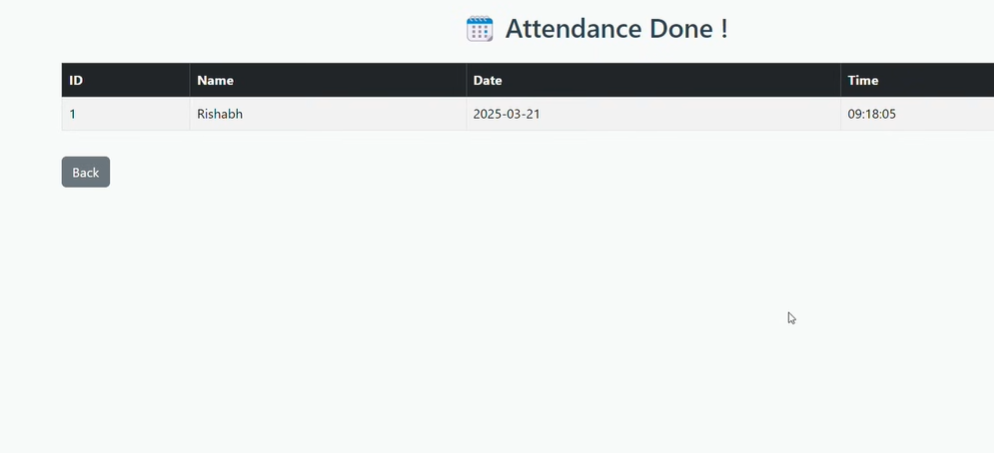
The View Attendance option reads the current day’s attendance CSV file and displays the available records in a table. If there is no attendance file for the current day, the page displays that no attendance records were found.
7. Bootstrap-Based Interface
The project templates use Bootstrap 5.3.3 along with a custom style.css file. The home page provides four buttons for the main operations, while the registration and attendance pages use Bootstrap-based forms, tables, alerts, and buttons.
Technology Stack
Python is used for the project logic. Django 5.1.7 handles the web application structure and routing. OpenCV and OpenCV Contrib provide the computer vision and LBPH face recognition functionality. NumPy is used for image and model data, while Pandas is used to read and write CSV attendance data. SQLite is configured as the Django database. HTML and CSS are used for the interface, with Bootstrap 5.3.3 included in the templates.
How to Download
The complete package is available so you can run, study, and submit it with confidence. It includes:
- Full Source Code
- Project Report
- Synopsis
- PPT Presentation
Demo Video
Screenshot
Project Structure
The main project contains manage.py and the face_attendance project folder. The recognition application contains the forms, views, URLs, templates, static CSS, Haar Cascade file, and trained model file.
The media directory contains the Attendance folder, StudentDetails.csv, and TrainingImage folder. The project also includes requirements.txt with the package versions used by the project.
Project Routes
| Route | Purpose |
|---|---|
| / | Home Page |
| /register/ | Register Student |
| /train/ | Train Model |
| /attendance/ | Take Attendance |
| /view_attendance/ | View Attendance |
Software and Tools Required
| Software / Tool | Purpose |
|---|---|
| Python | Used for developing the project logic. |
| Django 5.1.7 | Used to build the web application. |
| OpenCV | Used for face detection and image processing. |
| OpenCV Contrib | Used for LBPH face recognition. |
| NumPy | Used for image and numerical data processing. |
| Pandas | Used for handling CSV attendance records. |
| SQLite | Used as the Django database. |
| Webcam | Used for capturing face images and taking attendance. |
| Visual Studio Code | Used for editing and running the project. |
| requirements.txt | Contains the required Python package versions for the project. |
Installation Guide
Follow these steps to run the Django project in VS Code.
Step 1: Open the Project
Open the extracted project folder in Visual Studio Code.
Step 2: Create a Virtual Environment
python -m venv venvStep 3: Activate the Virtual Environment
venv\Scripts\activateStep 4: Install Required Packages
Install the packages provided in the project’s requirements file.
pip install -r requirements.txtStep 5: Run Django Migrations
python manage.py migrateStep 6: Start the Django Server
python manage.py runserverAfter starting the server, open the local Django development server in the browser.
Project Usage
Register Student
Open the Register Student option and enter the Student ID, Name, and Admin Password. After the password is accepted, the webcam opens. The system detects faces and displays a rectangle around the detected face.
Press c to capture face images. The project can capture up to 20 images. Press q to stop the capture process. The captured images are saved in the TrainingImage directory and the student details are stored in StudentDetails.csv.
Train Model
After registering students and capturing face images, select Train Model. The project processes the images, detects faces, trains the LBPH recognizer, and saves the trained model as trained_model.yml.
Take Attendance
Select Take Attendance to open the webcam. The system detects faces and compares them with the saved model. Recognized students are added to the attendance dictionary with their ID, name, date, and time.
The same student ID is not added more than once during the same attendance session. Press q to finish the attendance session.
View Attendance
After taking attendance, select View Attendance to display the current day’s records. The table contains ID, Name, Date, and Time.
Project Benefits
The project brings student registration, face image capture, model training, webcam-based recognition, and daily attendance records into one Django application. It uses CSV files for student and attendance information and saves the trained face recognition model for later attendance sessions.
Final Thoughts
This Face Recognition Attendance System in Django combines Django, OpenCV, Haar Cascade face detection, LBPH face recognition, Pandas, NumPy, SQLite, CSV files, HTML, CSS, and Bootstrap 5.3.3 in one project.
Keywords:
Keywords: Face Recognition Attendance System in Django, Django Face Recognition Attendance, Face Attendance System Django, OpenCV Attendance System, LBPH Face Recognition Django, Python Face Recognition Attendance, Django Attendance Project,Face Recognition Attendance System Face Recognition Attendance System face recognition attendance system using python face recognition attendance system project face recognition attendance system project report pdf face recognition attendance system Face Recognition Attendance System Using PythonFace Recognition Based Attendance System Face Recognition Based Attendance System,Face Recognition bace Attendance System Face Recognition bace Attendance System – Google Search face recognition based attendance system face recognition based attendance system project source code face recognition based attendance system using python source code github face recognition based attendance system project report face recognition based attendance system using python source code face recognition based attendance system project face recognition based attendance system using python project report pdf face recognition based attendance system using python project report face recognition based attendance system github