Skip to content
  • SiteMap
  • Our Services
  • Frequently Asked Questions (FAQ)
  • Support
  • About Us

UpdateGadh

Update Your Skills.

  • Home
  • Projects
    •  Blockchain projects
    • Python Project
    • Data Science
    •  Ai projects
    • Machine Learning
    • PHP Project
    • React Projects
    • Java Project
    • SpringBoot
    • JSP Projects
    • Java Script Projects
    • Code Snippet
    • Free Projects
  • Tutorials
    • Ai
    • Machine Learning
    • Advance Python
    • Advance SQL
    • DBMS Tutorial
    • Data Analyst
    • Deep Learning Tutorial
    • Data Science
    • Nodejs Tutorial
  • Blog
  • Contact us
  • Toggle search form
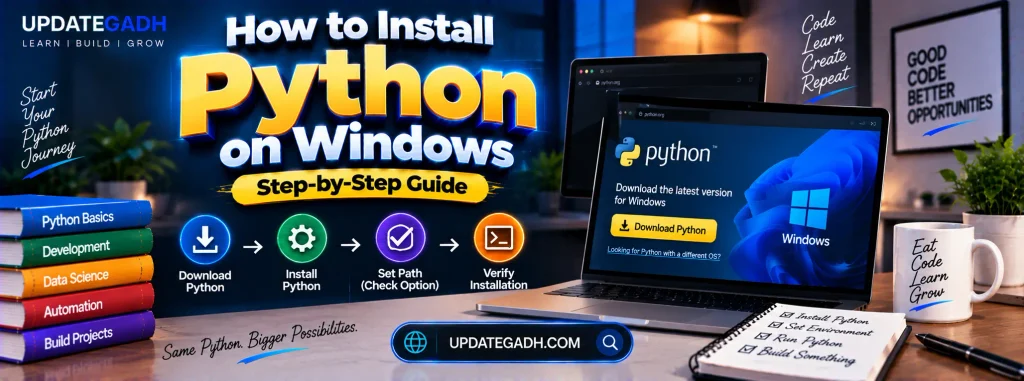
How to Install Python on Windows: A Step-by-Step Guide - How to Install Python on Windows

How to Install Python on Windows: A Step-by-Step Guide

Posted on December 29, 2024January 8, 2025 By Rishabh saini No Comments on How to Install Python on Windows: A Step-by-Step Guide

How to Install Python on Windows

Python, renowned for its versatility and popularity, is a go-to programming language for beginners and professionals alike. While it doesn’t come pre-installed on Windows, installing Python is a straightforward process that ensures Windows users can fully leverage its powerful features. In this guide, we’ll walk through the updated steps to install Python on your Windows system.

Complete Python Course with Advance topics:-Click here

Step 1: Visit the Official Python Website

The first step to installing Python is to download the installer from the official Python website. Here’s how to do it:

  1. Open your preferred web browser.
  2. Go to the official Python website: www.python.org.
  3. Navigate to the Downloads section.
    The page will automatically suggest the latest Python version suitable for your operating system. You can also explore older versions if needed.

How to Install Python on Windows

Important Note:

  • If your system runs a 32-bit processor, download the 32-bit installer.
  • If your system supports 64-bit, opt for the 64-bit installer.
  • If unsure about your system architecture, downloading the 64-bit version is a safe choice.

Once you’ve made your selection, click the Download button to get the installer.

How to Install Python on Windows

Step 2: Run the Python Installer

After the installer is downloaded, follow these steps to set up Python on your Windows system:

  1. Locate the downloaded file (usually in the “Downloads” folder) and double-click it to start the installation process.
  2. On the installation screen, ensure you check the box labeled “Add Python to PATH” before clicking Install Now.
    • Adding Python to PATH allows you to use Python directly from the Command Prompt or terminal without extra configuration.
  3. The installer will handle the rest of the process, and you’ll see a progress bar indicating the installation status.

How to Install Python on Windows

Step 3: Verify the Installation

Once the installation is complete:

  1. Open the Command Prompt or PowerShell.
  2. Type the following command and press Enter: python --version or python3 --version If Python is installed correctly, the system will display the installed Python version.
  3. You can also type: python This command opens the interactive Python shell, allowing you to start coding right away.

Step 4: Install Additional Tools (Optional)

For a better Python development experience, consider installing these additional tools:

  • pip: Python’s package manager, typically included in the installation. Verify its presence by typing: pip --version
  • IDE/Text Editor: Tools like PyCharm, VS Code, or Jupyter Notebook make Python coding more efficient.

Download New Real Time Projects :-Click here
PHP PROJECT:- CLICK HERE


python download
how to install python on windows 11
How to Install Python on Windows
how to install python on windows 10
How to Install Python on Windows Step-by-Step Guide
install python windows command line
python download for windows 7
how to install python on windows  Step-by-Step Guide
python installation steps pdf
how to install python on windows server
python for windows
python
pycharm

Post Views: 1,087
Python Interview Question Tags:how to install python, how to install python 3.11 on windows 10, how to install python 3.12 on windows 10, how to install python 3.12 on windows 11, how to install python on windows, how to install python on windows 10, how to install python on windows 11, how to setup python on windows 11 64 bit, install python 3.12 on windows 10, install python on windows 10 64 bit, install python on windows 11 64 bit, install python on windows 11 64 bit windows 11, Python

Post navigation

Previous Post: Best GST Billing Project in Python Django with Source Code
Next Post: How to Install Django: Step-by-Step Guide

More Related Articles

How to Clear the Python Shell How to Clear the Python Shell Python Interview Question
How to Convert a Python List to a String - How to Convert a Python List to a String How to Convert a Python List to a String Python Interview Question
How to Reverse a String in Python? - How to Reverse a String in Python How to Reverse a String in Python? Python Interview Question

Leave a Reply Cancel reply

Your email address will not be published. Required fields are marked *

You may also like

  1. How to Reverse a String in Python?
  2. How to Create a Dictionary in Python
  3. How to Install Matplotlib in Python
  4. How to Create a DataFrame in Python
  5. Strong Number in Python
  6. Insertion Sort in Python

Most Viewed Posts

  1. Top Large Language Models in 2025
  2. Online Shopping System using PHP, MySQL with Free Source Code
  3. login form in php and mysql , Step-by-Step with Free Source Code
  4. Flipkart Clone using PHP And MYSQL Free Source Code
  5. News Portal Project in PHP and MySql Free Source Code
  6. User Login & Registration System Using PHP and MySQL Free Code
  7. Top 10 Final Year Project Ideas in Python
  8. Online Bike Rental Management System Using PHP and MySQL
  9. E learning Website in php with Free source code
  10. E-Commerce Website Project in Java Servlets (JSP)
  • AI
  • ASP.NET
  • Blockchain
  • ChatCPT
  • code Snippets
  • Collage Projects
  • Data Science Project
  • Data Science Tutorial
  • DBMS Tutorial
  • Deep Learning Tutorial
  • Final Year Projects
  • Free Projects
  • How to
  • html
  • Interview Question
  • Java Notes
  • Java Project
  • Java Script Notes
  • JAVASCRIPT
  • Javascript Project
  • JSP JAVA(J2EE)
  • Machine Learning Project
  • Machine Learning Tutorial
  • MySQL Tutorial
  • Node.js Tutorial
  • PHP Project
  • Portfolio
  • Python
  • Python Interview Question
  • Python Projects
  • PythonFreeProject
  • React Free Project
  • React Projects
  • Spring boot
  • SQL Tutorial
  • TOP 10
  • Uncategorized
  • Online Examination System in PHP with Source Code
  • AI Chatbot for College and Hospital
  • Job Portal Web Application in PHP MySQL
  • Online Tutorial Portal Site in PHP MySQL — Full Project with Source Code
  • Online Job Portal System in JSP Servlet MySQL

Most Viewed Posts

  • Top Large Language Models in 2025 (8,612)
  • Online Shopping System using PHP, MySQL with Free Source Code (5,209)
  • login form in php and mysql , Step-by-Step with Free Source Code (4,861)

Copyright © 2026 UpdateGadh.

Powered by PressBook Green WordPress theme