
Python Tkinter Canvas
The Canvas widget in Tkinter is a powerful tool for adding structured graphics to Python applications. It enables users to draw graphs, plots, and various custom shapes, making it essential for developing interactive GUI applications.
Complete Python Course with Advance topics:-Click here
Syntax:
The general syntax to use the Canvas widget is:
w = Canvas(parent, options)
Here, parent represents the parent window or frame where the canvas will be placed, and options define the attributes of the canvas.
Canvas Widget Options:
Below is a list of possible options that can be used with the Canvas widget:
| SN | Option | Description |
|---|---|---|
| 1 | bd | Defines the border width. The default value is 2. |
| 2 | bg | Specifies the background color of the canvas. |
| 3 | confine | Prevents scrolling outside the defined scroll region. |
| 4 | cursor | Defines the cursor type (e.g., arrow, circle, dot). |
| 5 | height | Sets the height of the canvas. |
| 6 | highlightcolor | Defines the highlight color when the widget is focused. |
| 7 | relief | Defines the type of border (e.g., SUNKEN, RAISED, GROOVE, RIDGE). |
| 8 | scrollregion | Specifies the scrollable area as a tuple (x1, y1, x2, y2). |
| 9 | width | Sets the width of the canvas. |
| 10 | xscrollincrement | Moves the canvas horizontally in fixed increments. |
| 11 | xscrollcommand | Associates a horizontal scrollbar. |
| 12 | yscrollincrement | Moves the canvas vertically in fixed increments. |
| 13 | yscrollcommand | Associates a vertical scrollbar. |
Example 1: Creating a Simple Canvas
The following example creates a basic canvas with a pink background.
from tkinter import *

top = Tk()

top.geometry("200x200")

# Creating a simple canvas
c = Canvas(top, bg="pink", height=200)

c.pack()

top.mainloop()
Output:
A pink canvas of size 200×200 appears within the application window.

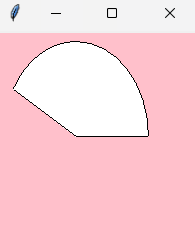
Example 2: Drawing an Arc on Canvas
The following example demonstrates how to create an arc on the canvas.
from tkinter import *

top = Tk()

top.geometry("200x200")

# Creating a canvas
c = Canvas(top, bg="pink", height=200, width=200)

arc = c.create_arc((5, 10, 150, 200), start=0, extent=150, fill="white")

c.pack()

top.mainloop()
Output:
An arc with a white fill appears on the pink canvas.
Download New Real Time Projects :-Click here
Complete Advance AI topics:- CLICK HERE
Conclusion
The Tkinter Canvas widget is highly versatile, making it easy to add custom drawings, animations, and even game elements to a Python application. By understanding its attributes and how to use them, developers can create visually appealing interfaces with ease.
For more tutorials and programming guides, stay tuned to UpdateGadh!
python tkinter canvas documentation
python tkinter canvas create_text
python tkinter canvas methods
python tkinter canvas image
python tkinter canvas example
python canvas
tkinter canvas create rectangle
tkinter canvas size
python tkinter
python tkinter label
python tkinter canvas tutorial
python tkinter canvas example
🎓 Need Complete Final Year Project?
Get Source Code + Report + PPT + Viva Questions (Instant Access)
🛒 Visit UpdateGadh Store →