
How to Develop a Game in Python
Game development is a practical way to learn programming because it combines logic, user input, graphics, and continuous program execution in one project. Python is a popular language for beginners, and with the help of suitable libraries, it can also be used to create interactive 2D games.
One library that makes this process easier is Pygame. It provides tools for creating windows, displaying graphics, responding to keyboard events, controlling game speed, and building interactive gameplay.
Table of Contents
YT:- DecodeIT
What Is Pygame?
Pygame is a Python library used for creating 2D games and multimedia applications. Instead of developing every graphical and input-handling feature from scratch, developers can use Pygame’s ready-to-use functions.
With Pygame, you can work with:
- Game windows and screens
- Keyboard and mouse input
- Images and shapes
- Animation
- Sound and music
- Game timing
- User-generated events
This makes Pygame a useful choice for students and beginners who want to understand the fundamentals of game programming.
What Should You Know Before Learning Pygame?
You do not need advanced Python knowledge to begin. However, understanding a few fundamental concepts will make game development much easier.
- Variables and data types
ifandelsestatementsforandwhileloops- Functions
- Lists
- Basic event handling
A game normally repeats the same process many times: check user input, update the game state, draw the current scene, and repeat. This repeated process is commonly handled through a game loop.
Install Pygame in Python
Before creating a game, install the Pygame package from your terminal or command prompt.
pip install pygameAfter the installation finishes, you can verify the package by importing it:
import pygameIf the import works without an error, Pygame is ready to use.
Create Your First Pygame Window
A game needs a screen where its graphics and objects can be displayed. The following example creates a basic window and keeps it active until the user closes it.
import pygame

pygame.init()

window = pygame.display.set_mode((600, 400))
running = True

while running:
    for event in pygame.event.get():
        if event.type == pygame.QUIT:
            running = False

    pygame.display.flip()

pygame.quit()
Understanding the Program
The program starts by initializing Pygame. It then creates a window that is 600 pixels wide and 400 pixels high.
The running variable controls the main loop. During every iteration, Pygame checks its event queue. When the user clicks the window’s close button, the QUIT event changes running to False.
The pygame.display.flip() statement updates the visible screen. Once the loop finishes, pygame.quit() closes the Pygame modules.
Draw Shapes on the Game Screen
Game objects do not always need image files. Simple games can be created using basic shapes such as rectangles, circles, lines, and polygons.
Here is an example that places different shapes on a Pygame window:
import pygame

pygame.init()

screen = pygame.display.set_mode((500, 350))
clock = pygame.time.Clock()
running = True

while running:
    for event in pygame.event.get():
        if event.type == pygame.QUIT:
            running = False

    screen.fill((20, 20, 20))

    pygame.draw.rect(screen, (255, 80, 80), (50, 50, 100, 60))
    pygame.draw.circle(screen, (80, 150, 255), (280, 100), 45)
    pygame.draw.line(screen, (80, 255, 120), (50, 250), (200, 180), 6)
    pygame.draw.polygon(
        screen,
        (255, 220, 80),
        [(300, 230), (360, 170), (420, 230)]
    )

    pygame.display.flip()
    clock.tick(60)

pygame.quit()
Here, pygame.draw.rect() creates a rectangle, pygame.draw.circle() creates a circle, pygame.draw.line() produces a line, and pygame.draw.polygon() creates a multi-sided shape.
The clock.tick(60) statement limits the loop to approximately 60 iterations per second, helping control the speed at which the game runs.
Build a Simple Snake Game in Python
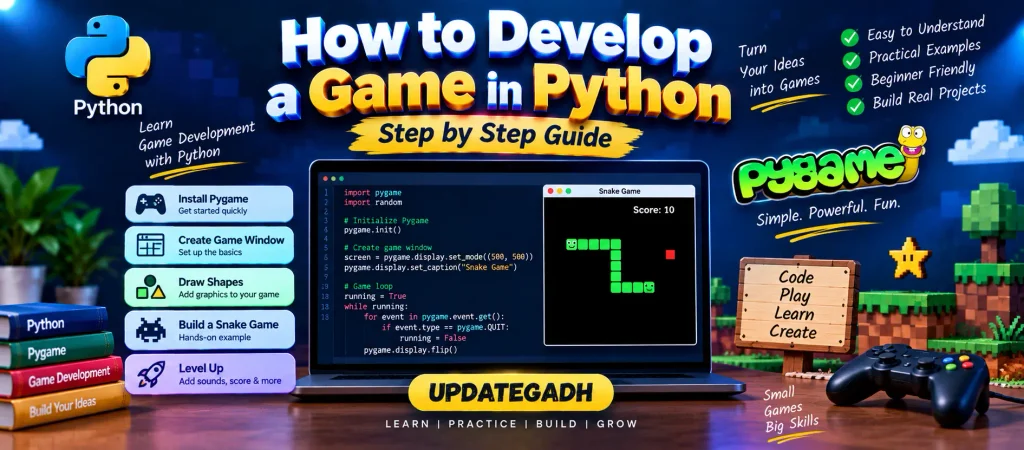
Once you understand windows, events, drawing, and loops, you can combine them into a small playable project. A Snake game is a useful exercise because it involves movement, keyboard input, random positioning, and updating objects on every frame.
The basic version below uses a list to represent the snake’s body and generates food at different positions on the board.
import pygame
import random

pygame.init()

WIDTH = 500
HEIGHT = 500
CELL = 10

screen = pygame.display.set_mode((WIDTH, HEIGHT))
clock = pygame.time.Clock()

snake = [(100, 100), (90, 100), (80, 100)]
direction = (CELL, 0)

food = (
    random.randrange(0, WIDTH, CELL),
    random.randrange(0, HEIGHT, CELL)
)

running = True

while running:

    for event in pygame.event.get():

        if event.type == pygame.QUIT:
            running = False

        if event.type == pygame.KEYDOWN:

            if event.key == pygame.K_UP and direction != (0, CELL):
                direction = (0, -CELL)

            elif event.key == pygame.K_DOWN and direction != (0, -CELL):
                direction = (0, CELL)

            elif event.key == pygame.K_LEFT and direction != (CELL, 0):
                direction = (-CELL, 0)

            elif event.key == pygame.K_RIGHT and direction != (-CELL, 0):
                direction = (CELL, 0)

    head_x, head_y = snake[0]

    new_head = (
        head_x + direction[0],
        head_y + direction[1]
    )

    snake.insert(0, new_head)

    if new_head == food:
        food = (
            random.randrange(0, WIDTH, CELL),
            random.randrange(0, HEIGHT, CELL)
        )
    else:
        snake.pop()

    screen.fill((15, 15, 15))

    for part in snake:
        pygame.draw.rect(
            screen,
            (60, 220, 90),
            (part[0], part[1], CELL, CELL)
        )

    pygame.draw.rect(
        screen,
        (230, 60, 60),
        (food[0], food[1], CELL, CELL)
    )

    pygame.display.flip()
    clock.tick(12)

pygame.quit()
How the Snake Game Works
The program stores the snake as a collection of coordinate pairs. The first coordinate represents the head, while the remaining coordinates represent the rest of the body.
Keyboard Input
When the player presses an arrow key, the program changes the direction of the snake. The conditions prevent the snake from immediately moving in the opposite direction.
Moving the Snake
During each game-loop cycle, a new head position is calculated from the current direction. The new position is inserted at the beginning of the snake list.
Collecting Food
When the snake’s head reaches the food position, the food is moved to another random location. The snake keeps its newly added body segment, making it longer.
Removing the Tail
If the snake does not collect food during a movement, its last segment is removed. This creates the appearance of continuous movement.
Displaying the Game
The screen is cleared and the snake and food are drawn again during every frame. The display is then refreshed so the player can see the updated game state.
Features You Can Add to the Game
The basic Snake game is only a starting point. You can turn it into a more complete project by adding features such as:
- Score calculation
- Game-over screen
- Snake collision detection
- Boundary detection
- Increasing difficulty
- Sound effects
- Background music
- Start and pause screens
- Different game levels
Adding these features gives you an opportunity to practice more advanced programming concepts while making the game more interesting to play.
What Can You Learn from Python Game Development?
Creating a game is not only about graphics. A small Pygame project teaches several useful programming concepts at the same time.
- Event handling: Reacting to keyboard and window events.
- Loops: Running the game continuously.
- Functions: Separating reusable pieces of logic.
- Lists: Managing collections such as the snake body.
- Random numbers: Creating unpredictable object positions.
- Coordinates: Managing where objects appear on the screen.
- Game state: Keeping track of what is currently happening.
Complete Advance AI Topics: Click Here
SQL Tutorial: Click Here
Conclusion
Developing a game with Python is a practical way to combine programming concepts into a working application. Pygame provides the basic tools required to create a 2D game, including screen management, drawing, event processing, and timing.
Starting with a simple window and a few shapes is a good way to understand the fundamentals. After that, projects such as Snake can introduce movement, user controls, object updates, and game logic. As your skills improve, you can gradually add new mechanics and build more complete Python games.
Frequently Asked Questions
Can Python be used for game development?
Yes. Python can be used to create games, especially beginner-friendly 2D projects with libraries such as Pygame.
How do I start making a game in Python?
A simple starting point is to install Pygame, create a display window, learn event handling, and build a basic game loop.
Is Pygame good for beginners?
Pygame is useful for beginners because it provides straightforward tools for graphics, input, timing, and other basic game-development tasks.
How can I install Pygame?
Run the following command in your terminal:
pip install pygameWhat type of games can be made with Pygame?
Pygame is mainly suitable for 2D games and multimedia projects. It can be used for projects involving sprites, keyboard controls, animations, sound, and interactive screens.
Keywords
How to Develop a Game in Python, Python game development, Python game development for beginners, how to make a game in Python, how to code a game in Python, Python game tutorial, Pygame tutorial, game development using Python, Pygame game development, Snake Game Python, Python Snake Game, simple Python game, Python game programming, create a game using Pygame, Python 2D game development how to develop a game in Python, how to make a game in Python, Python game development, Python game development for beginners, simple Python game code, how to program a game in Python, how to code a game in Python tutorial, Python game using Pygame, develop a game using Python, how to make a game with Python, Python game development tutorial, Pygame tutorial, Snake Game in Python, Python game programming, game development using Pygame, how to create a game in Python


Thanks for sharing. I read many of your blog posts, cool, your blog is very good.