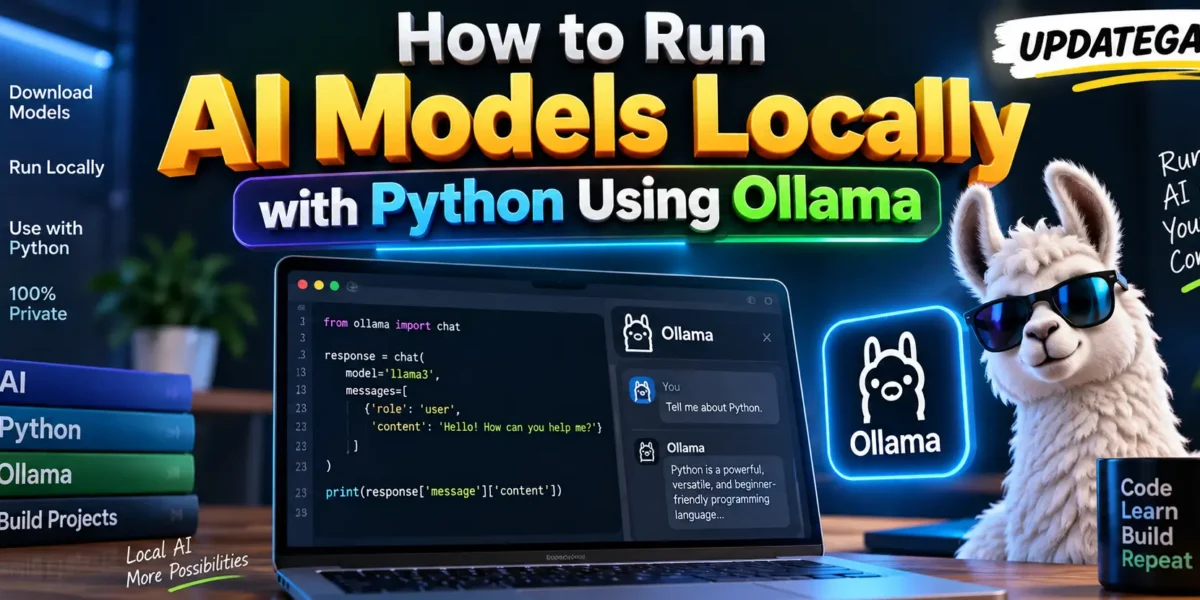
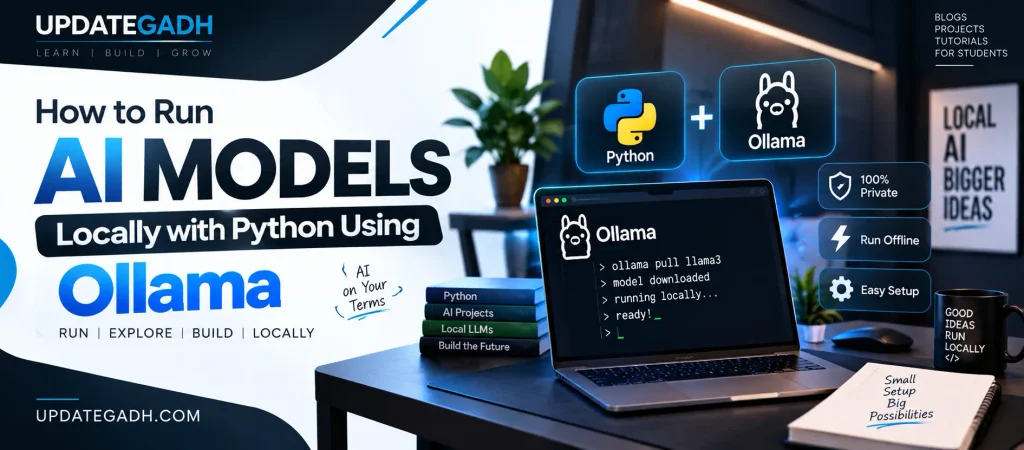
How to Run AI Models Locally with Python Using Ollama
Artificial Intelligence is becoming easier to use in everyday software projects. Many developers use cloud-based AI APIs, but there is another interesting option: running AI models directly on your own computer. This approach can be useful when you want to experiment with AI, build private applications, reduce dependency on external APIs, or learn how modern language models work.
Ollama makes this process much simpler. It allows developers to download and run supported AI models locally and interact with them through a simple command-line interface or API. Ollama can also be connected with Python, making it possible to build AI-powered applications without sending every prompt to a remote AI service.
In this tutorial, we will learn how to run AI models locally with Python using Ollama. We will cover installation, model downloading, Python setup, sending prompts, creating a simple chatbot, and some practical project ideas.
Table of Contents
What Is Ollama?
Ollama is a tool designed for running AI models on a local computer. Instead of building the complete model infrastructure yourself, Ollama provides a convenient way to download models and communicate with them through commands and APIs.
It can be used with different types of models available through its model library. Ollama’s documentation also describes support for areas such as coding, vision, embeddings, and reasoning.
The basic idea is simple:
Your Python Application
        ↓
Python Ollama Library
        ↓
Ollama
        ↓
Local AI Model
        ↓
AI Response
This makes Ollama especially useful for students and developers who want to experiment with local AI applications.
Why Run AI Models Locally?
Running an AI model locally can be useful in several situations. You can experiment with models without creating an API integration for every small project. Local execution can also be helpful when working with information that you prefer to keep on your own machine.
- Learn how LLM applications work
- Build AI applications with Python
- Experiment with different local models
- Reduce dependency on external AI APIs for development
- Build prototypes and educational projects
- Connect AI models with your own Python applications
However, local AI also depends heavily on your computer’s available RAM, storage, processor, and GPU capabilities. Larger models generally require more system resources.
Prerequisites
Before starting, you should have:
- A Windows, macOS, or Linux computer supported by Ollama
- Python 3.8 or newer
- Ollama installed on your system
- Enough storage for the model you want to use
- Basic knowledge of Python
- VS Code or another Python-compatible code editor
The official Ollama Python package currently requires Python 3.8 or newer.
Step 1: Install Ollama
First, install Ollama on your computer from its official website. After installation, Ollama can run as a local service that your applications can communicate with.
Once Ollama is installed, open Command Prompt, PowerShell, or your terminal and check that the command is available.
ollama --versionIf the command displays an installed version, Ollama is ready to use.
Step 2: Download an AI Model
Ollama works with downloadable models. You need to pull a model before asking it questions from your Python program.
For example, you can use a model available in the Ollama model library:
ollama pull gemma4The exact model you choose should depend on your computer’s resources and the type of application you want to build. Ollama’s current Python documentation uses gemma4 in its examples.
After downloading the model, you can test it directly from the terminal:
ollama run gemma4Now you can type a question and see the model generate a response locally.
Complete Advance AI Topics: Click Here
SQL Tutorial: Click Here
YT:- DecodeIT
Step 3: Create a Python Project
Open VS Code and create a new folder for your project. For example:
local-ai-pythonOpen the folder in VS Code and create a Python virtual environment:
python -m venv venvActivate the environment on Windows:
venv\Scripts\activateFor macOS or Linux:
source venv/bin/activateUsing a virtual environment keeps your project dependencies separate from other Python projects.
Step 4: Install the Ollama Python Library
Now install the official Python package:
pip install ollamaThe official Python client provides a convenient interface for communicating with Ollama from Python. It includes functions such as chat(), generate(), pull(), list(), and embed().
Step 5: Run Your First Local AI Program
Create a file named app.py and add the following code:
from ollama import chat

response = chat(
    model='gemma4',
    messages=[
        {
            'role': 'user',
            'content': 'Explain artificial intelligence in simple words.',
        }
    ],
)

print(response['message']['content'])
Run the program:
python app.pyYour Python program sends the prompt to the locally running Ollama model and prints the generated response. The official Python examples use the same basic chat() approach for communicating with a model.
How the Python Code Works
The first line imports the chat function:
from ollama import chatThe model parameter specifies which locally available model should process the request.
The messages parameter contains the conversation. The role tells Ollama who is sending the message. In this example, the role is user.
Finally, the generated content can be accessed using:
response['message']['content']This structure follows the current Ollama Python client response format.
Using Generate Instead of Chat
For simple prompt-and-response tasks, you can also use the generate() function.
from ollama import generate

response = generate(
    model='gemma4',
    prompt='What is machine learning?'
)

print(response['response'])
The generate API is designed for producing a response from a model and prompt. Ollama’s API also supports options such as system instructions, output formatting, streaming, and other model parameters.
Build a Simple Python AI Chatbot
Once the basic connection works, we can create a small chatbot. This example repeatedly accepts questions until the user types exit.
from ollama import chat

print("Local AI Chatbot")
print("Type 'exit' to stop.")

while True:
    user_input = input("\nYou: ")

    if user_input.lower() == "exit":
        print("Goodbye!")
        break

    response = chat(
        model='gemma4',
        messages=[
            {
                'role': 'user',
                'content': user_input
            }
        ]
    )

    print("AI:", response['message']['content'])
This small program demonstrates an important concept: Python does not need to contain the AI model itself. It communicates with Ollama, which handles the model execution.
Maintaining Conversation History
A chatbot becomes more useful when previous messages are included in the conversation. Ollama’s chat API accepts a sequence of messages, which can be used to maintain conversation history.
from ollama import chat

messages = []

while True:
    user_input = input("You: ")

    if user_input.lower() == "exit":
        break

    messages.append({
        'role': 'user',
        'content': user_input
    })

    response = chat(
        model='gemma4',
        messages=messages
    )

    answer = response['message']['content']

    messages.append({
        'role': 'assistant',
        'content': answer
    })

    print("AI:", answer)
Here, both user messages and AI responses are stored in the messages list. This gives the model the conversation context during subsequent requests.
Streaming AI Responses
For applications that should display an answer gradually instead of waiting for the complete response, Ollama’s Python library supports streaming.
from ollama import chat

stream = chat(
    model='gemma4',
    messages=[
        {
            'role': 'user',
            'content': 'Explain Python in simple words.'
        }
    ],
    stream=True
)

for part in stream:
    print(part['message']['content'], end='', flush=True)
Streaming can make chatbot interfaces feel more responsive because generated content can be displayed as it arrives. The official Python client supports streaming for chat and generation requests.
Useful AI Projects You Can Build with Ollama and Python
After learning the basic connection, you can use Ollama as the AI component inside larger Python applications.
- Local AI chatbot
- AI-powered document assistant
- Python coding assistant
- Resume analysis application
- Question-answering system
- Local content summarizer
- AI study assistant
- Document classification system
- AI-powered customer support prototype
- Private knowledge-base application
Important Things to Keep in Mind
Local AI does not automatically mean every model will run quickly on every computer. Model size and system hardware have a major effect on performance. Before downloading a large model, check whether your computer has enough memory and storage.
You should also remember that a locally running model can still produce incorrect information. Local execution changes where the model runs, but it does not guarantee that every generated answer is accurate.
Conclusion
Running AI models locally with Python and Ollama is a practical way to start building AI applications without making the setup unnecessarily complicated. Ollama handles the local model runtime, while Python gives you the flexibility to create your own applications around it.
With just a few steps, you can install Ollama, download a model, install the Python library, send prompts, maintain conversations, and stream generated responses. Once these fundamentals are clear, you can move toward more advanced applications such as document assistants, coding tools, AI study systems, and private local chatbots.
Primary Keyword: How to Run AI Models Locally with Python Using Ollama
Keywords: Ollama Python, run AI models locally, local AI with Python,How to Run AI Models Locally with Python Using Ollama, Ollama tutorial, Python AI chatbot, local LLM Python, Ollama Python tutorial, run LLM locally, AI models locally,Ollama Python Ollama Python tutorial Run AI models locally with Python Run AI models locally Local AI with Python Ollama tutorial Python AI tutorial Local LLM with Python Run LLM locally Ollama local AI AI models locally Python local AI Ollama AI models Ollama with Python Python LLM Local LLM Python Run LLM with Ollama AI chatbot with Python Ollama Build AI chatbot with Ollama Generative AI with Python Local AI chatbot Ollama API Python Python AI chatbot AI development with Python How to use Ollama with Python How to run Ollama locally Install Ollama for Python Ollama local model Run AI offline with Python Local language models AI programming with Python,How to Run AI Models Locally with Python Using Ollama,Run AI Models Locally with Python