How to Install Tkinter in Python
Introduction
Tkinter is Python’s built-in toolkit for creating graphical user interfaces (GUIs). It allows developers to build applications with windows, buttons, labels, input fields, menus, and other visual components without requiring a separate GUI framework.
Tkinter is commonly used for beginner-level desktop applications because its interface is relatively simple to learn and it works across major operating systems. In many standard Python installations, Tkinter is included as part of the Python distribution.
In this tutorial, you will learn how to check Tkinter, set it up on different operating systems, and create a small GUI application to confirm that everything is working correctly.
Table of Contents
Complete Advance AI Topics: Click Here
SQL Tutorial: Click Here
YT:- DecodeIT
Prerequisites
Before using Tkinter, make sure Python is available on your computer. You can check your Python installation from a terminal or command prompt with:
python --versionOn systems where Python 3 is accessed through the python3 command, you can use:
python3 --versionA basic understanding of Python variables, functions, imports, and program execution will also help when starting GUI development with Tkinter.
Do You Need to Install Tkinter Separately?
For many Python installations, Tkinter is already included. Therefore, running a command such as pip install tkinter is generally not the normal way to obtain it.
If Python was installed without the required Tcl/Tk components, however, you may need to add the appropriate package for your operating system.
How to Install Tkinter on Windows
On Windows, Tkinter is normally provided with the standard Python installer. During Python installation, make sure the option related to Tcl/Tk and IDLE is included.
If Python is already installed, the easiest first step is to test whether Tkinter is available instead of trying to install it with pip.
Check Tkinter Installation
Open Command Prompt, PowerShell, or the Python environment used by your project and run:
import tkinter as tk

print("Tkinter is available!")
If the program runs without an import error, Tkinter can be used in your Python application.
You can also check it by opening a small Tkinter window, which provides a more practical test.
How to Install Tkinter on macOS
Tkinter is commonly available with Python installations on macOS, but the exact setup can depend on how Python was installed.
If your Python environment does not include the required Tk components, you may need to install the appropriate Tk support through your package manager or Python distribution.
For a Homebrew-based setup, the following command can be used when the corresponding package is available in your environment:
brew install python-tkAfter installation, test the module again:
python3 -m tkinterIf Tkinter is correctly configured, this command should open a small demonstration window.
How to Install Tkinter on Linux
Linux distributions may provide Tkinter separately from the main Python package. The installation command depends on the Linux distribution you are using.
Debian or Ubuntu
sudo apt-get install python3-tkFedora
sudo dnf install python3-tkinterArch Linux
sudo pacman -S tkAfter installing the required package, you can verify the module by running:
python3 -m tkinterIf Tkinter is configured correctly, Python should launch a small Tkinter test window.
How to Use Tkinter in VS Code
VS Code does not require a separate Tkinter extension. Tkinter is provided through the Python environment selected for your project.
First, make sure VS Code is using the Python interpreter where Tkinter is available. Then create a Python file and test the import:
import tkinter as tk

print("Tkinter is working")
If you receive ModuleNotFoundError: No module named 'tkinter', check that the selected Python installation includes Tk support. On Linux, installing the appropriate system package is often required.
How to Use Tkinter in PyCharm
PyCharm also uses the Python interpreter configured for the project. Tkinter does not normally need to be installed through PyCharm’s package manager when it is already part of the selected Python installation.
To test it, create a Python file and run:
import tkinter as tk

root = tk.Tk()
root.title("Tkinter Test")
root.mainloop()
If a window appears, Tkinter is available in the interpreter being used by the project.
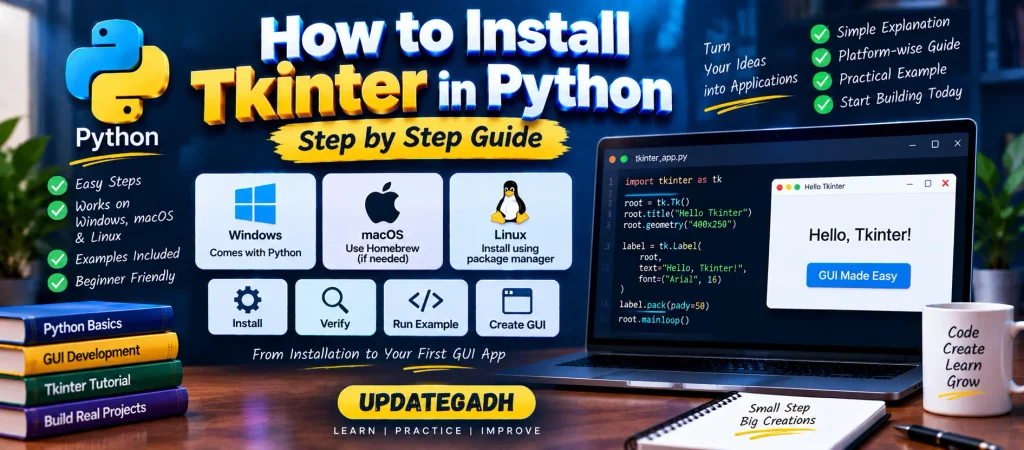
Create a Simple Tkinter GUI Application
Once Tkinter is available, you can create a basic desktop window with only a few lines of Python.
import tkinter as tk

root = tk.Tk()
root.title("My First Tkinter App")
root.geometry("400x250")

message = tk.Label(
    root,
    text="Hello, Tkinter!",
    font=("Arial", 18)
)

message.pack(pady=80)

root.mainloop()
Understanding the Example
import tkinter as tkloads the Tkinter module.tk.Tk()creates the main application window.title()sets the text displayed in the window title bar.geometry()defines the initial window size.Label()creates a text-based GUI component.pack()places the label inside the window.mainloop()starts the GUI event loop and keeps the application running.
Common Tkinter Installation Error
ModuleNotFoundError: No module named ‘tkinter’
This error indicates that the Python interpreter cannot find the Tkinter module. The solution depends on the operating system and the way Python was installed.
On Windows, check the Python installation and make sure the Tcl/Tk components are included. On Linux, install the appropriate Tk package for your distribution. Also make sure that your editor is using the same Python interpreter in which Tkinter is installed.
Important Points to Remember
- Tkinter is commonly included with standard Python installations.
pip install tkinteris not normally the recommended installation method.- Windows users should ensure that Tcl/Tk is included in the Python installation.
- Linux users may need to install a separate system package such as
python3-tk. - The Python interpreter selected in VS Code or PyCharm must have Tkinter support.
python3 -m tkintercan be used as a quick test on many systems.
Conclusion
Tkinter provides a straightforward way to create desktop GUI applications with Python. In many cases, it is already available with Python, so checking the existing installation should be the first step rather than trying to install it through pip.
The setup can differ slightly between Windows, macOS, and Linux. Once Tkinter is available, you can begin creating windows and adding components such as labels, buttons, text boxes, menus, and other interactive elements.
Frequently Asked Questions
Do I need to use pip to install Tkinter?
Usually, no. Tkinter is commonly distributed with Python. If it is missing, the required setup depends on your operating system and Python installation.
How can I check whether Tkinter is installed?
You can try importing it:
import tkinterYou can also run:
python3 -m tkinterHow do I install Tkinter on Ubuntu?
For Debian-based systems such as Ubuntu, the Tkinter package can be installed with:
sudo apt-get install python3-tkHow do I fix the Tkinter error in VS Code?
Check which Python interpreter VS Code is using and verify that Tkinter is available in that environment. If you are using Linux and the module is missing, install the appropriate Tk package for your distribution.
Can Tkinter be used with PyCharm?
Yes. Tkinter can be used in PyCharm as long as the Python interpreter configured for the project has Tkinter support.
Can Tkinter be used to create desktop applications?
Yes. Tkinter provides widgets and event-handling features that can be used to build interactive desktop applications with Python.
Keywords
How to Install Tkinter in Python, install Tkinter Python, how to install Tkinter in Python Windows, install Tkinter Windows, how to install Tkinter in Python PyCharm, how to install Tkinter in Python VS Code, Tkinter installation Python, pip install tkinter, Python Tkinter tutorial, ModuleNotFoundError no module named tkinter, install Tkinter Ubuntu, install python3-tk, Tkinter Python GUI, Python GUI development, Tkinter example, create GUI with Python, Tkinter installation guide