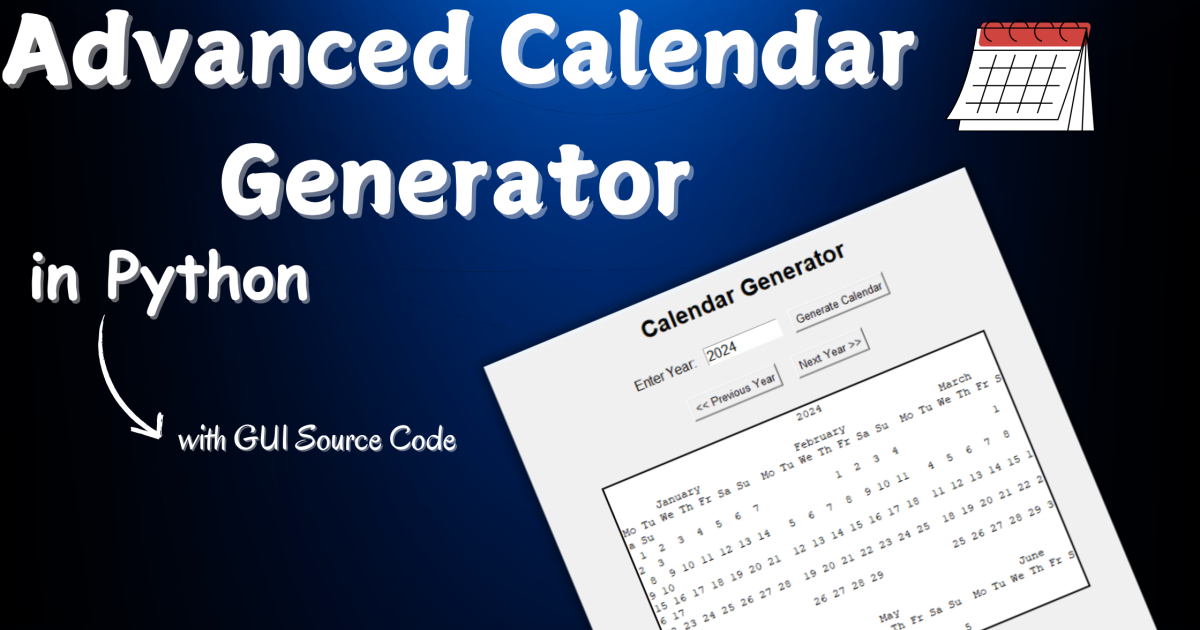
Advanced Calendar Generator in Python
The Calendar Generator in Python is a GUI-based project that allows users to generate calendars for any given year. Built using Tkinter, this tool offers easy navigation between years, clear input handling, and a user-friendly interface. With simple design and advanced features, it’s perfect for quickly generating and viewing yearly calendars effortlessly.
Table of Contents
About the System
This advanced-level Calendar Generator combines functionality and a sleek user interface using Python’s Tkinter library. The code features year navigation with “Previous” and “Next” buttons, input validation, and a clear button to reset the display. It uses a class-based design for modularity and a fixed-width font to ensure the calendar aligns perfectly. Enhanced user experience and error handling make it more interactive and professional.
Download New Real Time Projects :-Click here
Key Features:
- Navigate Between Years: Buttons to navigate to the previous or next year.
- Clear Button: A button to reset the calendar display.
- Error Handling: Handles invalid inputs.
- Fixed-width font for proper alignment of the calendar.
- Styling: Improved design and layout for a modern GUI.
https://updategadh.com/category/php-project
Calendar Generator Code:
import calendar
from tkinter import *
from tkinter import messagebox

class CalendarApp:
    def __init__(self, root):
        self.root = root
        self.root.title("Advanced Calendar Generator")
        self.root.geometry("600x500")
        self.root.configure(bg='#f0f0f0')

        # Default year to display
        self.current_year = 2024

        # Create UI elements
        self.create_widgets()

    def create_widgets(self):
        # Title
        title_label = Label(self.root, text="Calendar Generator", font=("Arial", 20, "bold"), bg='#f0f0f0')
        title_label.pack(pady=10)

        # Input field for year
        year_frame = Frame(self.root, bg='#f0f0f0')
        year_frame.pack(pady=5)

        self.year_label = Label(year_frame, text="Enter Year:", font=("Arial", 12), bg='#f0f0f0')
        self.year_label.grid(row=0, column=0, padx=5, pady=10)

        self.year_field = Entry(year_frame, width=10, font=("Arial", 12))
        self.year_field.grid(row=0, column=1, padx=5, pady=10)
        self.year_field.insert(0, str(self.current_year))  # Default year

        # Generate Button
        self.generate_btn = Button(year_frame, text="Generate Calendar", font=("Arial", 10), command=self.show_calendar)
        self.generate_btn.grid(row=0, column=2, padx=10)

        # Navigation Buttons (Previous Year, Next Year)
        nav_frame = Frame(self.root, bg='#f0f0f0')
        nav_frame.pack(pady=10)

        prev_year_btn = Button(nav_frame, text="<< Previous Year", font=("Arial", 10), command=self.show_previous_year)
        prev_year_btn.grid(row=0, column=0, padx=10)

        next_year_btn = Button(nav_frame, text="Next Year >>", font=("Arial", 10), command=self.show_next_year)
        next_year_btn.grid(row=0, column=1, padx=10)

        # Calendar Display Area
        self.cal_area = Text(self.root, height=20, width=60, font=("Courier", 10), borderwidth=2, relief="solid")
        self.cal_area.pack(pady=20)

        # Clear and Exit buttons
        action_frame = Frame(self.root, bg='#f0f0f0')
        action_frame.pack(pady=10)

        clear_btn = Button(action_frame, text="Clear", font=("Arial", 10), command=self.clear_calendar)
        clear_btn.grid(row=0, column=0, padx=10)

        exit_btn = Button(action_frame, text="Exit", font=("Arial", 10), command=self.root.quit)
        exit_btn.grid(row=0, column=1, padx=10)

        # Show initial calendar
        self.show_calendar()

    def show_calendar(self):
        try:
            # Get year input from user
            year = self.year_field.get()
            self.current_year = int(year)  # Ensure valid integer

            # Generate the calendar for the year
            cal_content = calendar.TextCalendar(0).formatyear(self.current_year, 2, 1, 1, 3)

            # Clear the text area before inserting the new calendar
            self.cal_area.delete(1.0, END)
            self.cal_area.insert(INSERT, cal_content)
        except ValueError:
            messagebox.showerror("Invalid Input", "Please enter a valid year.")
            self.clear_calendar()

    def show_previous_year(self):
        """Displays the calendar for the previous year."""
        self.current_year -= 1
        self.year_field.delete(0, END)
        self.year_field.insert(0, str(self.current_year))
        self.show_calendar()

    def show_next_year(self):
        """Displays the calendar for the next year."""
        self.current_year += 1
        self.year_field.delete(0, END)
        self.year_field.insert(0, str(self.current_year))
        self.show_calendar()

    def clear_calendar(self):
        """Clears the calendar display area and resets the input field."""
        self.cal_area.delete(1.0, END)
        self.year_field.delete(0, END)
        self.year_field.insert(0, str(self.current_year))

# Initialize the Tkinter window
if __name__ == "__main__":
    root = Tk()
    app = CalendarApp(root)
    root.mainloop()

Features Explained:
- Class-Based Design: This approach organizes the GUI in a class, making it more modular and scalable.
- Navigation: The
show_previous_yearandshow_next_yearmethods allow the user to navigate through different years without manually entering the year each time. - Input Validation: It handles invalid inputs by showing an error dialog box using
messagebox.showerror. - Fixed-Width Font: The
Textwidget uses the"Courier"font, which is monospaced. This ensures that the calendar is displayed in a structured manner, maintaining the proper alignment of days. - Clear Button: Resets the calendar display and input fields.
- Responsive Buttons: Users can navigate to previous and next years with dedicated buttons, and also exit the application with the
Exitbutton. - Modern Styling: The GUI uses a clean and simple style with padding and proper layouts for a pleasant user experience.
How it Works:
- Year Input: Users enter a year in the input field or navigate between years using the “Previous Year” and “Next Year” buttons.
- Calendar Display: The calendar is displayed in a fixed-width
Textwidget, ensuring that the months and days are aligned correctly. - Error Handling: If the user enters an invalid year (non-integer), an error message is shown.
- free advanced calendar generator in python
- advanced calendar generator in python pdf
- advanced calendar generator in python 2024
- calendar maker online free
- custom calendar generator in python
- calendar generator with events
- Advanced Calendar Generator in Python
- calendar maker free printable
- calendar maker 2024
🎓 Need Complete Final Year Project?
Get Source Code + Report + PPT + Viva Questions (Instant Access)
🛒 Visit UpdateGadh Store →