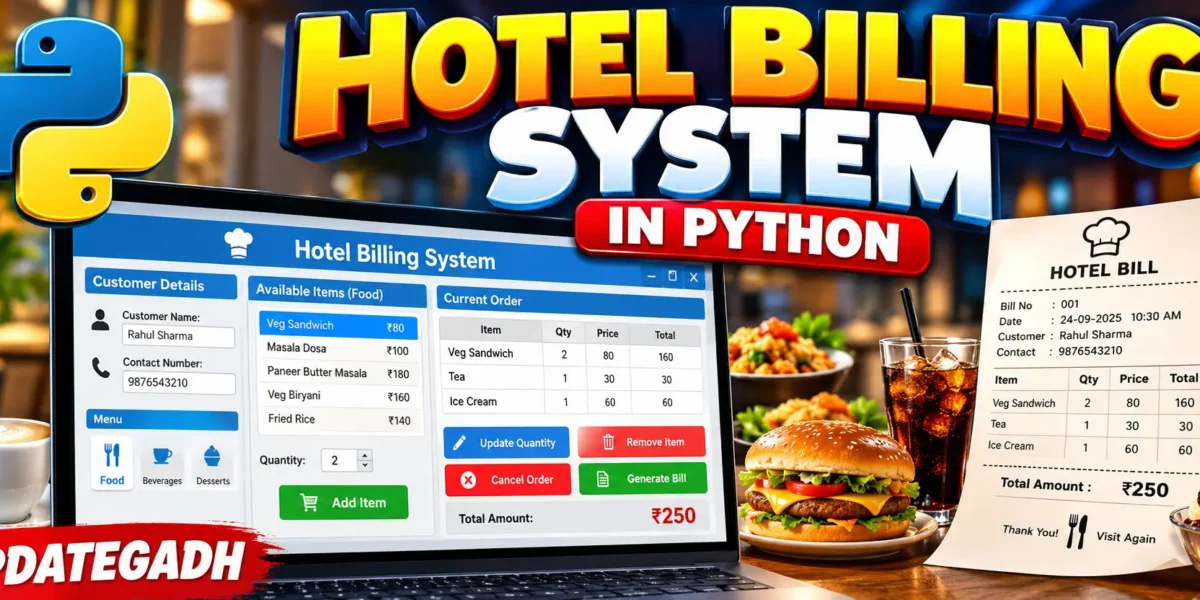
Hotel Billing System in Python
Hotel Billing System in Python is a simple beginner-friendly GUI-based mini project developed using Python and Tkinter. The application allows users to enter customer details, select food items from category-wise menus, manage an order, and generate a bill.
This project is designed specifically as a simple Python mini project. It does not use any database, web framework, API, login system, payment gateway, or external service. Menu information is loaded from text files, while the current order is temporarily managed using a Python Dictionary.
Table of Contents
Complete Advance AI Topics: Click Here
Real Time Projects:- DecodeIT
Project Overview
| Project Name | Hotel Billing System in Python |
|---|---|
| Programming Language | Python |
| GUI Library | Tkinter |
| Storage | Text Files |
| Temporary Order Storage | Python Dictionary |
| Project Type | Desktop GUI Mini Project |
| Developer | UPDATEGADH |
Introduction
Managing customer food orders and preparing bills manually can become difficult when several items are selected. A simple billing application can make this process easier by allowing the user to select menu items, enter quantities, and automatically calculate the total amount.
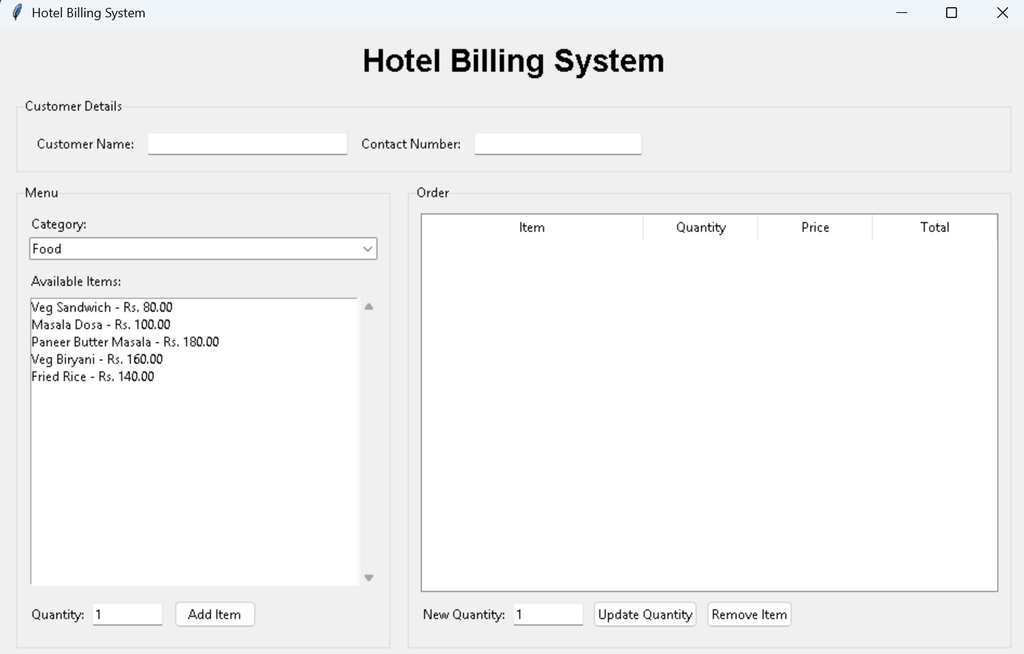
The Hotel Billing System provides a straightforward graphical interface where the user can enter the customer’s name and contact number, select a menu category, choose an item, specify its quantity, and add it to the current order.
The menu is divided into three categories: Food, Beverages, and Desserts. Each category is stored in a separate text file inside the Menu folder. This keeps the project simple and avoids the need for database software.
Available Features
- Customer Name input
- Contact Number input
- Food category
- Beverages category
- Desserts category
- Menu data loaded from text files
- Item selection
- Quantity selection
- Add item to order
- Automatic quantity update when the same item is added again
- Update quantity of an existing order item
- Remove selected item
- Cancel current order
- Automatic bill number generation
- Bill generation
- Bill display in a new Tkinter window
- Bill saved as a text file
- Simple validation using Tkinter message boxes
Menu Data
The application uses text files to store the menu information. These files are placed inside the Menu folder. Every line contains an item name and price separated by the | character.
Food Menu
Veg Sandwich|80
Masala Dosa|100
Paneer Butter Masala|180
Veg Biryani|160
Fried Rice|140
Beverages Menu
Tea|30
Coffee|50
Fresh Lime|45
Cold Drink|40
Desserts Menu
Ice Cream|60
Gulab Jamun|50
Fruit Salad|70
How the System Works
When the application starts, it reads the menu files from the Menu folder. The information is loaded into Python Dictionaries according to the selected category.
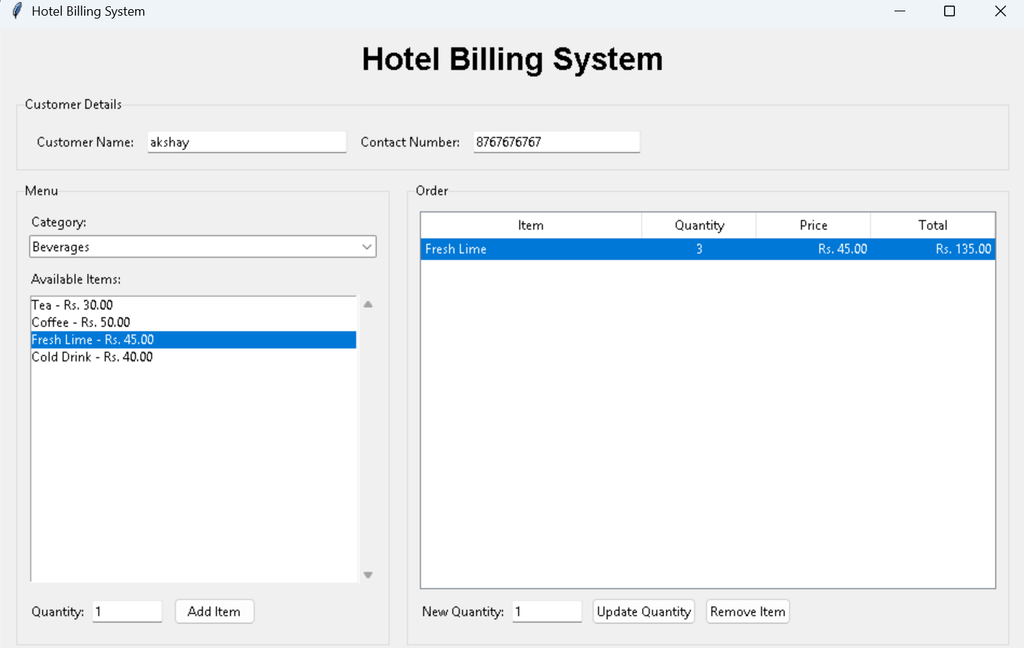
The customer first enters the required customer details. After that, a category can be selected from the menu section. The available items for that category are displayed in the item list.
After selecting an item, the user enters a quantity and clicks Add Item. The selected item is stored in the temporary order Dictionary. If the same item is added again, its existing quantity is increased.
The order section displays the selected item, quantity, price, and calculated total amount. The user can update the quantity or remove an item whenever required.
Order Management
The current order is maintained using a Python Dictionary rather than a database. Each selected item contains its quantity and price.
order = {}This keeps the project simple and makes it suitable for students who are learning Python Dictionaries, functions, file handling, and Tkinter GUI programming.
The Remove Item button deletes the selected item from the order. The Update Quantity option changes the quantity of an existing item. The Cancel Order button clears the complete current order.
Generate Bill
After at least one item has been added, the user can click Generate Bill. Before generating the bill, the application checks that the customer name, contact number, and order details are available.
The bill contains the customer name, contact number, bill number, date and time, selected items, quantities, item prices, individual totals, and the final total amount.
The generated bill is displayed in a separate Tkinter window. At the same time, the bill is saved as a text file inside the Bill Records folder.
Project Structure
Hotel_Billing_System/
│
├── main.py
│
├── Menu/
│   ├── food.txt
│   ├── beverages.txt
│   └── desserts.txt
│
├── Bill Records/
│
Installation and Setup
The project does not require any external Python package. Tkinter is used for the graphical interface and is normally included with standard Python installations.
Step 1: Install Python
Install Python on your computer if it is not already installed. During installation, make sure Python is available from the command line.
Step 2: Extract the Project
Extract the Hotel_Billing_System.zip file and open the extracted project folder in VS Code or a terminal.
Step 3: Open the Project Folder
cd Hotel_Billing_SystemStep 4: Run the Application
python main.pyThe Hotel Billing System window should open.
How to Use the Project
- Enter the customer name.
- Enter the contact number.
- Select Food, Beverages, or Desserts.
- Select an available menu item.
- Enter the required quantity.
- Click Add Item.
- Check the selected item in the Order section.
- Use Update Quantity when a quantity needs to be changed.
- Use Remove Item to delete an item.
- Use Cancel Order to clear the complete current order.
- Click Generate Bill when the order is ready.
- View the generated bill in the new window.
Download Source Code
Screenshot
Source Code
The main application is implemented in main.py. It contains the Tkinter interface, menu loading, order management, quantity updates, bill calculation, bill generation, and text-file saving functionality.
import os
from datetime import datetime
import tkinter as tk
from tkinter import ttk, messagebox

BASE_DIR = os.path.dirname(os.path.abspath(__file__))
MENU_DIR = os.path.join(BASE_DIR, "Menu")
BILL_DIR = os.path.join(BASE_DIR, "Bill Records")

CATEGORIES = {
    "Food": "food.txt",
    "Beverages": "beverages.txt",
    "Desserts": "desserts.txt",
}

order = {}

def load_menu():
    menu = {}

    for category, filename in CATEGORIES.items():
        path = os.path.join(MENU_DIR, filename)
        items = {}

        with open(path, "r", encoding="utf-8") as file:
            for line in file:
                line = line.strip()

                if not line or "|" not in line:
                    continue

                name, price = line.split("|", 1)
                items[name.strip()] = float(price.strip())

        menu[category] = items

    return menu


def add_item(item, quantity, price):
    if item in order:
        order[item]["quantity"] += quantity
    else:
        order[item] = {
            "quantity": quantity,
            "price": price
        }


def remove_item(item):
    if item in order:
        del order[item]


def update_item(item, quantity):
    if item in order:
        order[item]["quantity"] = quantity


def cancel_order():
    order.clear()


def calculate_total():
    return sum(
        details["quantity"] * details["price"]
        for details in order.values()
    )


def save_bill(bill_text, bill_number):
    os.makedirs(BILL_DIR, exist_ok=True)

    path = os.path.join(
        BILL_DIR,
        f"bill_{bill_number:03d}.txt"
    )

    with open(path, "w", encoding="utf-8") as file:
        file.write(bill_text)

    return path
The complete working source code is included in the project ZIP. The application uses the same simple structure throughout the project and does not require a database or external service.
Error Handling
Basic validation is included to prevent incomplete operations. The system checks that the customer name is entered, the contact number is entered, an item is selected before adding it, the quantity is greater than zero, and at least one item exists before generating a bill.
If an invalid operation is attempted, a Tkinter messagebox displays an appropriate error message.
Bill Records
Every successfully generated bill is saved in the Bill Records folder. Bills use sequential filenames such as:
bill_001.txt
bill_002.txt
bill_003.txt
The saved files contain the same bill information displayed in the bill window.
Conclusion
The Hotel Billing System in Python is a simple GUI-based mini project for understanding practical Python programming concepts. It demonstrates Tkinter interface development, Dictionary-based temporary data storage, text-file handling, event-based buttons, quantity management, basic validation, and automatic bill calculation.
Because the project uses only Python, Tkinter, Dictionaries, and text files, it remains simple enough for beginners while still providing a complete working billing workflow. Students can use this project to understand how a desktop application can manage menu items, customer orders, and generated bills without introducing a database or complex external technologies.
Keywords
Hotel Billing System in Python, Hotel Billing System Python, Python Hotel Billing System, Hotel Billing Software in Python, Hotel Billing Project in Python, Python Tkinter Project, Tkinter Hotel Billing System, Hotel Billing System Source Code, Python Mini Project, Python GUI Project, Tkinter Mini Project, Hotel Management Project in Python, Billing System Project, Restaurant Billing System Python, Python Project with Source Code, Beginner Python Project, Python Desktop Application, Hotel Billing Software Source Code, Customer Billing System Python, Python Tkinter Mini Project